


Territory management in Zoho CRM splits records by your real sales structure
Territory management in Zoho CRM lets you split accounts, contacts and deals by UK region, sector or another rule. Each rep works their own patch, and managers see the totals. You set it up in four moves. You define the criteria, build territories and sub-territories, add users and managers, then set forecast targets per territory.
Territory Management is, in Zoho's own words, "a system by which customer accounts are grouped based on a defined set of criteria". A territory is "the demarcation of the sales force structure by which customers accounts are grouped and shared with the sales people of an organization". In plain terms, a territory is a patch, and the criteria decide which records belong to it.
According to the Zoho CRM help page on managing territories, territories can be based on geography, industry, product line, expected revenue or verticals. Only a user with the Administrator profile can switch the feature on.
The design work matters more than the clicks. One choice at the start cannot be reversed, and switching the feature off later deletes your territory forecasts. Plan the structure on paper first, then build it once.
Territory criteria assign records automatically, parent first
Zoho CRM assigns territories to records automatically, based on the criteria you set. The Zoho CRM help page on using territories says this happens when a record is created or modified. You do not tag records by hand.
Territories form a hierarchy. You build it by creating territories and then sub-territories beneath them. A sub-territory is a smaller patch inside a larger one, such as Scotland inside a UK North territory.
The hierarchy has one strict rule. A record is checked against a sub-territory only after it meets the criteria of the parent territory. If the parent rule says "Country is United Kingdom" and a record has that field blank, the record never reaches Scotland or any other sub-territory beneath it. Many "missing" records in a new setup trace back to this rule.
Managers follow the same hierarchy. If a sub-territory has no manager of its own, the parent territory's manager administers it. You can therefore leave small sub-territories without a named manager at first. The regional lead covers them until you appoint someone.
Because assignment runs on create or modify, existing records that nobody touches may not pick up a new territory straight away. Plan for a controlled update of existing records when you go live, and check a sample afterwards.
Accounts and contacts can sit in ten territories, deals in only one
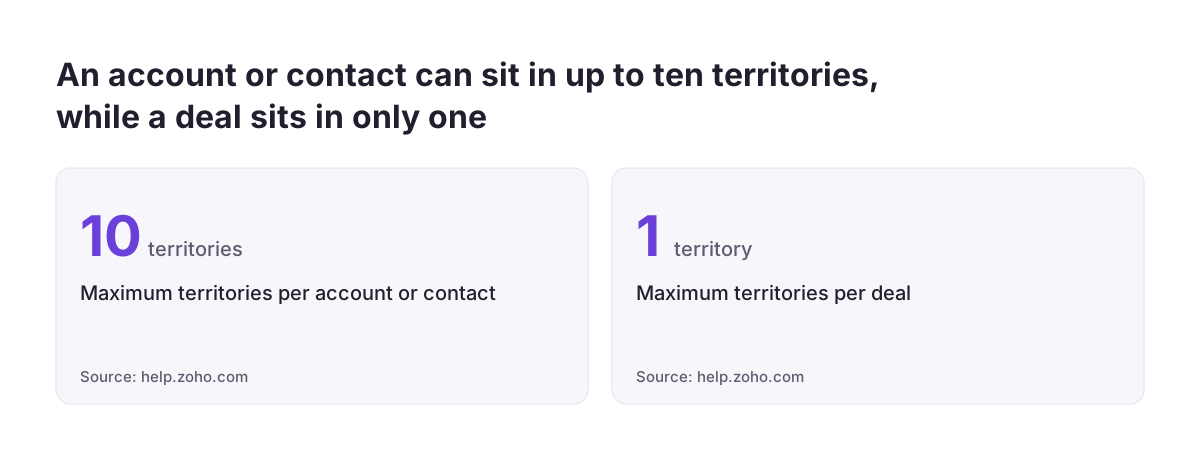
Zoho CRM treats accounts, contacts and deals differently. An account or contact can belong to a maximum of ten territories. A deal can belong to only one territory. This single rule shapes most of your design.
The ten-territory limit gives you room for overlap on accounts. A hospital trust in Manchester can sit in a North region territory and a Public Sector territory at the same time. The regional rep and the sector specialist can both work the account.
The one-territory limit on deals forces a choice. A deal rolls up to exactly one place in your forecast. If your region criteria and your sector criteria could both match the same deal, you need a rule that decides which one wins. The simplest approach is to base deal territories on one dimension only, usually region.
Users have more freedom than deals. A user can be part of more than one territory. A rep who covers both the Midlands and a national key account territory can belong to both, and each membership can carry its own target.
Write these limits into your design document before you build. Teams that discover the one-deal rule after go-live usually end up redrawing territories while forecasts are already running.
Record access: territory managers get read and write on their patch
Territory managers in Zoho CRM always have Read and Write permissions for their territories. The help centre states this as a fixed rule, not a setting. Pick territory managers with that in mind, because they can edit every record in their patch.
Viewing permissions go further than managers. Zoho's blog post on managing sales territories remotely describes three controls:
- Viewing permissions you can customise so that only relevant teams or individuals see the sales figures.
- Permissions set by hierarchy, so a senior employee sees the collateral and sales details of reps who report to them.
- Access between territory managers or the CEO that you can restrict or allow.
The same post notes that you can share reports and documents across territories and roles. That covers the common case where a regional rep sees only their patch but a sales director sees the national picture.
Keep territory membership and record ownership as two separate things in your checks. The territory help pages describe which territory a record joins. They do not say that territories change the record owner. If you also route leads to owners with assignment rules, test how the two interact on a handful of real records before you rely on either.
Forecasts and targets follow the territory hierarchy, and only managers set them
Territory management in Zoho CRM changes how forecasts work. A forecast is the target and expected revenue for a period, tracked against the deals in the pipeline. With territories enabled, you create forecasts based on the territory hierarchy.
Each user can have a different target for each territory they belong to. A rep in both the Midlands and a key account territory therefore carries two targets, not one blended figure. Zoho's blog adds that you can set monthly and quarterly targets by territory and team hierarchy.
Users cannot create forecasts for themselves. Only the manager can create a forecast for the users below them. This puts target setting firmly with regional managers and the sales director. Agree who owns each territory's forecast before the first quarter starts.
Reports follow the same structure. You can generate sales reports based on territories to measure the efficiency of each sales team. This is where managers "see the totals": the director reads the parent territory, and each regional manager reads their own sub-territory.
Protect these forecasts once they exist. If an administrator disables territory management, the existing forecasts based on the territory hierarchy are deleted permanently. Restrict who has the Administrator profile, and make sure everyone who does knows this consequence.
Build territories from scratch or from the role hierarchy: a choice you cannot undo
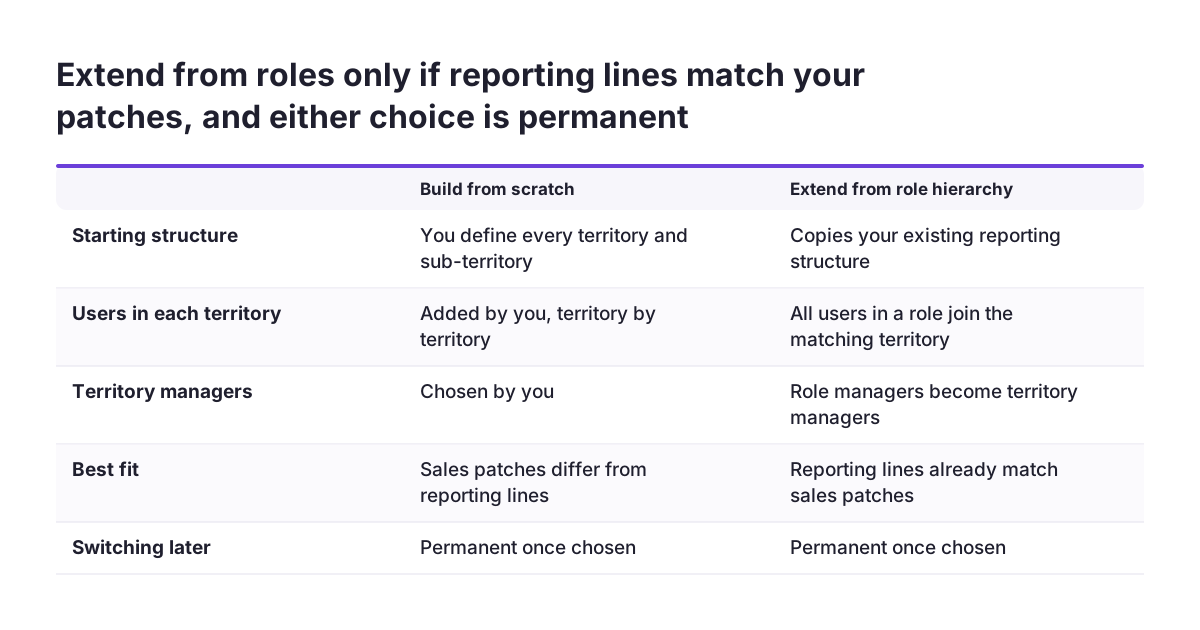
When you enable territory management, Zoho CRM asks whether to build territories from scratch or extend them from the role hierarchy. Once you choose, you cannot go back to the other option. This is the one decision to make slowly.
The role hierarchy is your reporting structure in Zoho CRM: who reports to whom. Extending from it copies that structure into territories. All the users in a role are added as users in the matching territory. The role managers become territory managers.
Extending from roles suits you when your reporting lines already match your sales patches. If the North sales manager manages exactly the North reps, the copy saves time and matches reality.
Building from scratch suits you when they differ. Common cases include:
- A sector specialist who reports to one manager but sells across all regions.
- An inside sales team that supports several regional territories.
- A director who manages people but should not own a territory forecast.
Switching the feature off does not reset this choice. If you disable territory management and enable it again, the territory structure remains unchanged. Only the territory forecasts are lost. Treat enabling the feature as a commitment, not an experiment, and use a sandbox if you want to try both options first.
Worked example: a UK wholesaler split by region and sector
Take a hypothetical Leeds wholesaler with twelve reps, a sales director and a public sector specialist. The brief is simple. Each rep sees their own region, the specialist sees public sector accounts nationwide, and the director sees everything.
The wholesaler's reporting lines do not match its patches, because the specialist reports to the Midlands manager. It therefore builds territories from scratch. The build runs in this order:
- Add a Region picklist to Accounts and Deals, filled from the billing postcode area.
- Create a parent territory, UK Sales, with the criterion "Billing Country is United Kingdom".
- Under UK Sales, create sub-territories: Scotland and Northern Ireland, North, Midlands, London and South East, and South West and Wales. Each uses "Region is" the matching value.
- Create a second top-level territory, Public Sector, for accounts only, with the criterion "Industry is Public Sector".
- Name the director manager of UK Sales, each regional lead manager of their sub-territory, and the specialist manager of Public Sector.
- The director creates quarterly forecasts for each regional manager, and each manager creates them for their reps.
The result works within Zoho's limits. A council account sits in both its region and Public Sector, well under the ten-territory limit. Its deals match only region criteria, so each deal lands in one sub-territory and one forecast.
The first test exposes one gap. Accounts with a blank billing country fail the UK Sales criterion, so they never reach any region. Fixing the country field on those records resolves it.
Design decisions to settle before you enable territories
Territory management in Zoho CRM involves a few decisions that are hard or impossible to change later. The table sets out each one, the options, what it affects and whether you can change it afterwards.
| Decision | Options | What it affects | Can you change it later? |
|---|---|---|---|
| Starting point | Build from scratch, or extend from the role hierarchy | Which users join each territory and who manages it | No, the choice is permanent |
| Territory basis | Geography, industry, product line, expected revenue, verticals | The criteria every record is tested against | Yes, but re-test assignment on real records |
| Hierarchy depth | Territories only, or territories with sub-territories | Parent criteria gate every sub-territory | Yes |
| Deal territory rule | One dimension, such as region, for deals | Where each deal rolls up in the forecast | The one-territory limit is fixed by Zoho |
| Account overlap | Up to ten territories per account or contact | Who can see and work each account | Yes |
| Territory managers | Named per territory, or inherited from the parent | Read and Write access, forecast creation | Yes |
| Disabling the feature | Keep enabled, or switch off | Territory forecasts are deleted permanently | Structure returns on re-enable, forecasts do not |
Settle the first and fourth rows before anything else. They are the two that you cannot adjust with a quick edit once reps are working in the system.
Where territory setups usually break
Territory setups in Zoho CRM usually break on data and assumptions, not on configuration. The same few problems come up again and again.
Parent criteria that miss records
A record that fails the parent criteria never reaches a sub-territory. Blank country fields, inconsistent county names and typed postcodes are the usual causes. At Svennis, we test the draft criteria against an export of real accounts before switching the feature on, and we fix the failing records first.
Deals that could match two territories
A deal can sit in only one territory. Mixed region and sector criteria on deals produce unpredictable roll-ups. Keep deal criteria on one dimension.
Postcode routing expected out of the box
A Zoho community thread on post code assignment shows a multi-dealership business asking how to route leads by postcode. Their old custom CRM did it through an API integration. Design the postcode field and criteria yourself, rather than assuming Zoho reads postcodes for you.
Territories expected to control products or fields
One user in a community thread on products and territories wanted EMEA products visible only to EMEA users, and reported finding no way to do it. Another user asked whether two territories can have different fields. Territories group records and control access. Do not plan on them doing more without testing.
What territory management means for a UK company
For a UK company, territory management in Zoho CRM usually starts with geography, and geography starts with clean address data. UK regions are informal. Your "North" may include Cheshire, and someone else's may not. Write your region definitions down and agree them with the sales team before you build criteria.
Postcode areas give you a stable basis. The first letters of a postcode, such as LS for Leeds or B for Birmingham, map cleanly to a region picklist. Counties and typed town names do not, because people spell them differently. A Region field filled from the postcode area keeps the criteria simple and the results predictable.
Sector territories often matter as much as regions. Public sector, NHS and education buyers tend to follow their own procurement cycles. A national sector territory for accounts sits comfortably beside regional territories, thanks to the ten-territory limit on accounts.
Remote and hybrid teams benefit most. Zoho wrote its territory post as part of a series on selling remotely. When reps rarely share an office, the territory structure is what tells each person which accounts are theirs.
Keep access proportionate. Zoho's viewing permissions let you show sales figures only to the teams that need them. Giving each rep their own patch, rather than the whole database, is also a sensible default for handling customer data carefully.
Next steps: test the criteria, then roll out territory by territory
The practical next step for territory management in Zoho CRM is a written design, tested against your own data, before anyone clicks Enable. Work through these steps in order:
- Draw your territories and sub-territories on one page, with the criterion for each.
- Decide between building from scratch and extending the role hierarchy, and record why.
- Clean the fields your criteria use, especially country and postcode, on existing accounts and deals.
- Try the structure in a sandbox, then enable it in production and update existing records in a controlled batch.
- Have managers create forecasts for their reps, and check the territory reports against last quarter's figures.
If your team is still settling its layouts and fields, our guide on how to customise your CRM covers the groundwork. For the wider feature set beyond the basics, see intermediate Zoho CRM features.
Territories change how reps see their work, so plan the rollout as a people change as well as a system change. Our glossary entry on change management explains the basics. If directors need reports that combine territories with finance or marketing data, look at Zoho Analytics for cross-system reporting.
When you want help with the design or the build, our Zoho CRM implementation and consulting page sets out how we work.
Sources
- Managing Territories - Online Help - Zoho CRM
- Using Territories - Online Help - Zoho CRM
- Remote sales: Manage your sales territories from anywhere - Zoho Blog
- Zip Code or Post code assignment in Territory manager to distribute leads - Zoho Community
- CRM - Product and Territories - Zoho Community
- Can 2 territories within CRM have different fields - Zoho Community