


Batch and serial number tracking in Zoho Inventory: the short answer
Batch and serial number tracking in Zoho Inventory stays accurate when you do three things. Decide, item by item, which method each product needs. Switch tracking on once. Then record the batch or serial at every stock movement: purchase receives and bills, invoices, returns and transfer orders. Get those stages right and you can trace a faulty batch to the customers who bought it.
Batch and serial number tracking is the practice of tagging stock with an identifier so you can follow it from supplier to customer. A batch number, which Zoho Inventory calls the batch reference number, covers a group of units made or received together. A serial number identifies one single unit.
This guide covers how to choose the method and how to structure batch records. It then walks through purchasing, sales, returns and transfers. It also shows where the data meets Zoho Books and Zoho CRM. The facts come from Zoho's own announcements and from its community forum. Where a point rests on a user's forum report rather than Zoho's documentation, the guide says so.
If you are still deciding whether Zoho Inventory for stock and order management suits your business, start there. Then come back to this guide once you know which products you will track.
Batch or serial: choosing the right tracking for each item
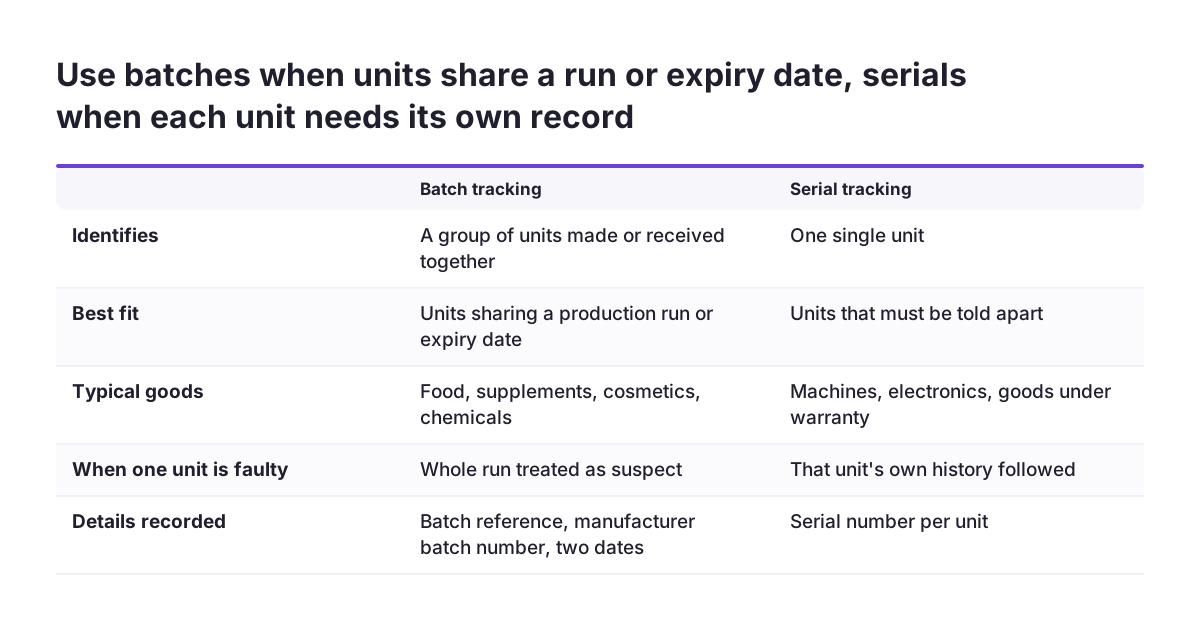
Choose batch tracking when units share a production run or an expiry date, and serial tracking when each unit must be told apart. The choice is made per item, so one catalogue can hold both kinds.
Batch tracking fits goods you buy and sell in quantity, where a whole run shares its fate. Food, supplements, cosmetics and chemicals are typical. If one unit in a run is faulty, the whole run is suspect. Expiry matters too. One user on Zoho's forum asked for batch tracking with expiry dates because they sell expiry-date-sensitive products, which is exactly the batch case.
Serial tracking fits goods where each unit has its own life after sale. Machines, electronics and anything with a warranty or a service history are typical. A customer rings about one device, and you need to know which unit they hold.
Use these questions to decide for each item:
- Does a fault usually affect a whole production run, or one unit? A run points to batch, one unit to serial.
- Does the product expire? Expiry dates live on batches.
- Will you service, repair or replace individual units after sale? That points to serial.
- Is the item cheap, high volume and never traced? It may need no tracking at all.
Tracking an item you never need to trace adds a data-entry step at every movement for no benefit. Leave such items untracked.
Switching tracking on once, and why turning it off causes gaps
Switch batch or serial tracking on for an item once, after you have decided, and avoid turning it off and on again. Toggling tracking leaves records that the system cannot easily repair.
A user on Zoho's forum described exactly this. They enabled item tracking, disabled it, then enabled it again. Afterwards the missing serial number report listed one item, but they could see no option to add the serial numbers. The stock existed, the serials did not, and the gap sat in a report with no obvious fix.
The lesson is to settle the decision before the first transaction. At Svennis we agree batch or serial for every tracked item in a workshop before anyone switches tracking on, because a later change of mind is where we see records go missing at clients.
Before you switch tracking on, prepare these:
- A list of tracked items, each marked batch or serial.
- The batch reference numbers or serials for stock already on the shelf.
- A named person who checks the missing serial number report after go-live.
Counting existing stock and recording its batches or serials on day one gives you a clean opening position. Every later movement then builds on correct data rather than on a gap.
Batch records in Zoho Inventory: the four fields to fill
A batch record in Zoho Inventory holds four details: batch number, manufacturer batch number, manufacturing date and expiry date. You can create new batches and edit existing ones directly on the item details page, according to Zoho's batch tracking enhancements announcement.
What each field is for
- Batch number: your own batch reference number, the identifier your team uses.
- Manufacturer batch number: the supplier's identifier, which you need when you raise a quality claim with them.
- Manufacturing date: when the run was made.
- Expiry date: when the stock can no longer be sold.
Why the structure matters later
Batches can be sorted by Batch Reference#, Manufactured Date and Expiry Date. They can be filtered as inactive, active, all, empty or expired. A toggle shows empty batches across those filters. Those sorts and filters only work if the dates are filled in consistently.
Agree one format for your own batch reference numbers before go-live. A reference that encodes the supplier and the receipt date reads well in a list and sorts sensibly. Always fill in the manufacturer batch number as well. When a supplier issues a recall, it will quote its own number, not yours.
Recording batches on bills, purchase receives and adjustments
Batches enter Zoho Inventory through purchasing. Zoho states that you can restock batches directly through bills, purchase receives and inventory adjustments. You can also create new batches from those same transactions.
A purchase receive is the record that goods have physically arrived. A bill is the supplier's invoice. An inventory adjustment corrects stock levels outside a purchase, for example after a stock count. Each one can carry batch details, so batch data is captured at the moment stock appears.
The best place to record the batch is the purchase receive, because that is when someone is looking at the labels on the boxes. Waiting until the bill arrives means relying on paperwork rather than the goods themselves.
Zoho also lets you associate the same batch with several line items on one purchase transaction. That helps when a supplier splits one production run across lines, for example at different prices or pack quantities. You record one batch rather than inventing artificial sub-batches.
Use inventory adjustments sparingly. They are right for a stock count correction or for loading opening stock. They are wrong as a routine way to create batches, because they bypass the supplier link. A batch created on a purchase receive tells you who supplied it. A batch created on an adjustment does not.
Assigning batches and serials on sales: the invoice-stage gap
On the sales side, users report that batches and serials are assigned at the invoice stage, which can be later than the warehouse needs. Check how your own organisation behaves, because forum reports describe a moment in time and Zoho updates the product.
One user on Zoho's forum wrote that they had to create an invoice and pick batches for the invoice, which they called too late for warehouse picking. Their workaround was to send the invoice to the warehouse using a template that removed most of the price information. The total invoice price, they said, could not be removed from the template. They asked Zoho to move batch assignment to the packing stage.
Serials show a similar pattern. Another user, whose accepted estimates become sales orders for warehouse staff to pick, asked how staff can select serial numbers when editing a sales order. They noted that a serial can be added when creating an invoice. The same thread on another portal adds that sales orders that have been shipped or are on hold cannot be updated.
The practical point is to test your sales flow end to end before go-live. Find out exactly where your organisation captures the batch or serial. Then decide who records it, warehouse or accounts, and how that person learns which unit actually left the building.
Returns and transfer orders: keeping stock in the right batch
Returns and transfers are where batch stock most often drifts into the wrong place. Zoho Inventory has settings for both.
Returns to the sold batch
Zoho offers an option called Allow quantity to be added only to the sold batch when returned. You tick it and save. With it on, returned units go back into the batch they were sold from, not into whichever batch someone picks. Zoho notes one rule: the return quantity must be less than or equal to the quantity in the batch that was sold.
Turn this option on for any batch-tracked item where traceability matters. Without it, a returned unit from a suspect batch could be booked into a clean batch. Your recall list would then be wrong in both directions.
Transfer orders between warehouses
A transfer order moves stock from one warehouse to another. Zoho states that transfer orders created after its update fill the source batch details into the destination batch automatically. Transfer orders created before that update keep the destination batch that was previously entered.
If you have older transfer orders, review them once. Any destination batch typed by hand at the time may not match the source. Correct the mismatch now, while the people who made the transfer can still remember it.
Worked example: tracing a faulty batch back to customers
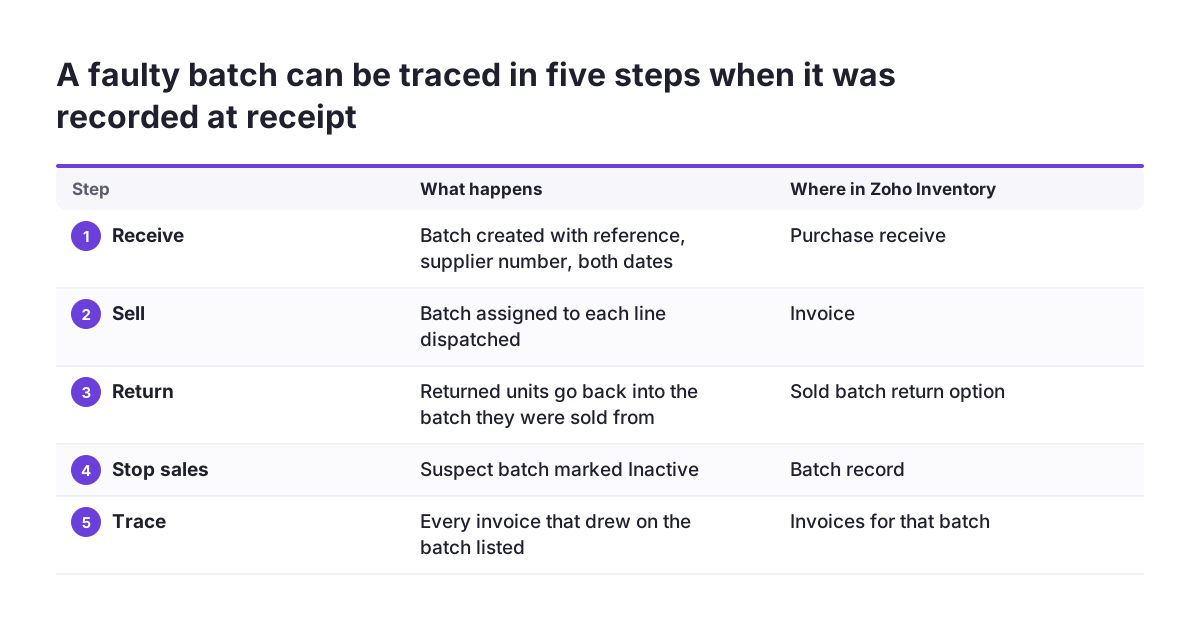
Tracing a faulty batch in Zoho Inventory means finding the batch, stopping further sales of it, and listing every sale that drew on it. Here is how that runs for an illustrative UK distributor of a boxed food supplement, batch-tracked with expiry dates.
- Receive. A delivery arrives. On the purchase receive, the warehouse creates a batch with its own batch reference number, the supplier's manufacturer batch number, the manufacturing date and the expiry date.
- Sell. Over the following weeks, units from that batch are assigned on invoices to several retail customers.
- Return. One customer returns a few boxes. Because the sold-batch return option is on, the units go back into the same batch.
- Alert. The supplier reports a fault and quotes its own batch number. You find the matching batch through its manufacturer batch number.
- Stop. You mark the batch Inactive. Zoho describes this status as keeping the batch for reporting while preventing users from adding it to future transactions.
- Trace. The invoices on which the batch was assigned give you the customers to contact.
- Evidence. The audit trail report now covers batches, showing who created, modified, restocked or transferred them.
Step six depends on discipline earlier on. If staff skipped the batch on any invoice, that customer will not appear. Rehearse this trace on a test batch and confirm how you will pull the invoice list in your own organisation, before a real recall forces the question.
Stage-by-stage checklist for batch and serial tracking
Accurate batch and serial tracking depends on recording the right detail at each stage of the stock journey. The table below sets out each stage, the transaction involved, what to record and what to check.
| Stage | Transaction in Zoho Inventory | What to record | What to check |
|---|---|---|---|
| Set-up | Item details | Batch or serial choice per item | Decision made before the first transaction, no later toggling |
| Opening stock | Inventory adjustment | Batches or serials already on the shelf | Missing serial number report is empty |
| Purchasing | Purchase receive or bill | Batch reference, manufacturer batch number, both dates | Manufacturer batch number never left blank |
| Sales | Invoice | Batch or serial actually dispatched | Warehouse and accounts agree on who records it |
| Returns | Return against the sale | Units back into the sold batch | Sold-batch return option ticked and saved |
| Transfers | Transfer order | Source batch carried to destination | Older transfer orders reviewed for mismatches |
| Withdrawal | Batch status | Inactive for recalled or unsellable batches | Expired filter reviewed on a fixed schedule |
Print this checklist for the go-live week. Each row maps to one owner, which makes gaps easy to spot when you review it afterwards.
Connecting batch and serial data to Zoho Books and Zoho CRM
Keep Zoho Inventory as the single home for batches and serials, and treat Zoho Books and Zoho CRM as systems that read from it. Users report gaps at both connections, so test before you depend on them.
Zoho Books
One user reported that the Zoho Books "Get an item" API returned a warehouses property whose batches array was empty. They could see batch numbers in the Batch Details tab of the item in the Books interface. They also said the documentation did not explain whether that property was the right source. If you plan an integration that reads batch numbers, prove it against real data first.
Zoho CRM
A user selling serial-tracked products noted on the forum that entering each serial number as a separate product in Zoho CRM would stop them tracking product stock. They asked whether serial information from Zoho Inventory is available through the API. The same thread includes a user's statement that Zoho does not sync price books between Zoho CRM and Books or Inventory.
Do not model serials as CRM products. Keep products as products and serials in Inventory. Decide early which serial or batch details your sales team needs to see in CRM, and how they will reach it. Our guide to what a Zoho Inventory partner should connect for you covers those links in more depth.
What batch and serial tracking means for a UK business
For a UK business, batch and serial tracking in Zoho Inventory matters most where stock control meets finance and customer service. That usually means the stock data has to agree with Zoho Books and with what your sales team tells customers.
Many UK firms already run their accounts in Zoho Books. If you do, Inventory and Books share items, so batch decisions you make in Inventory show up for your finance team. The forum report about the Batch Details tab in Books shows that finance staff can see batch numbers there. Agree with your finance lead how batch information should appear on invoices and in their checks.
Sector rules and customer contracts may ask you to show where a batch or unit went. This guide does not cover those rules. Whatever applies to you, the evidence comes from the same places: batch records with both dates, invoices carrying the batch or serial, and the audit trail report showing who changed what.
Check one practical detail too. Zoho stated that from 15 May 2024, Zoho Inventory no longer supports Firefox or Google Chrome versions older than 100. Warehouse PCs and scanners are often the oldest devices in a UK business. Make sure the browsers your pickers use are current before they start recording batches and serials.
Next steps: set up batch and serial tracking in Zoho Inventory
Start with the decision, not the settings. Batch and serial tracking in Zoho Inventory only stays accurate if every tracked item has a settled method before the first transaction.
- List every item you stock and mark it batch, serial or untracked.
- Agree your batch reference format and insist on the manufacturer batch number at every receipt.
- Count existing stock and record its batches or serials as your opening position.
- Tick the sold-batch return option for batch-tracked items.
- Test one full cycle in your organisation: receive, invoice, return, transfer and mark a batch Inactive.
- Rehearse a trace on a test batch and confirm how you will list the affected invoices.
- Prove any Books or CRM integration against real batch and serial data before relying on it.
If you are budgeting for the change, read Zoho Inventory pricing once Books and CRM are connected. It sets out the plans and add-ons, so you can check that your chosen plan covers the warehouses and integrations this guide assumes.
When you are ready to plan the build, see our page on Zoho Inventory for UK businesses. It explains how we approach stock and order management set-ups.
Sources
- Batch Tracking Enhancements In Zoho Inventory
- Batch Number on Packing Slip
- Items Serial Tracking Issue
- Is it possible to Select Item Serial Numbers from a Sales Order?
- Is it possible to Select Item Serial Numbers from a Sales Order? (shipped and on-hold orders)
- How to get batch number of item by api?
- Serial number tracking
- I want it to be able to batch tracking with expiry date