


Building a Zoho Creator app and going live: what the path looks like
Building a Zoho Creator app and going live is two jobs, not one. The first is the build: forms, reports, workflows and the connections to your other Zoho systems. The second is the launch: permissions, testing with the people who will use the app, and a cut-over that moves the business from the old way of working to the new one.
Most first launches spend weeks on the build and an afternoon on the launch. That imbalance causes most of the trouble. Staff find they cannot see records they need, test entries sit next to real ones, and nobody knows who fixes what.
This guide covers the build half after the plan is agreed. It assumes you know which process you are moving into Creator and roughly what the app must do. Zoho describes Creator as an AI app builder for applications, agents and workflows, built with AI, with ready-made visual components or in code, and its product page quotes more than 6M users and 7M apps.
The steps run in order:
- Understand the two modes and the environments.
- Model the data before you draw screens.
- Build forms and workflows, then write Deluge where clicks stop.
- Connect Zoho CRM and Zoho Books.
- Set permissions and test with real users.
- Run the cut-over checks, hand over and manage the first month.
If you are still deciding whether the platform suits you, our Zoho Creator overview explains what it is for.
Edit mode, live mode and environments
Every Creator app runs in two modes. Zoho's help page on the modes of an application defines them plainly.
- Edit mode is where super admins, admins and developers build, view and edit the components of the app: forms, pages, reports and workflows.
- Live mode shows the app from an end user's point of view. It is also where users enter data.
When you create your first app, you land straight in edit mode. The two modes sit on different addresses: edit mode on https://creator.zoho.<dc>/ and live mode on https://creatorapp.zoho.<dc>/, where <dc> is your account's data centre. Zoho warns that opening a different data centre's address may stop your app from loading. Give staff the correct live address, not a copied edit link.
Environments
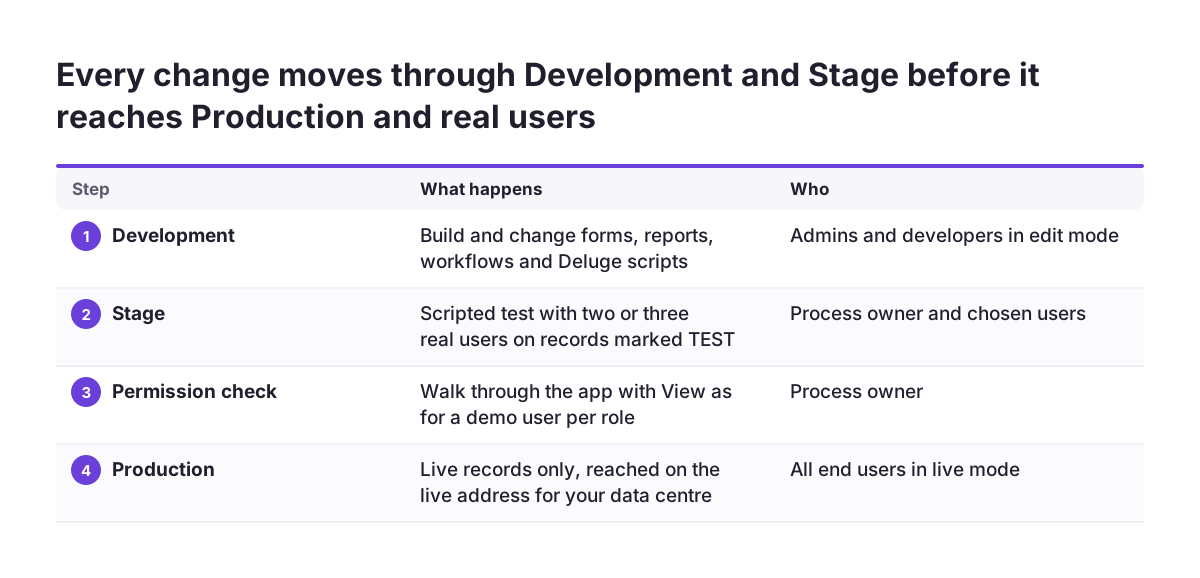
When the Environments feature is enabled, you can edit and access the app at three levels: Development, Stage and Production. Treat them as separate rooms. You build in Development, test with users in Stage, and only Production holds real business data.
Live mode also gains a View as dropdown when Environments is on. It lets you choose a demo user and see the app as that person would. This is the single most useful tool for checking permissions before launch, and we return to it below.
Model the data before you build the screens
The data model is the list of things your app stores, the fields each one holds and how they relate. Get it wrong and every later step inherits the error. Get it right and forms, reports and workflows follow almost on their own.
Start on paper. For each record type, write down:
- Its name, in the singular, as staff would say it: Job, Site, Engineer.
- The fields it needs, and which are mandatory.
- Which other records it links to, and whether one links to many.
- Which system owns it. If a customer lives in Zoho CRM, Creator should look it up there rather than keep a second copy.
Only then open the form builder. In Creator the edit mode builders for forms, reports and pages appear as formbuilder, reportbuilder and pagebuilder. The Access this Application button stays disabled until you add at least one form, so the form is always your first component.
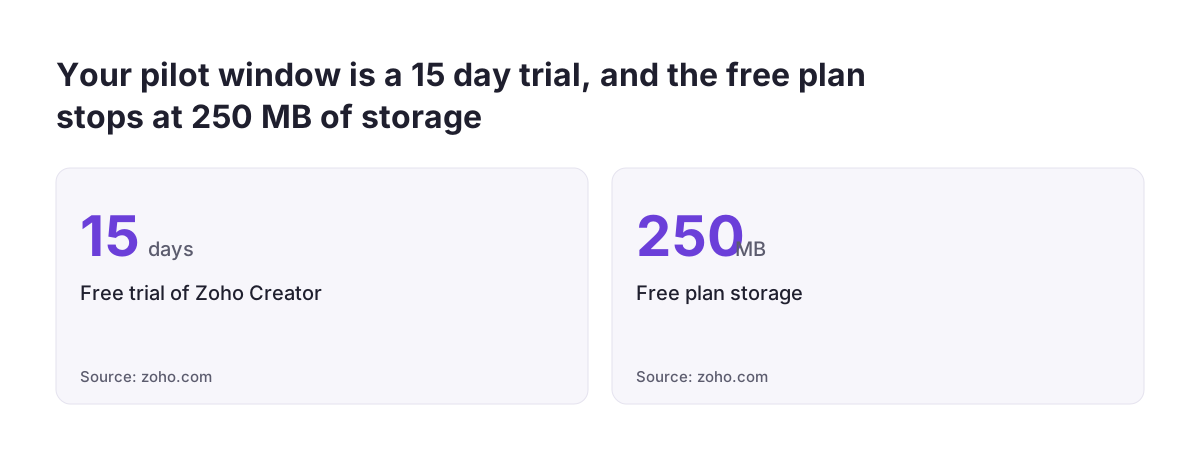
Keep field names stable once testing begins. Renaming a field late affects every workflow, report and integration that reads it. If you are piloting on the free plan, note its limits: one user, one application, 250MB of storage and 1,000 records. That is enough to prove a data model, not to run a department.
Forms and workflows first, Deluge where clicks stop
A workflow is a rule that acts when something happens: a record is created, a field changes, a date arrives. Most routine actions can be set up with clicks. Assign the record to someone, send a confirmation email, update a status field. Build these first, because they are easy for the next person to read.
Deluge is Zoho's own scripting language. You reach for it when the logic outgrows the click-built options: a calculation across several records, a decision with many branches, or a call to another service. Keep each script short, give it one job, and write a one-line comment at the top saying what it does and why. Whoever inherits the app will read those comments before anything else.
The AI agents
Zoho Creator now includes a Plan Agent that turns a described idea into a business requirement document, a Build Agent that adds modules and workflows, and a Test Agent that generates and runs test cases. Build Agent works in both edit and live mode during development and takes natural language prompts. It can also apply changes directly in live mode without switching to edit mode.
That last point needs discipline. Changes made straight in live mode skip the step where someone reviews them. Use Build Agent in Development, review what it produced, then promote it. If you plan wider AI automation around the app, keep the same rule: nothing changes Production without a person checking it.
Connecting the app to Zoho CRM and Zoho Books
Most Creator apps in a Zoho business sit between two systems. Customers and deals live in Zoho CRM. Invoices and payments live in Zoho Books. Creator handles the process in the middle that neither covers well, such as job scheduling, approvals or site inspections. Zoho lists more than 1,000 prebuilt connectors for Creator, so the connection itself is rarely the hard part.
The hard part is deciding the direction of each flow. Write a short table for every connection:
- What moves: the record type and the fields.
- Which way: CRM to Creator, Creator to Books, or both.
- When: on create, on a status change, or on a schedule.
- Who owns the truth: the system whose value wins if the two disagree.
Two-way sync of the same field is where duplicates and overwrites start. Avoid it unless you truly need it. A common safe pattern is to read customers from CRM, keep the job in Creator, and push only the finished, approved job to Books to raise an invoice.
Test every connection with awkward data: a customer with no email, a company name with an apostrophe, a job cancelled after it was approved. If reporting across all three systems matters, plan it now; Zoho Analytics can sit on top once the data flows are clean.
Permissions, test data and testing with real users
Permissions decide who can see, add, edit and delete each record. Set them by role, not by person. Start from the job each group does, then give the least access that lets them do it. Remember that edit mode belongs to super admins, admins and developers. Ordinary users should work only in live mode.
Check permissions with the View as dropdown in live mode, choosing a demo user for each role. Walk through the app as that user. Can an engineer see other engineers' jobs? Can an office user delete an approved record? Write down each finding and fix it before anyone else sees the app.
Test data
Use realistic test records in Development and Stage, never in Production. Give them an obvious marker, such as a customer called "TEST Ltd", so they are easy to find and remove. Include the difficult cases from your connections list.
Real users
The Test Agent can generate and run test cases, which is useful for catching broken logic. It cannot tell you that a form asks for fields in the wrong order for someone standing on a site. For that you need two or three people who will use the app daily. Give them a short script of real tasks, watch them work without helping, and record where they hesitate. Fix those points in Development, promote to Stage, and ask them to repeat the script.
A worked example: a site visit app
Take a UK facilities firm moving site visit requests out of a shared spreadsheet into Creator. Customers already sit in Zoho CRM and invoices go out from Zoho Books.
Data model. Three record types: Site Visit, Site and Engineer. Site Visit links to one Site and one Engineer. The customer is looked up from CRM, not copied.
Forms and workflows. The first form is Site Visit Request, which unlocks Access this Application. A click-built workflow assigns the visit to the engineer for that area and emails the customer a confirmation. A short Deluge script calculates the visit charge from the time on site and the call-out rule.
Connections. CRM to Creator for customers, on lookup. Creator to Books for approved visits only, triggered when status changes to Complete.
Environments. The team builds in Development, then promotes to Stage. Using View as, they check an Engineer demo user sees only their own visits and cannot edit the charge.
Testing. Two engineers and one office coordinator run a script of ten real visits in Stage, including one cancelled after approval. The cancellation reveals that a draft invoice still reaches Books, so the workflow gains a check on status before pushing.
Go-live. The spreadsheet is frozen on a Friday, open visits are imported into Production, staff get the live address, and the old sheet becomes read-only.
The cut-over checks most first launches skip
Cut-over is the moment the business stops using the old method and starts using the app. It is a short event, and it needs a checklist with a named owner for each line.
| Check | What to confirm | Owner |
|---|---|---|
| Environment | Staff use the Production live address on your own data centre | App admin |
| Test data | No TEST records in Production; imported records counted against the source | App admin |
| Permissions | Each role checked with View as; no end user has edit mode access | Process owner |
| Connections | One live record pushed to CRM and Books and checked at both ends | Finance lead |
| Notifications | Emails go to real customers only after the switch, not during import | App admin |
| Old system | Spreadsheet or old tool frozen and read-only from a stated time | Process owner |
| Fallback | A written plan for working if the app is unavailable during the day | Manager |
The fallback line is the one people leave blank. In a Zoho community thread, a consultant asked how stable Creator is as a live system used throughout the business day. That is the right question to ask before launch, and your answer should include what staff do if they cannot reach the app.
At Svennis we run each cut-over from a written list like this and have one person sign off every line; the launches we see go wrong are usually the ones where test records and live notifications were never checked before the switch.
Handing it over and running the first month
Handover means someone inside your business can run and change the app without the builder. Give them four things:
- The data model table and the connection table from earlier steps.
- A list of every workflow and Deluge script, with its one-line purpose.
- The roles, who holds each one, and who may grant access.
- The rule for changes: build in Development, test in Stage, then promote.
The first month
Plan the month before go-live, not after. In week one, keep a named person available to users each day and log every question. Most will be training issues, and a few will be real faults. In week two, fix the faults in Development and promote them in one planned release rather than several quick edits.
In weeks three and four, compare the app with the old method. Count records created, check that every approved job reached Books, and ask users what they still do outside the app. Anything still on paper or in a spreadsheet shows where the design missed. A team channel in Zoho Cliq is a simple place to collect questions during this period.
At the end of the month, decide the next small improvement. Resist a second large build until the first app is steady.
What this means for a UK firm
A few points matter more for a business operating in the UK.
Personal data. A Creator app that holds customer names, addresses or staff details is processing personal data, so UK GDPR applies to it as it does to any other system. Zoho states that Creator is independently audited against SOC 2, HIPAA and HDS, and that Zoho holds ISO 27001, 27017 and 27018 certification. That covers the platform, not your design. You still decide who sees what, how long records stay, and which fields you collect at all.
Data centre. Confirm which Zoho data centre your account uses and give staff the matching live address. The wrong address can stop the app from loading, which looks like an outage on the first morning.
Hosting choices. Zoho says Creator can run on Zoho Cloud, AWS, Azure, GCP, on-premise or hybrid. Most small firms will stay on Zoho Cloud, but the choice exists if your governance rules need it.
Budget. Creator is priced per user, with monthly and annual plans, and a Flex plan for requirements that do not fit the standard plans. A 15-day free trial lets you test the data model before you commit. Count the people who will enter data, not only the builders, when you estimate cost.
Practical next steps
If you are about to start building, work through these in order:
- Write the data model table: record types, fields, links and the owning system for each.
- Write the connection table for Zoho CRM and Zoho Books, with direction and trigger.
- Enable Environments and agree that only reviewed changes reach Production.
- Build forms and click-built workflows first, then add short, commented Deluge scripts.
- Create a demo user per role and check each one with View as.
- Run a scripted test with two or three real users in Stage.
- Copy the cut-over table above, add a name to every line, and fill in the fallback plan.
- Book the first-month reviews in the diary before go-live day.
If you want a second opinion on the build or the launch plan, it helps to know what an implementation partner actually does; our post on what a Zoho partner is explains the role. For the platform itself, the Zoho Creator page on this site is the place to start.