


Checking Companies House from a Zoho CRM workflow: how it works
To check Companies House from a Zoho CRM workflow, you attach a Deluge function to a workflow rule. An account or lead gets a company number. The function then calls the Companies House company profile API. It writes back the company status, incorporation date, SIC codes and registered office postcode.A workflow function is a Deluge script that a workflow rule runs as its action. Deluge is Zoho's own scripting language. The build in this guide has three parts: a stored connection to Companies House, a set of custom fields, and one function called by two workflow automation rules per module.
This post is one of three UK guides on Zoho CRM automation with code. A client script is the better tool when you only want to catch a malformed VAT or company number while a user types, before the record saves. Our guide to validating UK VAT and company numbers with a client script covers that case. A weekly scheduled check is the better tool when you need to spot companies whose status changes after you first recorded them.
The workflow function sits between those two. It checks each number once, when the number arrives, against the live register. It also fills the company name, but only when the name field is empty.
What you need first: a Zoho CRM edition with functions, a permission and a Companies House API key
A workflow function needs an edition of Zoho CRM that includes functions. Zoho's function limits page lists full access on the Enterprise, CRM Plus, Ultimate and Zoho One editions. On Standard and Professional, functions are available only through Extensions.The person who builds the function needs the Manage Extensibility permission. Zoho places it under Developer Permissions in profile settings. Check your own profile before you start, because the Functions menu will not help you without it.
On the Companies House side, you need a user account. The Companies House getting started page says you must register one to explore and test the API. In your developer account, register an application and create an API key for it. Every request must carry that key.
Each run of the function also uses Zoho credits. A credit is the unit Zoho CRM uses to govern function execution, and each Deluge function run deducts one. The daily allowance depends on edition and licences:
- Enterprise and Zoho One: 20,000 free credits plus 500 per user licence, plus any add-on credits.
- CRM Plus and Ultimate: 20,000 free credits plus 1,000 per user licence, plus any add-on credits.
Credits reset on a 24-hour rolling window. One company lookup costs one credit, so normal day-to-day data entry is unlikely to trouble the allowance.
How the Companies House company profile API answers a request
The Companies House company profile is a single GET request tohttps://api.company-information.service.gov.uk/company/{companyNumber}. The company number is a required part of the path. The reference page says the request needs an API key.
Authentication uses HTTP Basic access. According to the Companies House authentication page, the API takes the username as the API key and ignores the password, so the password can be left blank.
The function reacts to four HTTP status codes. Each one leads to a different action on the record:
| Status | What Companies House means | What the function does |
|---|---|---|
| 200 | Success, with a companyProfile resource | Maps the profile fields to the record |
| 404 | Resource not found | Sets the status field to not-found |
| 401 | Unauthorised | Logs the code and leaves the record unchanged |
| 429 | Too many requests | Logs the code and leaves the record unchanged |
The function reads five members of the profile: company_name, company_status, date_of_creation, sic_codes and registered_office_address.postal_code. The code checks each one for a value before using it. The developer guidelines also warn that your application must handle new members and a changing member order.
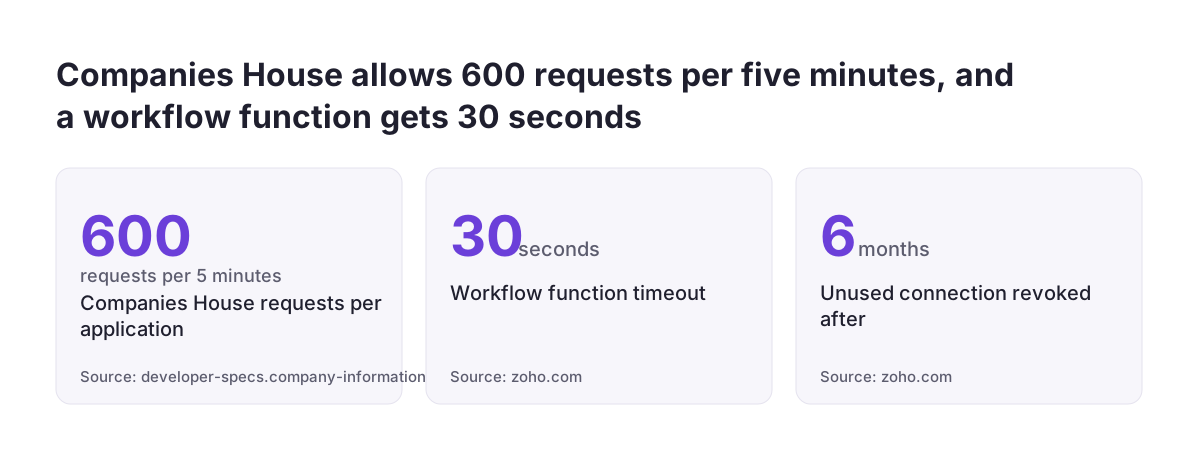
The Companies House rate limiting guide allows 600 requests in a five-minute period. After that, every request in the rest of the window gets a 429. Companies House reserves the right to ban, without notice, applications that regularly exceed or try to bypass the limit.
Steps 1 and 2: store the Companies House API key in a Basic connection
A Zoho connection is a stored authentication that Deluge uses to call another service. Keeping the key there matters, because the Companies House developer guidelines warn that storing keys in application code increases the risk that they will be discovered. A key inside a function is visible to anyone who can open the function.Create the connection in Zoho CRM as follows:
- Open Setup, then Developer Hub, then Connections.
- Companies House is not in the default services list, so create a custom service.
- Choose Basic as the authentication type.
- Name the connection
companies_house. The function refers to that exact link name. - When you connect, enter your Companies House API key as the username and leave the password empty.
Zoho encodes the username and password with base64 and sends them as a header. That is exactly the Basic scheme Companies House expects.
Three connection rules from the Deluge connections help page affect you later:
- Editing or deleting a custom service revokes every connection created with it.
- A connection unused for more than six months is revoked automatically, and you can reauthorise it.
- Display names and link names can be up to 50 characters.
Companies House also advises regenerating API keys regularly. With the key in a connection, you update it in one place, and the function code does not change.
Step 3: create the custom fields the function writes
The function writes to six fields on the Accounts or Leads module. The API names below are examples. Create the fields in your own org, then check the API name Zoho actually assigned to each one, because the code must match it exactly.| Example API name | Suggested field type | What it holds |
|---|---|---|
| Company_Number | Single line text | The number, normalised to eight characters |
| Company_Status | Single line text | The Companies House status, or not-found, or invalid-number |
| Incorporated_On | Date | The date of creation from the profile |
| SIC_Codes | Single line text | The company's SIC codes, separated by commas |
| Registered_Postcode | Single line text | The registered office postcode |
| CH_Checked_On | Date | The date of the last change the function made |
Keep Company_Status as single line text rather than a picklist. Companies House returns values such as active, dissolved, liquidation, receivership, administration and voluntary-arrangement. The field also stores the two values the function adds itself, not-found and invalid-number. A picklist would reject any value you forgot to list.
The company name needs no new field. The function uses the standard Account_Name field on Accounts and Company on Leads. If you are unsure where custom fields go in the layout editor, our guide on how to customise your CRM walks through fields and layouts.
Step 4: read the record and normalise the company number
The first part of the function reads the record and cleans the company number. Create the function under Setup, Developer Hub, Functions, in the Automation category. Give it two string arguments:recordId and moduleName. Try the whole build in a sandbox before you use it on live data.
Paste this block first. The three blocks in this guide form one function, pasted one after another.
void automation.ch_enrich_record(string recordId, string moduleName)
{
	nameField = "Account_Name";
	if(moduleName == "Leads")
	{
		nameField = "Company";
	}
	fieldList = nameField + ",Company_Number,Company_Status,Incorporated_On";
	fieldList = fieldList + ",SIC_Codes,Registered_Postcode,CH_Checked_On";
	rec = zoho.crm.v8.getRecordById(moduleName,recordId.toLong(),{"fields":fieldList});
	if(rec == null || rec.get("status") == "failure" || rec.get("status") == "error")
	{
		info "CH: cannot read " + moduleName + " " + recordId + ": " + rec;
		return;
	}
	rawNumber = rec.get("Company_Number");
	if(isNull(rawNumber) || rawNumber.toString().trim() == "")
	{
		return;
	}
	// Upper case, no spaces or punctuation, all-digit numbers padded to 8 (00000006)
	num = rawNumber.toString().toUpperCase().replaceAll("[^A-Z0-9]","");
	if(num.matches("[0-9]{1,7}"))
	{
		num = ("0000000" + num).right(8);
	}
	desired = Map();
	if(num != rawNumber.toString())
	{
		desired.put("Company_Number",num);
	}
Normalising means turning what a user typed into the eight-character form. A user who types sc 123456 gets SC123456. A user who types 6 gets 00000006, as the comment shows. When the cleaned number differs from the typed one, the function queues the cleaned version for writing.
Change the field names in fieldList if your API names differ. The desired map collects every value the function wants to write. Nothing is saved until the last block.
Step 5: call Companies House and map the company profile to fields
The second part of the function sends the request and turns the answer into field values. A number that is still not eight letters or digits never reaches Companies House. It is marked invalid-number instead, which saves a request. if(!num.matches("[A-Z0-9]{8}"))
{
desired.put("Company_Status","invalid-number");
}
else
{
resp = invokeurl
[
url :"https://api.company-information.service.gov.uk/company/" + num
type :GET
connection:"companies_house"
detailed:true
];
code = resp.get("responseCode").toString().toLong();
if(code == 429 || code == 401)
{
// rate limit reached, or the key is wrong: leave the record unchanged
info "CH: HTTP " + code + " for record " + recordId;
return;
}
if(code == 404)
{
desired.put("Company_Status","not-found");
}
else if(code != 200)
{
info "CH: HTTP " + code + " for " + num + ": " + resp.get("responseText");
return;
}
else
{
profile = resp.get("responseText").toString().toMap();
if(!isNull(profile.get("company_status")))
{
desired.put("Company_Status",profile.get("company_status"));
}
if(!isNull(profile.get("date_of_creation")))
{
desired.put("Incorporated_On",profile.get("date_of_creation"));
}
sicText = "";
sicList = profile.get("sic_codes");
if(!isNull(sicList))
{
for each sic in sicList
{
if(sicText != "")
{
sicText = sicText + ", ";
}
sicText = sicText + sic;
}
}
desired.put("SIC_Codes",sicText);
postcode = "";
roa = profile.get("registered_office_address");
if(!isNull(roa) && !isNull(roa.get("postal_code")))
{
postcode = roa.get("postal_code");
}
desired.put("Registered_Postcode",postcode);
// Fill the name only when empty: never overwrite a trading name a user typed
currentName = rec.get(nameField);
if(isNull(currentName) || currentName.toString().trim() == "")
{
if(!isNull(profile.get("company_name")))
{
desired.put(nameField,profile.get("company_name"));
}
}
}
}
The detailed:true parameter makes invokeurl return the response code and the response content as separate keys. Without it, you get only the content and cannot tell a 404 from a 200. The connection line points to the connection you created in step 2. Change it only if you named yours differently.
A 401 or 429 leaves the record untouched, so it can be checked again later. The name rule protects trading names. If a user typed "Acme Plumbing", the registered name does not replace it.
Step 6: write only the fields whose values changed
The third part of the function compares each queued value with what the record already holds. It saves only the differences. That keeps the record's audit trail clean and avoids an update when nothing changed. // Write only the fields whose value actually changed
upd = Map();
for each fieldName in desired.keys()
{
newVal = desired.get(fieldName);
oldText = "";
if(!isNull(rec.get(fieldName)))
{
oldText = rec.get(fieldName).toString();
}
if(oldText != newVal.toString())
{
upd.put(fieldName,newVal);
}
}
if(upd.isEmpty())
{
info "CH: " + num + " unchanged";
return;
}
upd.put("CH_Checked_On",zoho.currentdate.toString("yyyy-MM-dd"));
res = zoho.crm.v8.updateRecord(moduleName,recordId.toLong(),upd,{"trigger":List()});
if(isNull(res.get("id")))
{
info "CH: update failed for " + recordId + ": " + res;
}
}
CH_Checked_On is stamped only when something was written. If you want the date of every lookup instead, move that line above the upd.isEmpty() check. Rename CH_Checked_On to match your own field.
The empty list passed as trigger is there to stop this update from setting off further automation. The update changes Company_Number when it normalises it. Without the empty trigger list, the edit rule could fire the function again.
Every info line writes to the function's log. When a record does not change as you expected, read those log lines first.
Step 7: add two workflow rules per module and test on a real record
Two workflow rules call the function in each module, one for new records and one for edits. Create them under Setup, Automation, Workflow Rules. Build the pair once for Accounts and again for Leads if you check both.- Rule one: execute On Create, with the condition Company Number is not empty.
- Rule two: execute On Edit, choose Specific field(s) gets modified, and pick Company Number.
- In both rules, add a function as the action and select
ch_enrich_record. - Map
recordIdto the record's Id merge field. - Type
moduleNameas a constant:AccountsorLeads, matching the rule's module.
The edit rule fires only when the number changes. Edits to the phone number or owner do not call Companies House and do not spend credits.
Test before you switch the rules on for everyone. Run the function from the editor with the ID of a real record that has a known company number. Then open the record and check that the status, incorporation date, SIC codes and postcode match the Companies House entry. Next, try a nonsense number such as 12AB and confirm the status reads invalid-number. Our intermediate Zoho CRM guide covers workflow rules in more depth if the rule editor is new to you.
Automation functions time out after 30 seconds. The invokeurl task itself throws a socket timeout only after 40 seconds. A very slow reply therefore ends the function first, and the record simply stays unchanged.
Common setup mistakes with a Companies House workflow function
Most failures of a Companies House workflow function come from the setup rather than the code. These are the ones worth checking before go-live:- The API key pasted into the function. Companies House warns that keys stored in code are more likely to be discovered. Use the Basic connection.
- A picklist for the status. It cannot store not-found or invalid-number, so updates fail.
- A rule on every edit. Firing on any change spends a credit and a Companies House request each time.
- Field API names copied from this guide. Zoho may have assigned different names in your org.
- A key typed as the password. Companies House reads the username and ignores the password, so the call returns 401.
- An edited custom service. Editing it revokes the connection, and lookups stop until you reconnect.
At Svennis, the first thing we check on an existing setup is whether the key sits in the function code, and we move it into a connection before touching anything else. It is the fix that also makes regenerating the key painless.
Bulk changes deserve a separate thought. If an import or mass update sets company numbers and triggers the rules, it can exceed 600 requests in five minutes. Records beyond that point get a 429 and stay unchanged. Companies House may ban applications that regularly exceed the limit. Load large lists in smaller batches, or leave them for a scheduled check.
What a Companies House check means for a UK company using Zoho CRM
For a UK firm, a Companies House check puts the public register entry for the company you are dealing with on the account record. Treat that entry as a starting point for due diligence, not a replacement for it. Companies House records almost all the information it receives digitally. It makes that information public through its website and its API. Your CRM can read the same register your finance team would check by hand.The status field is the part that changes decisions. A lead whose status reads liquidation, administration or dissolved is a different conversation from an active one. Sales, credit control and onboarding can all filter on it in views and reports.
The profile holds more than this function reads. It includes a jurisdiction member with values such as england-wales, scotland and northern-ireland. It also has a partial_data_available member, returned when Companies House is not the primary source of data for the company. Treat those records with extra care.
Remember what a single check cannot do. The function records the register as it stood on the day the number arrived. A company that enters administration next month will still show active until something checks it again. That is why the weekly scheduled check exists as the third post in this set.
If you are still building the account structure itself, the Zoho CRM setup checklist for a UK firm puts fields like these in context.
Next steps: build the Companies House check in a sandbox this week
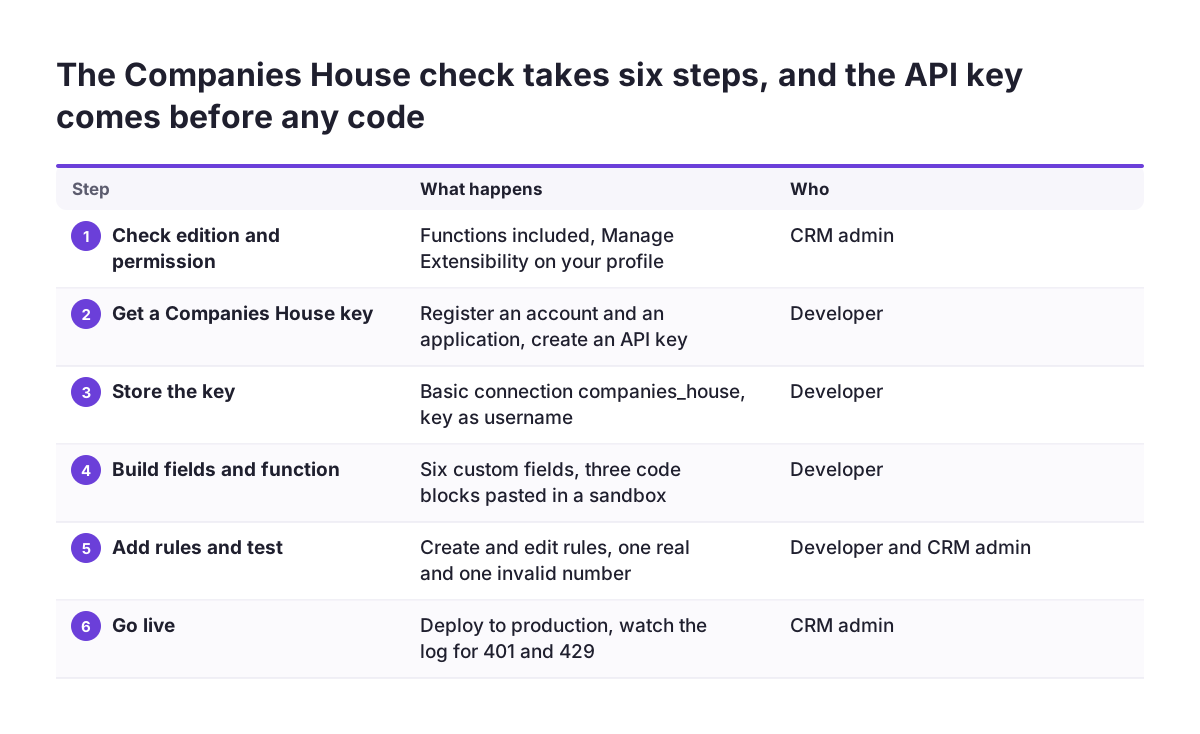
The Companies House check fits into a short piece of work if you take it in order. Start with the parts that need approvals or accounts, then move to code:- Confirm your edition includes functions and that your profile has Manage Extensibility.
- Register a Companies House account, register an application and create an API key.
- Create the
companies_houseconnection with the Basic type, key as username. - Create the six custom fields and note the API names Zoho assigned.
- Paste the three code blocks as one function in a sandbox and correct any field names.
- Add the create and edit rules, then test with one real number and one invalid number.
- Deploy to production and watch the function log for 401 and 429 entries in the first week.
Set a reminder to regenerate the Companies House key, as its guidelines advise. Reconnect the connection when you do. If the connection sits unused for six months, Zoho revokes it, so check it after quiet periods.
If you would rather have the check built and tested alongside the rest of your CRM, our Zoho CRM implementation and consulting page explains how that work is scoped.
Sources
- Zoho CRM Functions: Platform Limits and Quotas
- Zoho Deluge Help: Connections
- Zoho Deluge Help: invokeURL task for API calls
- Companies House: Rate limiting guide
- Companies House Public Data API: companyProfile resource
- Companies House Public Data API: Company profile
- Companies House: Developer Guidelines
- Companies House: Authentication
- Companies House: Get started with the Companies House API