


Why test a Zoho CRM customisation in a sandbox at all
Testing a Zoho CRM customisation in a sandbox means running your new fields, workflow rules and scripts in a copy of your CRM before anyone in sales depends on them. A customisation is any change to how your CRM is set up, from a new field on a record to a script that runs when a record is saved. This guide is part 2 of a three-part series on customising Zoho CRM with Zoho's own AI.
Part 1 covers writing Deluge functions with help from Zia, Zoho's built-in assistant, and what to check in the code itself. Part 3 covers handing the finished setup to your team. This post sits between them: proving that what you built behaves the same way once it is live.
The risk is plain. A user who asked Zoho for a sandbox, in a Zoho community thread, said that changing a live system without one meant "potentially losing information and costing money!" Records that a broken rule has overwritten are hard to put back, and a sales team that loses trust in the CRM stops updating it.
If you are still deciding what to change, how to customise your CRM gives the background. This guide assumes the change is built or nearly built, and you now need to test it properly.
What a Zoho CRM sandbox is and what it copies
A sandbox is a separate environment that looks like your CRM, where you can make and test changes without disturbing the real one, which Zoho calls production. Zoho introduced the feature in Zoho CRM 2016 so that teams could test changes during business hours without interrupting the day's sales. In Zoho's words, it "creates a CRM environment exactly like your own, lets you make your configurations and test them."
According to Zoho's sandbox page, the feature gives you these options:
- Multiple sandboxes, so separate projects can be tested in different parts of the CRM.
- A choice of configuration: an administrator imports all CRM configurations, or only those for the features being worked on.
- A choice of data: sample data for selected modules, or a copy of your most recent production data.
- Rebuilds, which copy the changes made in production since the sandbox was created.
Configuration and metadata here mean the structure of your CRM, such as its fields, layouts, rules and templates, as opposed to the records themselves. Zoho states that changes made in the sandbox do not extend outside it. Inside it you can reconfigure settings, build workflows and functions, and create templates to see how they work.
That isolation is the point. It is also the reason a sandbox can mislead you, because the copy is only as current and as complete as the last time you built it.
What the sandbox does not carry across
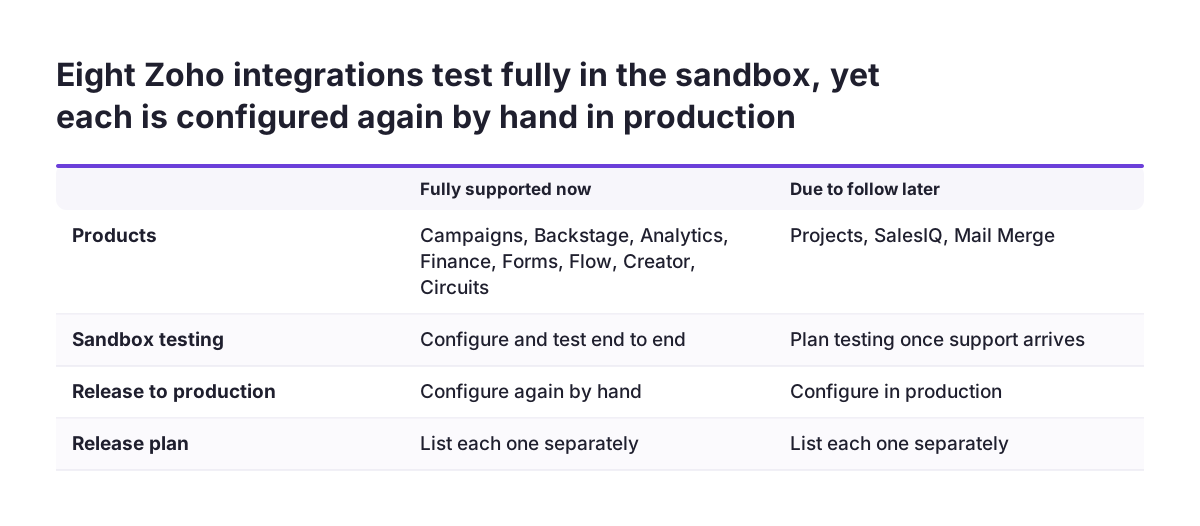
Integrations need the most care. Zoho has expanded the sandbox to support integrations with other Zoho products, and eight are listed as fully supported: Zoho Campaigns, Backstage, Analytics, Finance, Forms, Flow, Creator and Circuits. Integrations for Zoho Projects, SalesIQ and Mail Merge are due to follow later, so a customisation that depends on those cannot yet be tested end to end.
The bigger catch is in the same integrations announcement: "Deployment support is not available for any of the integrations." You can configure and test an integration such as the one with Zoho Analytics in the sandbox, but you must set it up again in production by hand. Two further limits apply:
- Zoho Forms: email templates that contain sandbox form links cannot be deployed. You remove the link, deploy the template, then add the production form link in production.
- Zoho Creator: only environment-based apps can be imported. Apps without environment variables do not appear in the sandbox import list.
Data is the other gap. Sample data is tidy, while real records carry blanks, duplicates and odd formats. A copy of production data is closer to reality, but it is a snapshot that ages from the moment you take it.
Setting up the sandbox for one piece of work
Set the sandbox up for the change you are testing, not as a general playground. A focused sandbox makes the results easier to read and the release easier to plan.
- Name the scope. Write down which fields, rules, functions and templates are in this release. Anything not on the list stays out.
- Choose the configuration. Import everything if the change touches several modules, or only the features involved if it is contained.
- Choose the data. Use sample data for a first pass on logic, and a copy of recent production data before sign-off, so real edge cases show up.
- Rebuild if the sandbox is old. A rebuild brings across changes made in production since it was created.
- Invite outside developers here, not into production. Zoho lets you invite third-party developers to work through the sandbox, which keeps them out of production, but if the sandbox holds a copy of production data they will still see real customer records, so use sample data or make sure a data processing agreement is in place.
The rebuild step is the one teams leave out. At Svennis we rebuild the sandbox from production at the start of every test cycle, because a function tested against an old layout tends to fail on a field someone added since.
If several changes are in flight at once, use separate sandboxes. Zoho supports multiple sandboxes, and keeping unrelated work apart stops one change from hiding a fault in another.
A worked example: a Deluge function and a workflow rule
Deluge, short for Data Enriched Language for the Universal Grid Environment, is Zoho's own scripting language. When an action happens in a Zoho application, it can trigger a Deluge script that carries out a workflow action. A workflow rule is the trigger: it says which event, on which records, runs which action.
Take a firm that adds a custom field called Onboarding status to Contacts. A workflow rule fires when a contact is created, calls a Deluge function that updates the related record in Accounts, and sends an email template containing a Zoho Forms link. Test it with a small, deliberate set of records:
| Test record | What it proves |
|---|---|
| A normal contact linked to an account | The expected path works |
| A contact with no account | The function handles a missing link without failing |
| A contact with Onboarding status left blank | The rule does not fire when it should not |
| Two contacts on the same account in quick succession | The second update does not overwrite the first |
| A contact created by import rather than by hand | The rule behaves the same for bulk entry |
Create each record the way a user would, not by running the function directly. Zoho's guidance for testing extensions makes the same point: check that an automation rule works by triggering it "as though you are the end user". Then open the account, the email log and the field values, and write down what you expected against what happened.
What to check when Zia wrote part of the code
Part 1 of this series looks at drafting Deluge with Zia. Once that draft reaches the sandbox, treat it as untested work from a new colleague: probably close, never assumed right. What Zia actually does in Zoho CRM explains where the assistant fits in day-to-day use.
Four checks matter most for generated code:
- Field names. Confirm that every field the script reads or writes exists in this sandbox with the same name. Generated code can refer to a field that sounds right but is not in your layout.
- External calls. Deluge can make API calls to external services, not only to Zoho products. A function running in the sandbox may still reach a live outside system, so check every address it calls before the first test.
- Empty values. Look for what happens when a field is blank or a related record is missing. The test records in the previous section are designed to catch this.
- Scope of writes. List every record the function changes. If it touches more than the plan says, stop and find out why.
The same discipline applies to any AI automation that writes into a business system. The sandbox tells you what the code does; only a person reading it tells you whether that is what you meant.
The checks teams usually skip
Most failed releases pass the obvious test and fail on something nobody looked at. The checklist below covers the gaps we see most often, with the reason each one gets missed.
| Check | Why it gets skipped | What to do |
|---|---|---|
| Rebuild before testing | The sandbox looks current | Rebuild so production changes are copied across |
| Test on real-shaped data | Sample data is quicker | Run a final pass on a copy of recent production data |
| Trigger as a user | Running the function directly is faster | Create and edit records through the normal screens |
| Integrations listed separately | They seem part of the release | Note each one; it will not deploy and must be set up in production |
| Forms links in email templates | The template works in the sandbox | Remove the link before deploying, add the production link after |
| Dependency check | Changes were built together, so seem linked | Use the dependency check in the advanced deployment options |
| Test with a normal user's profile | Admins test as admins | Repeat key tests as a salesperson would see them |
None of these takes long. Together they close most of the distance between "it worked in the sandbox" and "it works for the team". If your CRM has grown beyond a basic setup, the intermediate Zoho CRM guide covers the features these checks usually involve.
The order of a release back into production
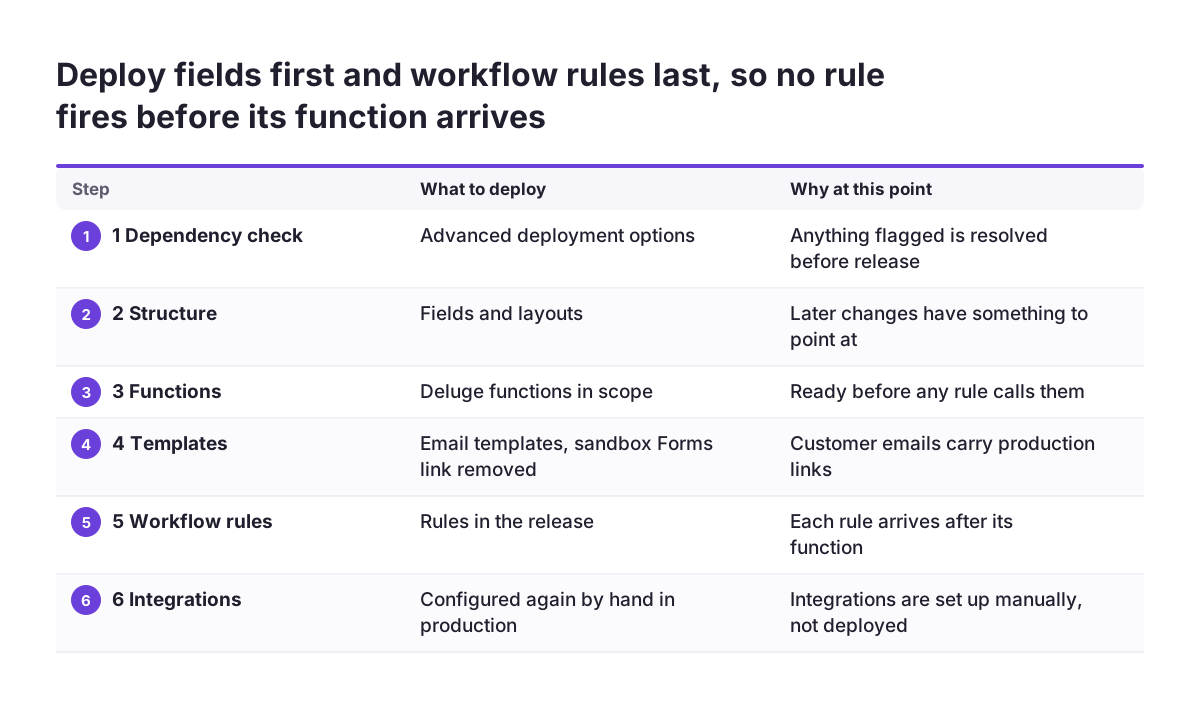
Zoho's sandbox gives you three deployment controls that shape the release. You can deploy changes in any order, not the order in which they were made. You can partially deploy only the changes that are bug-free and ready. And you can run dependency checks through the advanced deployment options.
A sensible sequence puts the things others depend on first:
- Run the dependency check and resolve anything it flags.
- Deploy structure first: fields and layouts, so later changes have something to point at.
- Deploy functions next, then the templates they use, with any sandbox Forms link removed.
- Deploy workflow rules last, because a rule that arrives before its function will fire into nothing.
- Set up integrations in production by hand, using your sandbox notes, and add the production Forms link to the template.
- Test once in production with a single clearly labelled test record, then remove it.
- Review the unified log, which Zoho provides so administrators can audit every customisation pushed into production from each sandbox.
Zoho notes that tested changes can be pushed at a convenient time. Choose a quiet period for your team, and tell the users affected what is changing before it goes live.
What to do when a release goes wrong
Zoho is direct about the stakes: "a misconfigured automation in Zoho Flow or an incorrectly mapped field in Zoho Finance can have real consequences in production: corrupted records, missed triggers, or broken customer-facing processes." Plan the response before you need it.
Contain
Stop the trigger first, so the fault stops spreading while you investigate. Then check the unified log to see exactly which changes were pushed, from which sandbox and when.
Reproduce and fix
Rebuild the sandbox so it matches production as it now stands, and reproduce the fault there. Fix it in the sandbox, test with the same record set, and use partial deployment to push only the corrected change.
Repair records
If records were changed wrongly, list them before fixing them. Zoho supports data export and import in CSV format, which lets you take a copy of affected records and correct them in bulk after checking.
Get help
Zoho's G-Cloud listing states free technical support eight hours per workday. Premium support is available 24/5 with a 3-hour response time, and Enterprise support 24/7 with a 1-hour response time. Know which tier you have before a release, not during one.
What this means for a UK company
For a UK firm, the sandbox raises a data question as well as a technical one. If you choose a copy of production data, the sandbox holds a copy of your customer records. Limit who can open it, and prefer sample data where it is enough to prove the logic.
Zoho's own G-Cloud 14 listing for Zoho CRM Plus gives the facts buyers usually ask for:
- Zoho's listing gives the European Economic Area as its data storage and processing location. Check where your account is hosted and whether anyone outside the UK can access your data, for example for technical support. Access from the EEA is covered by UK adequacy regulations. Access from a country without adequacy needs a safeguard in Zoho's data processing terms, such as the UK IDTA or the UK Addendum, and a transfer risk assessment.
- Zoho's ISO/IEC 27001 certificate was issued by BSI, the British Standards Institution.
- If a public sector or supply chain contract asks for Cyber Essentials or Cyber Essentials Plus, ask Zoho for a current certificate and check that it covers the service and the hosting you use.
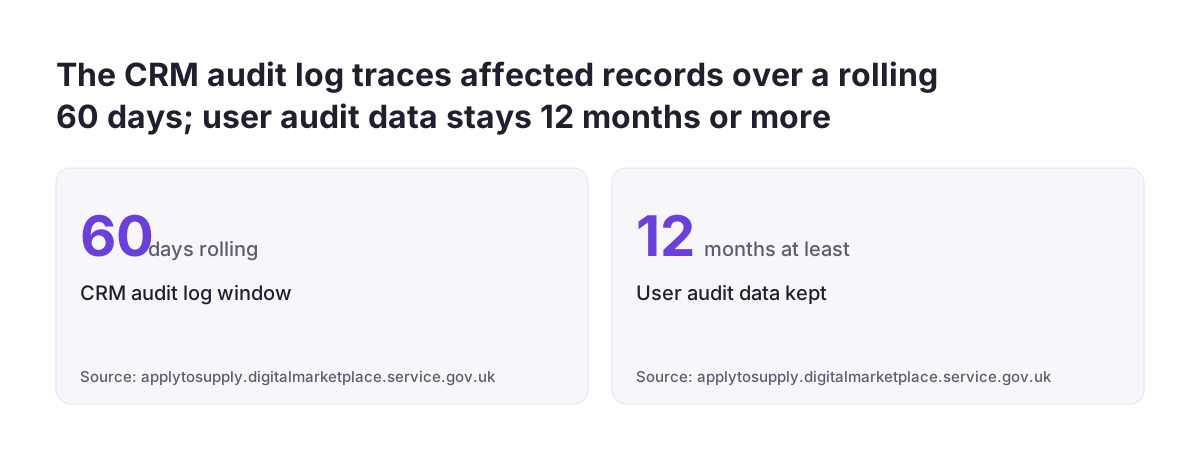
- User audit data is stored for at least 12 months.
- Administrator-level customisation cannot be done through the mobile app, so testing and deployment happen on a desktop.
One more point for UK employers. Zoho's G-Cloud listing describes its WCAG 2.1 AA accessibility work as still in progress, and that wording may be older than Zoho's current accessibility statements, so check the current position for the screens your staff will use. If a customisation adds new screens for staff who use assistive technology, include them in the sandbox tests.
Firms that use the wider suite, such as Zoho CRM Plus, should list which of its products the customisation touches, since only some integrations can be tested in the sandbox today.
Next steps
Before your next change goes near production, work through these in order:
- Write a one-page scope for the release: fields, rules, functions, templates and integrations.
- Rebuild or create a sandbox for that scope, and choose sample or production data deliberately.
- Build a set of five or so test records that cover the normal path, missing links, blanks and bulk entry.
- Read any Zia-drafted code line by line, especially field names and external calls.
- Plan the release order, run the dependency check, and list the integrations you will set up by hand.
- After release, review the unified log and rebuild the sandbox so it is ready for the next change.
Part 3 of this series covers handing the tested setup to your team, including how to use the sandbox to walk people through it before go-live. Zoho itself lists onboarding team members to a new setup as one of the sandbox's uses.
If you would rather have the build and the test cycle run for you, our Zoho CRM implementation and consulting page sets out how that work is organised and what you would need to prepare.
Sources
- Zoho CRM: Sandbox Testing Environment
- Zoho Community: Sandbox, a testing ground for your CRM while sales goes on uninterrupted
- Zoho Community: Sandbox testing Zoho CRM
- Zoho Community: Zoho CRM Sandbox now supports integrations
- Zoho Developer: Test your Extension
- Zoho Deluge: Introduction to Deluge
- Digital Marketplace: Zoho CRM Plus (G-Cloud 14)