


What importing data into Zoho CRM involves
Importing data into Zoho CRM means taking records you hold elsewhere, usually in spreadsheets or an old system, and loading them into CRM modules. A module is Zoho's name for a group of similar data, such as Accounts, Contacts or Deals. Zoho describes Data Import as a way to transfer data from external sources into CRM, for example when you buy leads or move prospects over from another business unit.
The mechanics are simple. The consequences are harder to reverse. Once an import starts you cannot cancel it. Updates to existing records cannot be reverted. You cannot change the mapping for a field after the import has run.
A careless first load can therefore leave you with duplicate companies, contacts attached to nobody and deals owned by the wrong person. Cleaning that up by hand takes far longer than preparing the files properly.
This guide covers the order that keeps links between records intact, how to clean and deduplicate a spreadsheet, how field mapping works, how to run a test import and how to set record ownership after the load. If you are new to the product, our beginner's guide to Zoho CRM explains modules and records before you start.
Choose the import tool or the data migration tool
Zoho CRM has two ways to bring data in, and choosing the wrong one creates extra work. The import tool adds, updates, or both adds and updates records in one module at a time. It is available in all editions. Zoho says it is designed for frequent imports that are simple and specific to one module.
The data migration tool is for moving your entire dataset from another CRM or system into several modules at once. Zoho recommends it when you need to bring in attachments or images, or fill system fields such as Created Time and Modified Time. The migration wizard maps files to modules, matches columns to fields and creates modules where needed. It accepts a ZIP folder of CSV files with no sub-folders, up to 10 GB or 200 CSV files. For background on the wider project, see what data migration covers.
| Your situation | Use |
|---|---|
| Adding a list of new leads or contacts | Import tool |
| Updating a field on existing records in one module | Import tool |
| Moving everything from an old CRM into several modules | Data migration tool |
| Bringing across files, images or original created dates | Data migration tool |
Some data cannot come in through the import feature at all. Zoho lists reports, invoices, quotes, purchase orders, forecasts, sales orders and templates as items you cannot import.
| Import tool | Data migration tool | |
|---|---|---|
| Scope of one run | One module | Several modules at once |
| Best suited to | Frequent, simple imports | Moving a full dataset from another CRM or system |
| Zoho recommends it for | Adding or updating records in a module | Attachments, images and original Created and Modified Time |
| Files accepted | CSV, XLS, XLSX or VCF | A ZIP folder of CSV files |
| What you do | Add, update or upsert records | Map files to modules and columns to fields |
| Availability | All editions | Whole system moves |
Prepare your spreadsheets before anything else
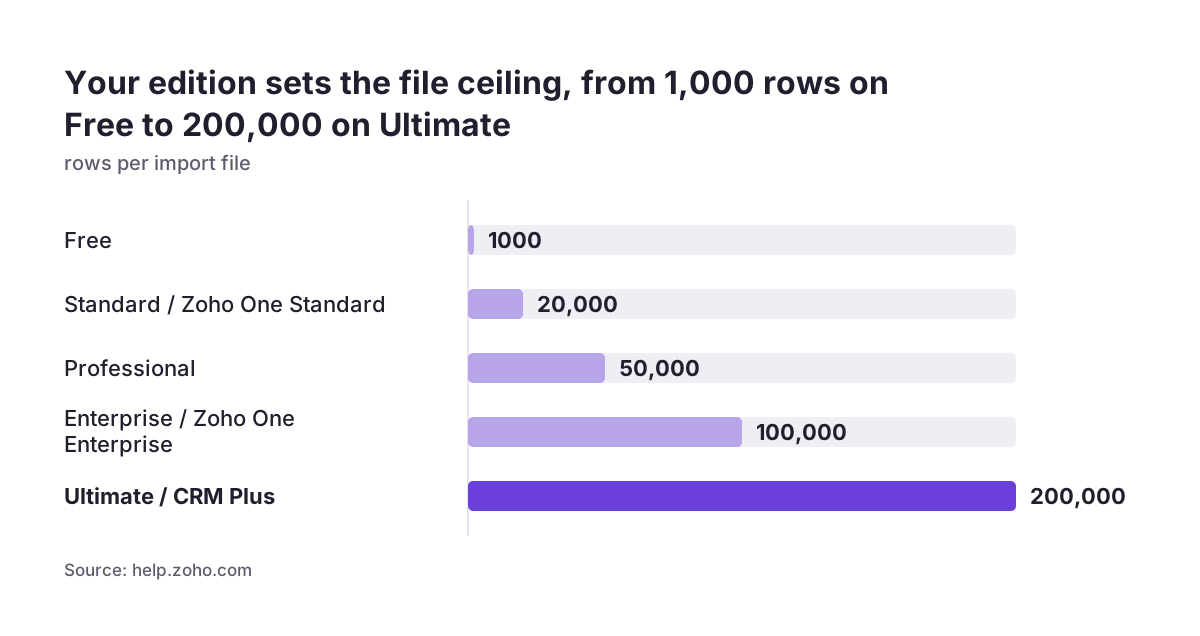
Most failed imports fail because of the file, not the software. Zoho's current help page for the import tool sets these limits: CSV, XLS, XLSX and VCF files, with VCF only for the Leads, Contacts and Users modules. Each file can be up to 25 MB and hold up to 500 columns. The row limit depends on your edition.
| Edition | Maximum rows per import file |
|---|---|
| Free | 1,000 |
| Standard / Zoho One Standard | 20,000 |
| Professional | 50,000 |
| Enterprise / Zoho One Enterprise | 100,000 |
| Ultimate / CRM Plus | 200,000 |
Zoho's older help page, written for the old version of the import tool, gives lower limits and caps Excel and VCF files at 5,000 records per batch, with CSV required above that. If your screens look different from the current help, check which version you are on. Saving as CSV avoids the Excel cap either way.
Then clean the file itself:
- Remove blank rows. More than 10 consecutive empty rows are treated as the end of the file, and anything below them is ignored.
- Save as UTF-8. Zoho names UTF-8 as the usual encoding, and the wrong encoding can make an import fail.
- Strip special controls. Combo filters or embedded images in Excel files can cause unexpected errors.
- Check permissions. You need the Import Records profile permission, or the Import option is hidden.
Deduplicate before you upload
Zoho checks for duplicates during an import, but only on one unique field per module. According to Zoho's import FAQs, these are the default fields:
| Module | Duplicate check field |
|---|---|
| Leads | |
| Contacts | |
| Accounts | Account Name |
| Deals | Deal Name |
| Cases | Subject |
Unique fields are not case sensitive. "Hartley Engineering Ltd" and "HARTLEY ENGINEERING LTD" count as the same account. "Hartley Engineering Limited" does not. Zoho will create it as a second company, and your contacts will split between the two.
So fix duplicates in the spreadsheet, where you can see them side by side. Sort by company name and standardise suffixes such as Ltd and Limited. Sort contacts by email and merge rows that share one. Contacts with no email address get no duplicate protection at all, so check those by name.
At Svennis we deduplicate the account list first and treat that cleaned list as the master that every other file must match, because a single mismatched company name breaks every contact and deal linked to it. It is the most common cause of messy migrations we are asked to repair.
One more warning: Zoho advises using the module ID as the unique field only when re-importing records you exported from Zoho CRM. Used in any other case, it may create duplicates.
Load accounts, then contacts, then deals
Records in Zoho CRM link to each other. A contact belongs to an account. A deal belongs to an account and usually to a contact. Zoho calls the record being pointed at the parent, and the record doing the pointing the child. If the parent does not exist when the child arrives, the link cannot be made. "Parent record not found" is one of the error types Zoho lists for migrations.
That gives a fixed order for a spreadsheet-based import:
- Accounts. Your cleaned company list, one row per company.
- Contacts. Each row carries an Account Name that matches an account exactly, so Zoho can attach the person to the company.
- Deals. Each row carries the Account Name and the contact, so the opportunity lands on the right record.
Leads sit outside this chain. A lead is an unqualified prospect with no account yet, so you can import leads at any point.
The order also matters for undoing. Zoho states that undoing imported contacts deletes the imported accounts associated with them, and the reverse also applies. If you need to roll back one file, expect the linked file to go with it. Keep each source file saved so you can reload in the same sequence.
| Step | What each row carries | Why it comes at this point |
|---|---|---|
| 1. 1. Accounts | One cleaned row per company | Creates the parent records the other files point to |
| 2. 2. Contacts | An Account Name matching an account exactly | Attaches each person to the right company |
| 3. 3. Deals | The Account Name and the contact | Lands each opportunity on the right company and person |
| 4. 4. Check links | Sample records opened in each module | Catches parent record not found errors before the full load |
Map every field on purpose
Field mapping tells Zoho which column in your file goes into which CRM field. Zoho calls it an important step, and you cannot change the mapping after the import. As Ruler Analytics shows in its walkthrough of a leads import, Zoho first shows which fields it mapped automatically. You then use the Mapped and Unmapped tabs to finish the job, or click + Create New Fields for columns with no home.
Do not trust the automatic matches blindly. A column called "Phone" might hold mobiles, landlines or both. Decide which field each column feeds before you open the import screen. If you need fields that do not exist yet, create them properly in setup first; our guide to customising your CRM covers field types.
Mandatory fields and empty values
Records with no value in a mandatory field are not imported. Zoho's Replace Empty Values option lets you set a fallback value during mapping, so those rows are not skipped. When updating existing records, Skip updating empty values stops blank cells overwriting data already in the CRM.
Fields you cannot import into
The import tool does not support Auto Number, Formula, Rollup Summary, Layout, Created Time, Modified Time, Created By, Modified By, File Upload and Image Upload fields. Leave those columns out, or use the data migration tool where it applies.
A worked example: moving a sales spreadsheet into Zoho CRM
Take a small UK distributor keeping its customers in one Excel workbook: a sheet of companies, a sheet of people and a sheet of open quotes it treats as deals. It uses the Professional edition and wants everything in Zoho CRM with the right links and owners.
- Split and clean. Save each sheet as its own CSV in UTF-8: accounts.csv, contacts.csv and deals.csv. Delete blank rows and any filters.
- Deduplicate accounts. Standardise company names and remove repeats. This list is now the reference for the other two files.
- Match children to parents. Check that every Account Name in contacts.csv and deals.csv appears exactly as written in accounts.csv.
- Add an owner column. Put each salesperson's CRM user name or email against their records, ready for mapping.
- Import accounts. Choose Add as new records, map columns, check the owner mapping and run it.
- Import contacts, then deals. Same steps, confirming the Account Name column maps to the account lookup.
- Review. Open a handful of accounts and confirm their contacts and deals appear on the record.
Each file sits well inside the Professional limit of 50,000 rows and 25 MB, so no splitting is needed. Before step 5, though, the distributor should run a test import, covered next.
Run a test import and know how undo works
A test import is a small file, say the first few dozen rows of each CSV, loaded in the real order. It shows you mapping mistakes, missing mandatory values and broken links while the damage is small.
Zoho's import options decide what a test can safely touch:
- Add as new records adds rows as new records and skips rows that match an existing value in the unique field.
- Update existing records only changes existing records found by a unique field, and creates nothing new.
- Both (Upsert) adds what is missing and updates what is already there.
Undo is the safety net, with limits. Added records can be undone for imports made within the last 30 days, after which Zoho confirms the import automatically. Updates to existing records cannot be reverted at all. So run your tests with Add as new records, not updates.
After each test, check the import history. Zoho lets you see why rows failed for imports in the last seven days. Fix the source file, undo the test, and repeat until the test file loads cleanly. Only then run the full files.
Set record ownership and control automation
Every record in Zoho CRM has an owner, and ownership drives who sees what, who gets tasks and whose pipeline a deal counts towards. Zoho's FAQs give three ways to assign owners during an import:
- Users: pick one user to own every record in the file.
- Lead Assignment Rules: let your existing rules distribute leads.
- Field Mapping: map an owner column from your file, which suits mixed ownership.
For a full migration, record owners are associated through a user.csv file containing each user's first name, last name, email and user ID. Add your team as CRM users before the load, or the owner values have nothing to match.
Workflows during the load
Imports can fire your automation. On the older import tool, the option to trigger configured automation appears only when the file has fewer than 10,000 rows. Date-based workflows run even when that option is unchecked, because they work from dates. If you have a workflow that emails customers on a renewal date, an import of historic records could trigger it. Pause such workflows before the load.
If you later need to overwrite existing values by Record ID, the Overwrite option is available on the Enterprise edition and above. Only mapped fields are overwritten.
What this means for a UK business
For a UK company the practical points are data location, support and the edition you pay for. Zoho's own G-Cloud listing for Zoho CRM states that data storage and processing take place in the European Economic Area. Note that in your supplier records before you move customer data across.
The same listing prices Zoho CRM at £16 to £52 per user per month. The edition you choose sets your import ceiling, from 20,000 rows per file on Standard to 200,000 on Ultimate, and decides whether you have the Overwrite option. If you plan regular bulk updates, factor that into the edition decision.
Support matters on migration day. The listing describes free technical support for eight hours per workday, with Premium support responding within 3 hours and Enterprise support within 1 hour. Schedule a large load for a working morning, not a Friday evening.
Dates need attention too. Many UK spreadsheets write dates day first, and the data migration wizard asks you to set the supported date and time formats. Check one date column in your test import before trusting the rest.
Finally, keep your source files. The listing states that accounts with no activity for over 120 days are deleted with all their data, so a copy outside the CRM is sensible insurance while you settle in.
Next steps
Work through these in order before you load any live data:
- Pick the tool. Import tool for single modules, data migration tool for a whole system with files and original dates.
- Check your edition's limits for rows per file, and confirm you have the Import Records permission.
- Clean each file: CSV in UTF-8, no blank rows, no filters or embedded images.
- Deduplicate accounts first, then contacts by email, using the cleaned account list as the reference.
- Write a mapping sheet listing every column and its target field, including owner and mandatory fields.
- Add users and pause date-based workflows.
- Run a test import of accounts, contacts and deals in that order, check links, undo and fix.
- Run the full load in the same order, then check the import history for failed rows within seven days.
Once your data is in, the next job is making the CRM fit how you sell. Our intermediate Zoho CRM guide covers what to set up after the basics. If the migration involves several systems or years of history, see how we handle Zoho CRM implementation for UK firms and decide whether to run it yourself or bring help in.