


Zoho CRM webhooks send record data to another system when a rule fires
Connecting Zoho CRM to other systems with webhooks takes two parts. First you create a webhook in CRM setup. Then you attach it to a workflow rule. When the rule fires, Zoho CRM sends the record fields you chose to the other system's URL.
This suits simple, one-way messages. For two-way sync or large volumes, a Deluge function or the CRM API is usually the better choice.
A webhook is an automatic message that one system sends to a configured URL when a specified event happens. Zoho uses this definition in its Zoho Assist webhook documentation. In Zoho CRM, the event is a workflow rule, such as "a Contact is created". The receiving system then decides what to do with the data.
A workflow rule is a Zoho CRM automation that runs actions when a record meets your conditions. If you need a refresher on how customer relationship management systems store records and modules, start there. This guide assumes you can already open CRM setup and create a rule.
The guide covers four things in order:
- what webhooks handle well
- how to build one, with a worked example
- where webhooks fail without telling you
- when to choose something else
What webhooks handle well: one-way messages triggered by a CRM event
Webhooks work best when Zoho CRM only needs to tell another system that something happened. A new contact, a won deal or a changed status are typical events. The other system receives the data and acts on it. Zoho CRM does not need anything back.
Zoho uses the same pattern across its products. In Zoho Webinar, every workflow action can be a webhook, described as "an instant HTTPS POST or PUT request to any external URL". Zoho's Zoho Webinar workflow automation announcement gives the example of a registration webhook. It sends the registrant's details to a CRM such as Zoho CRM, HubSpot or Salesforce, which creates or updates a contact record.
Typical one-way jobs for a Zoho CRM webhook include:
- passing a new contact to an onboarding or billing system
- alerting a chat channel or internal tool when a deal reaches a stage
- handing a qualified lead to another sales tool, a common lead management task
- notifying an automation platform that a record changed
Integration platforms rely on webhooks for the cases their ready-made connectors miss. Integrately says you can use its Webhook application for a non-standard use case or an app it does not support. A webhook is the lowest common denominator: almost any system with an https endpoint can receive one.
Building a Zoho CRM webhook: the settings on the configuration screen
Setting up a Zoho CRM webhook involves three steps: create the webhook, connect it to a workflow rule, and test it. The setup walkthrough in Charles Lee's guide to Zoho CRM webhook triggers follows that order. To create one, click the Gear icon, then Action, then Webhooks, then Configure Webhook.
The configuration screen asks for these settings:
- Method: POST, GET, PUT or DELETE. POST is the usual choice for sending a new record.
- URL to notify: the receiving system's endpoint, which should be https.
- Authorization type: General or Connection, covered in the authentication section below.
- Header: two sections, Module parameter and Custom parameter.
- Body: none, form-data, or raw, with raw supporting formats such as JSON and XML.
Merge fields are the dynamic variables that carry record data into the webhook. You insert one by typing #, which opens a list of the module's fields. A module parameter sends a CRM field value. A custom parameter sends a fixed value you type, such as a trigger ID or a security token.
The Preview URL needs care. For GET and DELETE it shows the complete webhook URL, including the parameters. For POST and PUT it shows only the configured URL. So a POST preview that looks bare is normal. It does not mean your fields are missing.
Worked example: sending each new Zoho CRM contact to an onboarding system
The worked example sends every new Contact from Zoho CRM to an onboarding system. A Zoho community user described this exact setup: a rule that fires when a Contact is created, and a webhook that runs when the rule fires. You can follow the same steps with your own receiving system.
- Open the Gear icon, then Action, then Webhooks, then Configure Webhook.
- Name the webhook "New contact to onboarding" and choose the Contacts module.
- Set Method to POST and enter the onboarding system's https endpoint.
- Choose Connection as the authorization type if the receiving system supports one.
- Set Body to raw, format JSON. Type # to insert the contact's name, email and account fields.
- Add a custom parameter holding a security token that the receiving system checks.
- Save, then create a workflow rule on Contacts that runs on create.
- Add the webhook as the rule's action and activate the rule.
- Create a test contact and confirm the record arrives in the onboarding system.
Keep the payload small. Send only the fields the other system uses, plus the CRM record ID so the receiver can link back. Every extra field is one more thing that can break when someone edits a layout.
If you are still learning how rules, modules and fields fit together, the intermediate Zoho CRM guide covers workflow rules in more depth.
Webhook authentication in Zoho CRM: General versus Connection
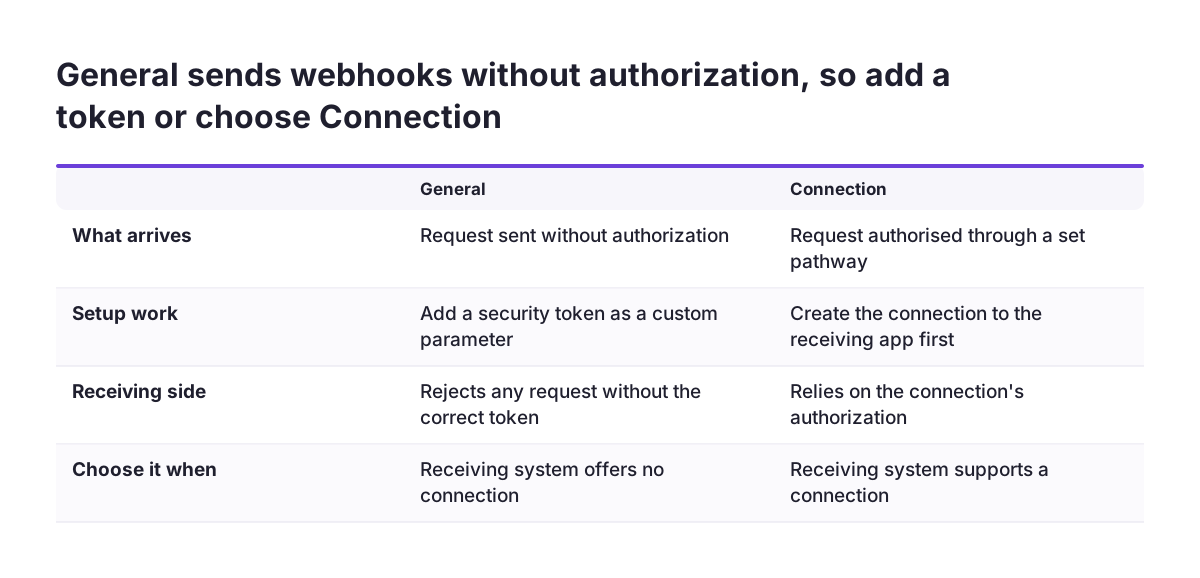
A Zoho CRM webhook uses one of two authorization types: General or Connection. The choice decides whether the receiving system can trust what arrives. It is the setting most often left on the default.
General means Zoho CRM sends the webhook without any authorization. That includes no basic authorization and no API key authorization. Anyone who learns the endpoint URL can send a request that looks the same. If you must use General, add a security token as a custom parameter. Then make the receiving system reject any request without the correct token.
Connection means you have created a specific pathway between Zoho CRM and the receiving application. The webhook uses that pathway to authorise itself. A connection keeps the credentials out of the webhook body. It also gives you one place to update them when they change.
Use an https endpoint in either case. Zoho requires a valid https URL for webhooks in Zoho Assist, and the same standard is sensible for CRM data. Customer names and email addresses should not cross the internet unencrypted.
Authentication on the receiving side matters as much as on the sending side. The receiving system should check the token, accept only the fields it expects, and log each request. Without that log, you cannot prove later what arrived and when.
Where Zoho CRM webhooks fail without warning
Zoho CRM webhooks fail quietly because the sending side has no one watching the result. The workflow rule runs, the request goes out, and the CRM user carries on. If the other system never processes it, nobody in the CRM sees a problem. These are the usual causes.
The receiving system is down or slow
The sources behind this guide do not document retry behaviour or payload size limits for Zoho CRM webhooks. So do not assume either. Test what happens when the endpoint is offline, and when you send a long text field.
Fields change after go-live
Custom fields, layouts, required fields and picklists vary by organisation, and admins change them. A renamed or deleted field changes what the webhook sends. The receiver may then drop the record without an error.
Coverage depends on edition and event
Lonti's Zoho CRM integration guide notes that webhook coverage depends on module, event, configuration and CRM edition. Check that your edition supports the trigger before you promise it.
Loops between two systems
A loop starts when the receiver writes back to Zoho CRM and that update fires the rule again. Zoho Assist assigns a source ID to each webhook to stop this. In CRM, you must design the rule conditions to prevent it.
At Svennis we keep a register of every webhook, its rule and its owner, and we fire each one against a test record before activating the rule. The webhooks that break quietly are usually the ones nobody remembers building.
Webhook, Deluge function or CRM API: which to use for each data flow
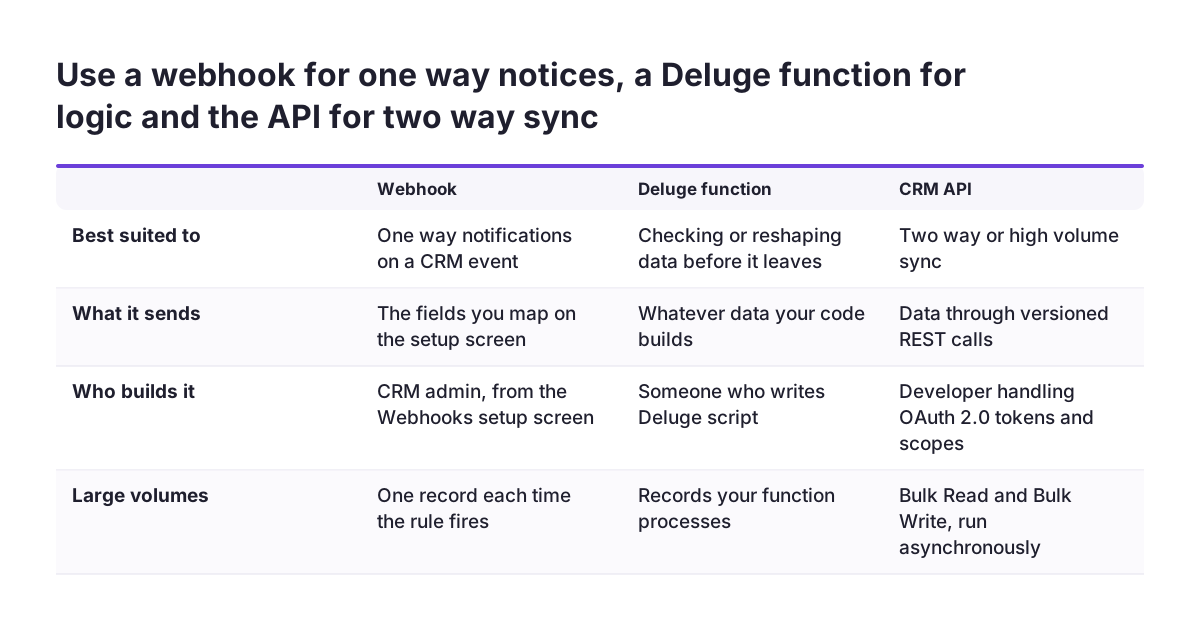
Choose a webhook for one-way notifications, a Deluge function when you need logic, and the CRM API for two-way or high-volume sync. Deluge is Zoho's scripting language for writing custom functions. A webhook only sends the fields you map. A function is code, so it can check conditions or reshape data before anything leaves the CRM.
The Zoho CRM API is a set of versioned REST APIs secured with OAuth 2.0. It uses access and refresh tokens, scopes and CRM user permissions. Its Bulk Read and Bulk Write APIs process large volumes asynchronously, for migrations and high-volume sync. COQL gives query access to supported modules and fields, but it is not unrestricted database access. Zoho CRM also applies API usage limits and may return rate-limit errors.
| Option | Use it when | Main risk |
|---|---|---|
| Webhook from a workflow rule | Another system only needs to know a record event happened | Silent failure and weak General authorisation |
| Deluge custom function | Data needs checks or reshaping before it is sent | Someone must write and maintain the code |
| CRM REST API integration | Data flows both ways, or in bulk, or needs queries | OAuth tokens, scopes and usage limits to manage |
| Integration platform | You link many apps and prefer configuration to code | Another system holding your data to own and monitor |
Integration platforms sit between these options. Integrately says its connectors link Webhook / API Integration or Zoho CRM with more than 1,500 other apps. Lonti says it charges no extra per-connector fee to integrate Zoho CRM with its Martini platform.
What webhook integrations mean for a UK company using Zoho CRM
For a UK company, a Zoho CRM webhook is a decision about where customer data goes. Each webhook copies personal data, such as names and email addresses, into another system. That makes every webhook a data protection question as well as a technical one.
Before you send personal data out of the CRM, check the flow with whoever handles UK GDPR in your firm. Record which system receives the data and which fields it gets. Send only what the receiving system uses. A small payload is easier to defend and easier to maintain.
Regional settings matter when a webhook grows into an API integration. Zoho CRM authentication involves regional authorization and API domains. A developer must use the domain that matches your Zoho account's region, or the integration will not connect.
Your CRM edition also shapes what you can build. Webhook coverage depends on edition, so check yours before you plan a flow around a trigger.
If you sell a product to many Zoho CRM customers, note one more point. A Zoho community user asked whether rules and webhooks can be registered automatically when a customer links CRM through OAuth, as they had done in Salesforce and HubSpot. The thread in our sources gives no such method. Plan for each customer setting up the webhook in their own account.
Next steps: map your data flows before you build any webhook
Start by listing every place Zoho CRM data needs to go. Write down the source module, the event, the receiving system and the fields. That list tells you which flows are one-way notifications and which need two-way sync.
Then work through each flow in order:
- Match it to an option in the decision table: webhook, Deluge function, API or integration platform.
- Build one webhook first, using Connection authorisation or a token in a custom parameter.
- Test it with a test record, then with the endpoint offline.
- Add it to a register with its rule, owner and receiving system.
- Review the register whenever someone changes fields or layouts.
If the flows you listed involve customised modules, read how to customise your CRM before you build. Changes to fields after go-live are the most common reason a working webhook stops sending the right data.
When the list includes two-way sync or bulk data, plan it as an integration project rather than a webhook. The Zoho CRM implementation and consulting page explains how that work is scoped. It is a useful next stop once you know which flows you have.
Sources
- Zoho Community: Is it possible to register webhooks in Zoho CRM using API?
- Zoho Blog: Automate Your Webinar Workflows with Zoho Webinar
- Zoho Assist Help: Webhook
- Lonti: Zoho CRM Integration Guide
- Charles Lee (LinkedIn): How to set up your webhook triggers
- Integrately: Webhook / API Integration and Zoho CRM