


CRM reports directors actually read, and why most go unread
This guide is about the CRM reports directors actually read, and how to build a small set of them in Zoho. Most businesses that run a customer relationship management (CRM) system end up with dozens of reports. Directors open very few of them.
The reason is rarely laziness. Most reports are built around the data the system holds. Someone opens the Deals module, sees every field, and builds a chart for each one. The result describes the database well. It does not help a director decide anything.
A director makes a small number of recurring decisions. Where should sales effort go this week? Is the quarter on track, or do we need to act? Why are we losing deals? Which marketing spend is paying back? Which customers need attention before they leave? A report that answers one of these gets read. A report that answers none of them gets skipped, however well designed it is.
This post sets out five decision-led reports, what each one answers, and how to build it in Zoho CRM or Zoho Analytics. It also covers a worked example of a weekly pack, the data protection points a UK company should check, and a practical order for doing the work.
Start from the decision, not the data
A few terms first. A report is a saved view of records, filtered and grouped to answer a question. A dashboard is a page that shows several reports or charts together. A decision-led report is one built backwards from a named decision: you write the decision down first, then include only the data that changes it.
The test for any report is simple. Ask the director what they would do differently if the number moved. If there is no answer, the report is decoration. If there is an answer, the report stays, and the action goes into its title.
At Svennis we start reporting work by asking each director to list the decisions they made in the last few weeks, and we build nothing that does not feed one of them. Where reports have been built the other way round, from the fields outwards, we usually find a large dashboard that nobody opens and a spreadsheet that someone rebuilds by hand every Monday.
Three rules follow from this approach:
- One decision per report. If a report tries to answer two questions, split it.
- Exceptions before totals. Directors act on what is wrong, so show the deals, customers or leads that need action, not just the sum.
- A named owner and a rhythm. Each report has one person who acts on it and a fixed review point, weekly or monthly.
The five reports at a glance
The table below is the checklist for the rest of this guide. Each row is one report, the decision it serves and where it is best built. Treat it as a starting set. You can add a sixth later, but only once the first five are read every week.
| Report | Decision it serves | Question it answers | Build it in | Review |
|---|---|---|---|---|
| 1. Deals needing action | Where to put sales effort this week | Which open deals are overdue or stalled? | Zoho CRM | Weekly |
| 2. Forecast by close month | Whether to act on the quarter | What is likely to close, and when? | Zoho CRM | Weekly |
| 3. Won and lost by reason | Pricing, product and positioning | Why do we win and lose? | Zoho CRM | Monthly |
| 4. Lead source to won revenue | Where to spend on marketing | Which sources produce paying customers? | Zoho Analytics if spend or invoices live elsewhere | Monthly |
| 5. Customers needing attention | Where to protect existing revenue | Which accounts have gone quiet? | Zoho CRM | Weekly |
Notice what is missing. There is no report of total calls made, no chart of records created and no breakdown of every field. Those can live in a manager's own view if the manager uses them. They do not belong in the director's pack.
Reports 1 and 2: deals needing action and the forecast
Report 1: deals needing action
This report answers one question: which open deals need someone to do something this week? Build it on the Deals module. Filter for deals that are still open and whose expected closing date has already passed, or that have had no change of stage for longer than your normal sales cycle allows. Group the result by deal owner, so each salesperson sees their own list.
The director does not need every column. Deal name, account, value, stage, closing date and owner are enough. The decision is where to intervene: which deals to chase, which to reforecast and which to close as lost.
Report 2: forecast by close month
This report answers whether the next few months are on track. Group open deals by expected closing month and by stage. The later stages carry more weight in a director's mind than early ones, so show them separately rather than as one total.
The forecast only means something if closing dates are kept honest. That is why report 1 comes first: it forces overdue dates to be corrected each week. If you skip report 1, report 2 will slowly fill with deals that should have closed months ago. If you need to adjust stages or fields to make these filters work, our post on how to customise your CRM covers the groundwork.
Reports 3 and 4: why you win and where customers come from
Report 3: won and lost by reason
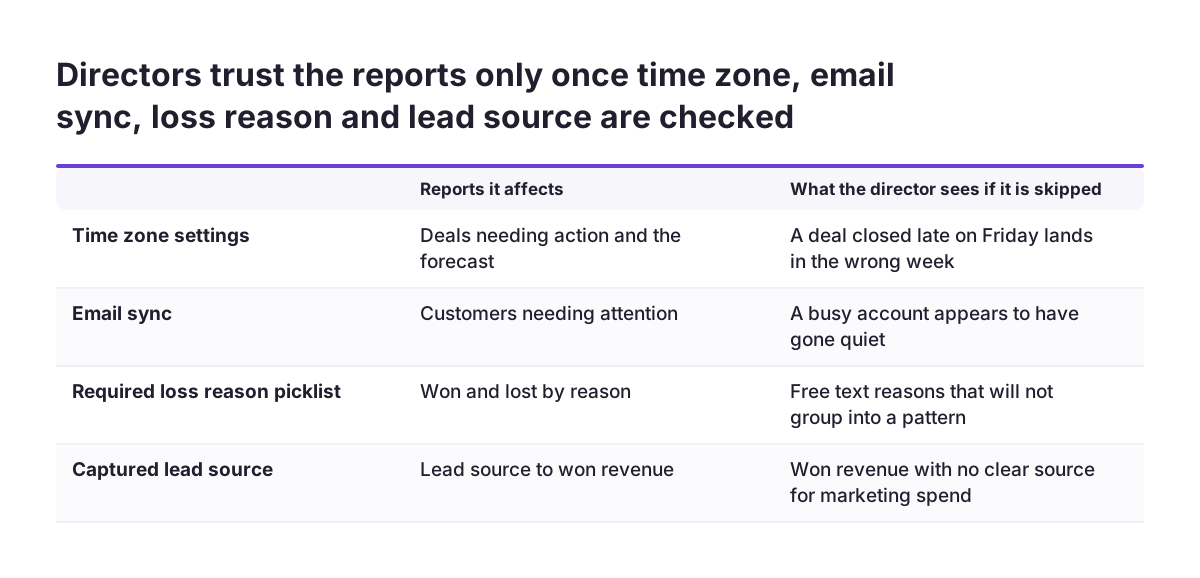
This report supports decisions about pricing, product and positioning. It depends on one thing: a required reason field when a deal is closed as won or lost, with a short picklist rather than free text. Free text cannot be grouped, so it cannot be reported. Keep the list short enough that salespeople pick honestly rather than choosing the first option.
Group closed deals by reason and by month. Review it monthly, not weekly, because single deals tell you little. The decision is whether a pattern is strong enough to change a price, a proposal or a target market.
Report 4: lead source to won revenue
This report tells you where to spend on marketing. It traces each won deal back to the source of the original lead. It only works if lead source is captured at the point of entry and carried through when a lead is converted.
If you only want to compare sources by number and value of won deals, a report in Zoho CRM is enough. If you want to set that revenue against what each channel cost, or against invoices actually paid, the data sits outside the CRM. That is the point to build the report in Zoho Analytics rather than copying costs into CRM fields by hand.
Report 5: customers needing attention
The first four reports look at new business. The fifth protects revenue you already have. It answers a simple question: which active customers have gone quiet?
Build it on the Accounts module. Filter for customers you class as active, then show those with no logged activity, meeting or email for a period that is long for your business. Sort by account value so the largest risks sit at the top. The decision is who calls whom this week.
This report is only as good as the activity data behind it. If emails are not synced into the CRM, a busy account can look silent. Zoho has also added a "Sync emails from" field to the email integration to reduce mailbox clutter, according to an announcement on the Zoho community page. Check how that field is set before you trust the report, because it controls which messages count as contact with a customer.
Start with a strict definition of "quiet" and loosen it if the list is too long to act on. A report that lists half your customers will be ignored as surely as one that lists none. If the team needs a refresher on activities and modules, our intermediate Zoho CRM guide covers them.
Building the reports so directors trust them
A director stops reading a report the first time it is visibly wrong. So the checks before launch matter as much as the design.
Check the time zone first
Weekly reports depend on dates, and dates depend on time zones. On the same Zoho community page, a user in U.S. Eastern time reported that Zoho CRM showed 3:22 pm when the local time was 12:22 pm, a gap of three hours. A mismatch like that can move a deal closed late on a Friday into the wrong week. Confirm the organisation and user time zones before building any report filtered by "this week" or "overdue".
Keep commissions and reports in step
Zoho has announced Incentives for Zoho CRM, an application for managing sales commissions from creating commission plans to issuing payouts. If you use it, make sure the won deals in report 3 use the same definitions as the deals that drive commission. Salespeople will check the numbers that pay them, and directors will notice if the two disagree.
Show decisions waiting
If you use an approval process in Zoho CRM, which lets an organisation automate approvals with requests approved from the My Jobs module, add pending approvals to the director's view. An approval stuck with a director is a decision waiting, which is exactly what this pack is for.
Worked example: a Monday pack for one director
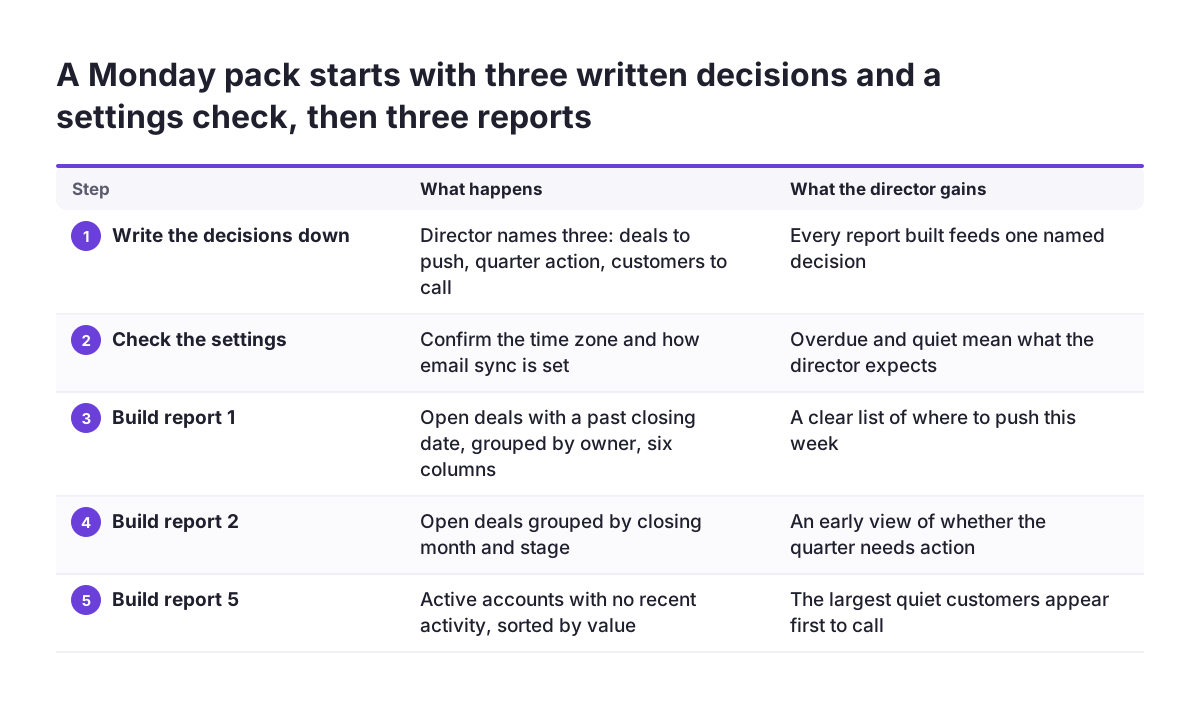
Take the managing director of a small UK services firm who wants one view to open on Monday morning. Here is how the build runs, step by step, using the reports above.
- Write the decisions down. The director lists three: which deals to push, whether the quarter needs action and which customers to call.
- Check the settings. Confirm the time zone and how email sync is set, so that "overdue" and "quiet" mean what the director thinks they mean.
- Build report 1. Open deals with a closing date in the past, grouped by owner, showing six columns only.
- Build report 2. Open deals grouped by closing month and stage.
- Build report 5. Active accounts with no recent activity, sorted by value.
- Add approvals. Pending requests from the My Jobs module, so the director clears them in the same sitting.
- Put the three reports and approvals on one dashboard. Title each chart with its action, such as "Deals to chase this week".
Reports 3 and 4 go into a separate monthly view, because they support slower decisions. After four weeks, ask the director which chart they did not use. Remove it, or change it until it earns its place.
What this means for a UK company
Reports move personal data around. A report that lists named contacts and their email addresses is processing personal data, even in a business-to-business setting. The ICO's guidance on business-to-business marketing says that if you can identify an individual directly or indirectly, it is personal data even if they are acting in their business capacity. The ICO also notes that this guidance is under review following the Data (Use and Access) Act.
Three practical points follow for your reports:
- Aggregate where you can. The ICO explains that under the legitimate interests basis, if you can achieve your purpose in a less intrusive way, the more intrusive way is not necessary. Most director reports need totals and account names, not contact details, so leave personal data out of exports and scheduled emails.
- Respect objections. A business contact's right to object to direct marketing is absolute. If report 4 feeds a campaign list, make sure contacts who have objected are excluded.
- Know where bought data came from. Where personal data is collected from other sources, privacy information must be provided no later than one month from collection. A lead source report is a good way to spot records that arrived this way.
Practical next steps
You can set this up over a few weeks without replacing anything you already have. Work in this order:
- List the decisions. Ask each director for the decisions they made recently, and match each to one of the five reports.
- Fix the inputs. Check time zone settings, email sync, a required loss reason and a captured lead source. Reports built on weak inputs lose trust fast.
- Build the weekly three. Deals needing action, forecast by close month and customers needing attention, on one dashboard with action titles.
- Add the monthly two. Win and loss reasons, and lead source to won revenue, in a separate view.
- Review after four weeks. Remove what is not used. Archive old reports so directors are not tempted back into the large dashboard.
- Check the data protection points. Strip contact details from anything exported or emailed, and confirm objections are excluded from marketing lists.
If a question needs data from beyond the CRM, such as invoices or marketing costs, look at what Zoho Analytics would add before building workarounds in CRM fields. If you later want written summaries generated from these reports, that is a separate question, covered in our guide to AI for reporting. For the CRM side of the build, our Zoho CRM page sets out how we approach implementation.