


Scheduled email reports and sharing in Zoho Analytics, in short
Scheduled email reports and sharing in Zoho Analytics get the right numbers to the right people without anyone exporting spreadsheets by hand. An administrator sets a schedule that emails a view daily, weekly, monthly or yearly. Sharing gives named people live access, with set permissions and filters on the rows they see.
A scheduled email report is a view, such as a chart, pivot view or dashboard, that Zoho Analytics sends by email at a fixed interval. The recipient needs no login. Sharing works the other way round. The person logs in and always sees the latest live version of the view.
Most firms need both. Email suits routine updates that people read and file, such as a weekly pipeline or a month-end pack. Sharing suits people who need to explore the figures or who must see only their own slice of the data.
This guide is one of three on Zoho Analytics. It covers delivery: getting finished reports to people safely. It walks through who can schedule emails, the limits on each plan, the formats, sharing permissions, row filters and embedding. It ends with a worked example and the checks to run before any schedule goes live. If you are new to the wider field, our glossary entry on what data analytics is sets out the basics.
Who can schedule Zoho Analytics emails, and how often they can go
Only users with administrative privilege can configure email schedules in Zoho Analytics. A colleague with ordinary access to a report cannot set up a recurring email of it. Decide early who in your firm holds that privilege, because every schedule will depend on them.
A schedule sends at one of four intervals: daily, weekly, monthly or yearly. You can email these view types:
- Table
- Query Table
- Chart
- Pivot View
- Summary View
- Tabular View
- Dashboard
Recipients do not need a Zoho account. Zoho's help page states that you can share views with non-Zoho users by emailing them. That makes scheduled email the simplest route to directors, investors or anyone who will never log in.
By default, a schedule could appear to come from the individual administrator. You can send from a common address instead, such as a shared reports mailbox. To do that, configure the common address as your organisation email address. Recipients then see a consistent sender, and replies do not land in one person's inbox.
Once a schedule exists, you manage it from the Manage Email Schedules dialog. There you toggle the Active button to switch a schedule on or off. You also choose Send Now to send it immediately, or edit or delete it.
Email schedule allowances by plan, and how Zoho counts recipients
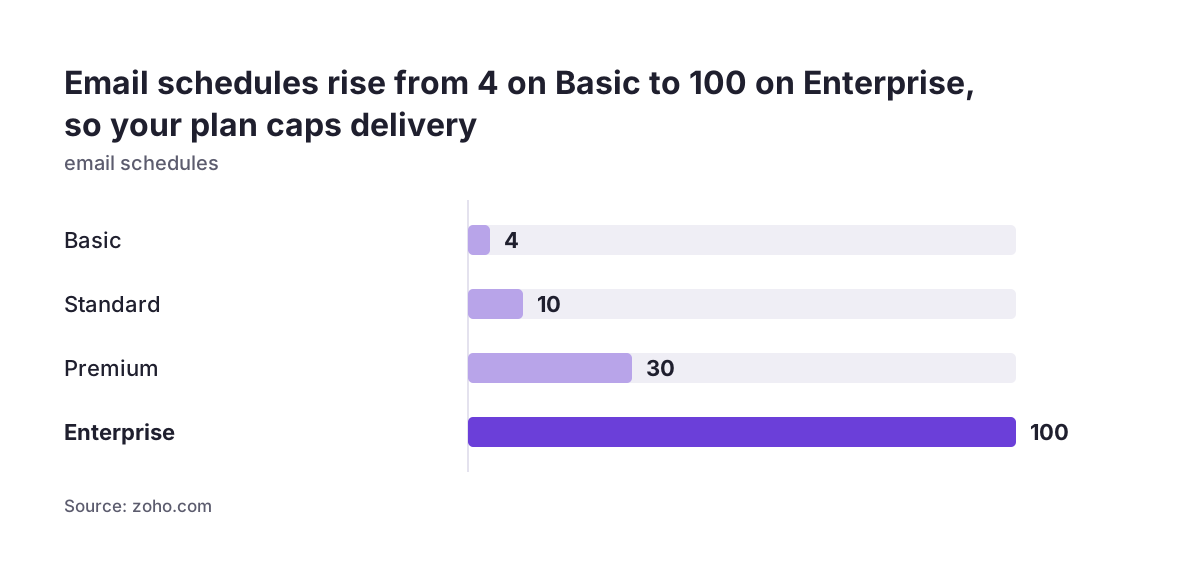
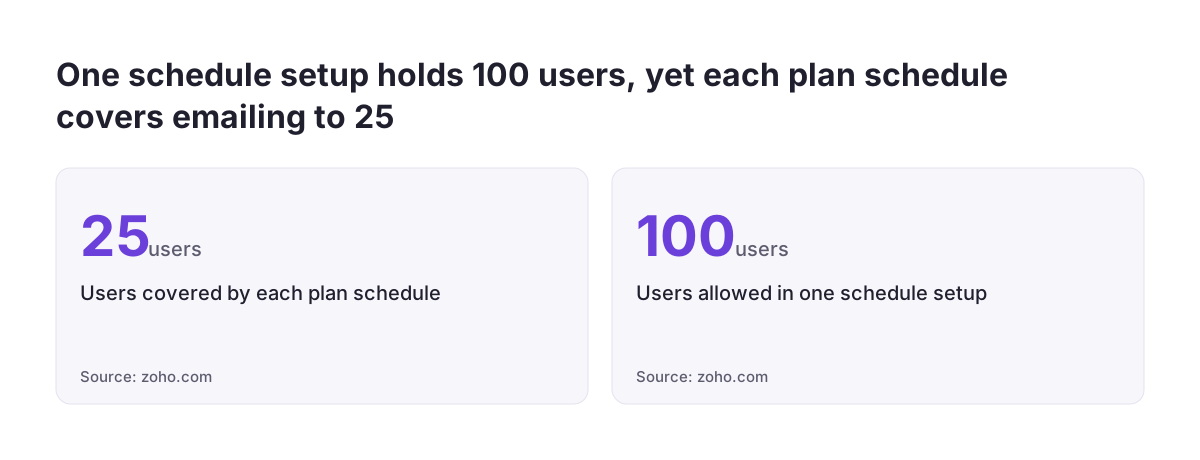
Each paid Zoho Analytics plan includes a fixed number of email schedules, and each schedule covers up to 25 recipients. The emailing help page lists no schedule allowance for the Free plan. The table below sets the schedule allowance beside the starting users and data refresh rate for each plan.
| Plan | Users at start | Email schedules | Data refresh from business apps |
|---|---|---|---|
| Basic | 2 | 4 | 1 a day |
| Standard | 5 | 10 | 8 a day |
| Premium | 15 | 30 | 8 a day |
| Enterprise | 50 | 100 | 24 a day |
Recipient counting needs care. Zoho says each schedule in your plan allows emailing views to 25 users. It also says a single schedule setup can hold 100 users. And it states that the schedule count for pricing is calculated from the number of users added.
Read together, the cautious reading is to budget one schedule for every 25 recipients. On that basis, one 100-recipient schedule would use four schedules from your allowance. If you need more, Zoho sells extra email schedules as an add-on.
The refresh rate matters too. A daily email on the Basic plan reflects data synced from your business apps once a day. On Standard or Premium, data refreshes up to eight times a day, so a morning email is more likely to show yesterday's full picture.
Email formats for charts and dashboards in Zoho Analytics
The format a view can be emailed in depends on its type, and the two most used types have clear options. Charts can go as a JPG or PNG image. The image can be sent as in-line content, so it appears in the body of the email rather than as an attachment.
Dashboards can go as HTML or as PDF. With PDF you choose between two layouts:
- the layout as arranged in the dashboard, as a printer-friendly file
- each report on a new page
Match the format to how the reader will use it. An in-line chart image suits a sales team reading on a phone before a Monday meeting. Nobody has to open a file. A PDF with each report on a new page suits a directors' pack that gets printed or annotated. The dashboard layout PDF suits a one-page summary that should look exactly as it does on screen.
For tables, pivot views and the other view types, check the format options in the email dialog before you promise a format to anyone. Pick the smallest format that answers the reader's question. A full table attached every week tends to become the spreadsheet everyone edits locally, which is the habit scheduled reports are meant to end.
Sharing permissions in Zoho Analytics: users, groups and what each can do
Zoho Analytics lets you share any table, report or dashboard with individual users or with groups, and each share carries specific permissions. Shared users can perform only the operations you permit, such as read, write, export and share. Whatever they open is always the latest live version.
Groups save work. Create a group such as "Sales team" or "Directors" once and share views to the group. Then add or remove people from the group as staff change. You then maintain membership in one place instead of on every report.
Grant the smallest permission that does the job:
- Read is enough for most managers who only need to see figures.
- Write suits the few people who maintain the data.
- Export lets people take the data out, which reopens the spreadsheet problem.
- Share lets people pass the view on, so you lose control of who sees it.
Two account roles also matter. Zoho defines a Viewer as a person who can view, interact with and explore shared reports and dashboards through a secure login. A Viewer cannot create or share them. A User is a co-collaborator who can connect data, create reports and share them, based on the permissions granted.
Each User is identified by a unique email address. Zoho's two pricing pages word the User definition differently. The comparison page counts anyone you privately share with as a User. The cautious assumption is that each named person you share with counts towards your user total unless you have viewer licences.
Row filters so each regional manager sees only their own numbers
A row filter in Zoho Analytics limits a shared view to the data rows a person is allowed to see. Zoho's sharing help states that you can set up filters to share only required data rows and columns. This is how one pipeline report can serve several regional managers without each seeing the others' figures.
The setup is simple in principle. Your data needs a column that identifies the slice, such as Region or Branch. When you share the view with the North manager, you apply a filter on that column for North. The South manager gets the same view with a filter for South. Each opens the same report and sees only their rows.
Column filtering follows the same idea. If a pipeline view holds a margin column that managers should not see, share it without that column rather than building a second report.
Be careful when you combine filters with scheduled email. The emailing help page does not describe applying a different sharing filter to each email recipient. Do not assume a single schedule will send each manager only their region. If regional managers need an email, build one filtered view per region and give each its own schedule.
If they only need access, share the view with filters and let them log in. That route also keeps the figures live.
Embedding modes in Zoho Analytics: secured login, private link or public
Zoho Analytics can embed a table, report or dashboard in a website, web application, blog or intranet page, in one of three access modes. Embedded views show the latest live version, and any change you make appears in the embed automatically. The mode you choose decides who can see it.
Embedding with secured login
Zoho calls this the most secure mode. Only users with whom you have shared the report can view it, after logging in to Zoho Analytics. Use it for intranet pages that show internal figures.
Private permalink without login
Zoho generates a URL containing a large random private key, so people can view the report without logging in. This mode is available only on the Premium and Enterprise plans. You can protect the URL with a password and give it an expiry date. You can also embed only selected columns from a table.
If a link leaks, regenerate the random key. Every previously shared URL and embed then stops working.
Public access
Public access makes the view available to anyone visiting the page, with no key and no login. Embedded reports can also be shared to Facebook, Twitter and LinkedIn through the Social Widgets option. Keep public access for figures you would happily publish. Never use a public link for customer data.
A parameter called ZOHO_CRITERIA can filter an embedded view when the page loads, using the format of an SQL WHERE clause. It sits in the embed URL, so we would not treat it as access control.
Choosing a delivery method: scheduled email, sharing, private link or public
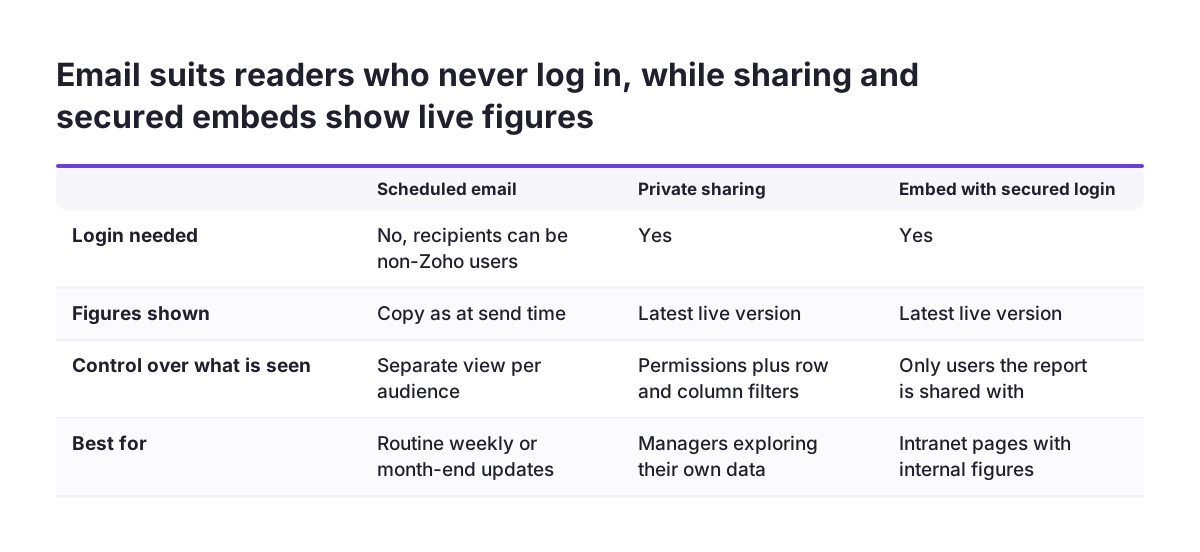
The right delivery method depends on whether the reader logs in, how current the figures must be and how sensitive the data is. The table compares the five options covered in this guide.
| Method | Login needed | Figures shown | Control over what is seen | Best for |
|---|---|---|---|---|
| Scheduled email | No, recipients can be non-Zoho users | A copy as at send time | Build a separate view per audience | Routine weekly or month-end updates |
| Private sharing | Yes | Latest live version | Permissions plus row and column filters | Managers who explore their own data |
| Embed with secured login | Yes | Latest live version | Only users the report is shared with | Intranet pages with internal figures |
| Private permalink | No, key in the URL, optional password and expiry | Latest live version | Selected columns; Premium and Enterprise only | Time-limited access for an outside party |
| Public access | No | Latest live version | Anyone with the page can see it | Figures you would publish anyway |
Two rules cover most cases. If the reader never logs in and the figures are routine, use scheduled email. If the reader must see only part of the data, share with filters behind a login. The two public-facing options are exceptions, and each needs a named person to decide on it.
A worked example: Monday pipeline email, month-end PDF and regional filters
This worked example shows a UK sales firm on the Standard plan setting up three deliveries from one pipeline dataset. The firm pulls deals from Zoho CRM, one of the sales connectors Zoho lists. A smaller firm on Zoho Bigin could do the same, since Bigin is on that list too.
- Set the sender. The administrator configures a shared reports mailbox as the organisation email address.
- Monday pipeline. The administrator creates a "Sales team" group of 12 people. A schedule called "Monday pipeline" sends weekly, on Monday. It carries a chart of open deals by stage as an in-line PNG, so it reads well on a phone.
- Month-end pack. A second schedule sends monthly to the four directors. It carries the pipeline dashboard as a PDF with each report on a new page.
- Regional access. The administrator shares the pipeline view with each regional manager, with Read permission only. Each share carries a filter on the Region column for that manager's region.
Now the budget. The two schedules reach 12 and 4 people, both under 25. So they use two of the ten schedules on Standard. The regional managers log in, so they need user places or viewer licences, and Standard starts at five users. Standard refreshes app data up to eight times a day, so the Monday email reflects the latest sync before it sends.
Nobody exports anything. The sales team reads a chart, directors get a fixed record each month, and each manager sees live figures for their own region only.
Checks to run before you switch a Zoho Analytics schedule on
Run a short set of checks before any schedule goes to real recipients, because a wrong email cannot be recalled. At Svennis we send every new schedule once with Send Now to an internal mailbox, and ask one filtered manager to confirm what they see, before we toggle the schedule to Active. That single test catches most wrong formats, wrong recipients and filters that let too much through.
Work through this list for each schedule and share:
- Confirm who holds administrative privilege and who covers when they are away.
- Check that the organisation email address is set, so emails come from a shared mailbox.
- Count recipients against your allowance, budgeting one schedule per 25 people.
- Confirm the format suits the reader: in-line image, HTML or PDF.
- Check that the interval and the data refresh rate line up.
- Grant Read by default and leave Export and Share off unless someone needs them.
- Test each row filter with the person it applies to.
- Confirm no view with customer data uses public access.
After launch, review schedules regularly. The Workspace Settings page groups email schedules by name, by users and by views. The by-users grouping is the quickest way to find a leaver who still receives reports. Remove them the same week they leave, along with any group memberships.
What scheduled reports and sharing mean for a UK company
For a UK company, the practical points are cost, commitment and care with personal data. Zoho states that local taxes such as VAT are charged on top of the prices it lists. Build VAT into any budget you take to the directors, and into the cost of any schedule add-on.
The commitment is light. Zoho describes Zoho Analytics as a month-to-month, pay-as-you-go service that you can upgrade, downgrade or cancel at any time. Yearly billing saves 20% against monthly. A 15-day free trial needs no credit card. That trial is long enough to set up one real schedule and one filtered share, and test both with the people who will use them.
Care with data is where most risk sits. A scheduled email lands in inboxes you do not control, and a public link can be reached by anyone with the page. Keep reports that name customers or staff behind a secured login, with row filters and Read permission. Use scheduled email for summaries and totals rather than lists of individuals.
Plan choice follows from delivery needs. If you want password-protected links that expire, for an auditor or an outside adviser, you need Premium or Enterprise. If you only email a handful of reports and share internally, Basic or Standard may be enough. Check the recipient count first, because it drives the schedule allowance.
Next steps for setting up Zoho Analytics reports and sharing
Start by writing down who needs which numbers, how often and whether they will log in. That list decides everything else in this guide. It tells you which views to build, which go by email and which you share with filters.
Then take these steps in order:
- Name the administrator who will own schedules, and set the organisation email address.
- Count recipients per schedule and check the total against your plan's allowance.
- Create groups for each audience before you share anything.
- Build one filtered view per region if regional managers need an email.
- Test each schedule with Send Now and each filter with its owner, then switch the schedule to Active.
If you are still choosing a plan or building the underlying dataset, our Zoho Analytics service page for UK firms covers how we set up reporting from your existing systems. If you would rather hand the setup to someone else, our explainer on what a Zoho partner does sets out what to expect from outside help.