


Subform or lookup in Zoho CRM: subforms for owned lines, lookups for independent records
Subforms and lookup fields in Zoho CRM solve different problems. Use a subform when a record needs a table of repeating lines that belong only to that record, such as the items on a purchase. Use a lookup field when the thing you point at is a record in its own right, which other records and people also need to find.
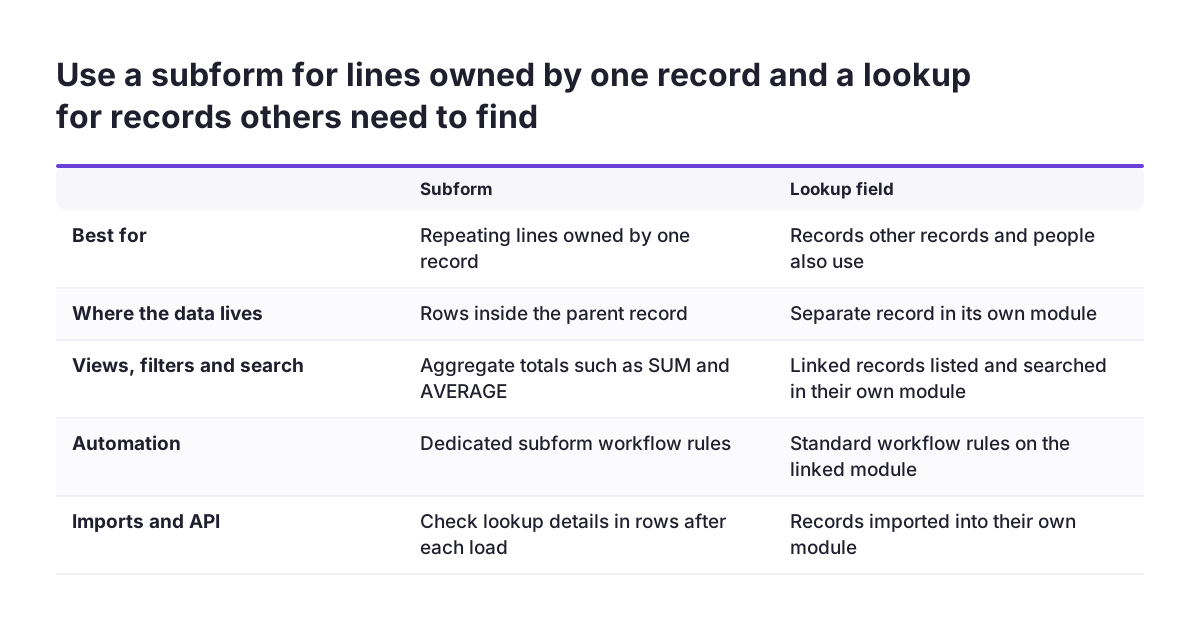
On the layout screen the two choices can look almost the same. The difference shows up later, in what the rest of Zoho CRM can see. Subform fields stay inside their record. Zoho's help centre lists custom view columns, advanced filters, import, global search and workflow criteria among the places where subform fields do not appear.
A lookup works differently. It links two full records, and each record stays a normal record in its own module. That is why the choice matters most for reporting, automation and integrations, which are the areas this guide covers.
The rest of this guide covers five things in order:
- both field types, explained from first principles
- the decision, set out in a table
- one worked example you can follow
- the edition limits that matter for a UK company
- the checks to run on your own setup
If you are new to the product, our beginner's guide to Zoho CRM explains modules, records and layouts first.
What a subform is: standard and static tables of line items
A subform is a secondary form or table that lets you add multiple line items to a primary record. Zoho's help centre defines it in those terms. In practice it is a small table that sits inside one Deal, Account or custom module record.
Zoho CRM offers two types of subform:
- Standard subform: predefined fields form the columns, and users add a row for each entry. You set the maximum number of rows anywhere from 1 to 100.
- Static subform: a fixed set of rows with predefined values in some fields, where the sales rep fills in the other fields in each row. A static subform allows 25 rows per subform per layout.
You choose the type when you add the subform to the layout. After that, you cannot change it. Subforms are also layout-specific, so Layout A and Layout B of the same module can carry entirely different subforms.
A few other limits shape how you design a subform:
- A layout can hold up to 25 subform fields.
- A File Upload field in a subform accepts five files.
- Subforms are not available for Tasks, Calls, Meetings or Pricebooks.
Subform history is visible. The record Timeline shows additions, updates and deletions made to subform rows. Each row is identified by a Primary Field that you select. If you already use the Timeline to trace changes, our guide to audit log and field history in Zoho CRM shows how this fits with the wider record history.

What lookup, multi-select lookup and field of lookup fields do
A lookup field associates a record in one module with a record in another module. Zoho's help centre puts it simply: lookup fields enable users to associate records between two modules. A Deal that points at an Account is the familiar case. The Account stays a separate record in its own module, and the Deal holds a link to it.
Zoho CRM also has multi-select lookup fields, for linking one record to several records in another module. Two points matter when you plan with them. First, the field of lookup option described below does not support multi-select lookups. Second, a request in Zoho's community forum asks for multi-select lookups inside subforms. Confirm what your own account allows before you design around one.
Field of lookup
A field of lookup is an option that adds extra fields from the looked-up record to your layout. Zoho's example is a course fee or a course duration, shown alongside the course name. The field of lookup help page sets out these rules:
- It is available in Enterprise and above editions.
- Only users with Module Customization permissions can configure it.
- You can add up to 5 fields.
- System-defined fields cannot be used, and the fields cannot be marked as unique.
- There is no two-way sync. A change in the child field does not change the parent field.
- Workflows, Blueprint and CommandCenter cannot update these fields through a field update.
Treat a field of lookup as a read-only window onto the other record, not as a second place to edit it.
Subform or lookup: a decision table for common situations
The decision comes down to two questions. Does each line need a life of its own? And will anything outside the record need to read it? The table below maps common situations to a choice. Each reason comes from Zoho's documentation.
| Situation | Choose | Reason from Zoho's documentation |
|---|---|---|
| Lines that only matter as part of one record, such as items on a purchase | Standard subform | Built to add multiple line items to a primary record, up to 100 rows |
| The same checklist rows on every record | Static subform | Fixed rows with predefined values, up to 25 per subform per layout |
| Each line must appear in custom views, advanced filters or global search | Separate module linked by a lookup | Subform fields do not appear in those places |
| You need a total, average, maximum or minimum of the lines in views or workflows | Subform with an aggregate field | Aggregate fields are available where row fields are not |
| The data arrives by import, API or migration | Separate module linked by a lookup | Subform fields are not available in import. Lookup module fields in a subform are not filled through API, import or migration |
| Show details of a linked record on the parent, read only | Lookup with field of lookup | Up to 5 fields, Enterprise and above, no two-way sync |
| Name a responsible person on each line | Subform with a User field | Fills in the user's email automatically but gives no record access |
A simple rule of thumb follows from the table. If you would ever want to list, filter, import or search the lines across many records, they are records, and they belong in their own module. If the lines only make sense while you look at one parent record, a subform is the lighter choice.
Worked example: course bookings on a Deal with a subform and a lookup
A worked example makes the split concrete. Take a training company that sells courses to businesses. Each Deal can book several courses, and each course is a product that many Deals share.
- Create a Courses module. Give it Course Fee and Course Duration fields. A course exists whether or not anyone books it, so it is a record, not a subform row. Our guide on how to customise your CRM covers adding modules and fields.
- Add a standard subform called Course bookings to the Deals layout. Set the maximum rows to a figure that suits your largest booking, within the 1 to 100 range.
- Add the columns. Use a lookup to Courses, a Delegates number field, a Line Amount currency field and a User field called Trainer. When you pick a trainer, related details such as the trainer's email fill in automatically for that row.
- Add an aggregate field called Booking Total. Set it to SUM of Line Amount. Unlike the row fields, this total appears in custom views, filters and workflow criteria.
- Add a subform workflow rule. Trigger it when a row is added, with a parent-level condition on the Deal stage. Use an email notification created for the Deals module.
Two behaviours in this example often surprise teams. First, you can show course details in each row from the Courses lookup. If a user edits one of those details in the subform, the Course record does not change. Zoho's help page makes the same point with a Vendor Email field: the subform only creates an association, not a synchronisation.
Second, the Trainer field does not let the trainer open the Deal. Record access still follows your normal sharing rules.
Reporting on subform data: aggregates are visible, row fields are not
Subform row fields are invisible to most of the tools a manager uses to slice data. The Zoho CRM subforms help page lists where subform fields do not appear:
- custom view columns and advanced filters
- layout rules, validation rules and Blueprint validation
- webforms and import
- global search
- template merge fields
- workflow field updates and criteria
The same page adds one exception that matters. A subform's aggregate fields are available in all of those places. The predefined aggregate functions are SUM, AVERAGE, MAXIMUM and MINIMUM. The maximum number of entries across all subforms on an aggregate is 200.
Subform totals therefore work well in Zoho CRM. A list of Deals sorted by Booking Total is easy to build. A list of every row that booked one particular course is not, because the row fields cannot be filtered.
The details page offers some help, but not much. You can filter and sort subform rows on a record's details page. Zoho states that those filters and sorting are not persistent and serve instant checks only.
If your managers need line-level analysis across records, model the lines as their own module, or test your reporting tool against real subform data before you commit. Our page on Zoho Analytics describes the wider reporting option.
Workflow rules for subforms: triggers, conditions and limits
Workflow rules for subforms are actions that run when conditions on a subform row, or on its parent record, are met. They exist because standard workflow criteria cannot read subform fields. The available actions are field updates, email notifications, SMS notifications, webhooks and functions. Functions can run scripts in Deluge, Java, NodeJS and Python.
A rule can be triggered when a row is added, modified, added or modified, or deleted. A rule can also run on a schedule, based on a created time, modified time or custom date/time field on the subform. You can set conditions at two levels, on the subform row and on the parent module.
A field update in a subform rule can target one of three records:
- the subform row that triggered the rule
- the parent record the subform belongs to
- a related record in a lookup module linked to the parent
Several limits come straight from the subform workflow help page. A single instant action takes up to five email notifications, five field updates, one function and one webhook. A rule can have up to five scheduled actions.
Actions always run in a fixed order: field updates first, then email notifications, then Slack, Cliq, webhooks and functions. Rules for the same subform run in the order they were created, and you can reorder them.
Two exclusions catch teams out. Parent record triggers do not trigger subform workflows. Subform workflows are also not supported for CPQ subforms and do not apply to serial number changes.
Imports, the API and integrations: where subform lookup data goes missing
Data that enters Zoho CRM without a person typing it behaves differently in a subform. The subforms help page states that fields from a lookup module in a subform are not populated in five situations:
- lead conversion
- quote conversion
- updates through the API
- data migration
- import
The practical effect is easy to miss. Rows created by an integration can arrive with the lookup set but the associated details empty. A user who opens the record sees gaps that never appear when staff enter the same row by hand.
Field of lookup values follow their own import rule. During import, Zoho takes the values from your file. Only if a value is empty does Zoho fill it from the lookup record. A stale value in your spreadsheet will therefore win over the correct value on the linked record. Our guide to intermediate Zoho CRM covers working with imported records more generally.
Other Zoho products add their own limits. In one community thread about Zoho Forms, a user reported being unable to map the fields in a Zoho Forms sub-form to the Contacts module in Zoho CRM. Before you promise a form-to-subform flow, test it end to end with real entries.
Editions and currency: what the choice means for a UK company
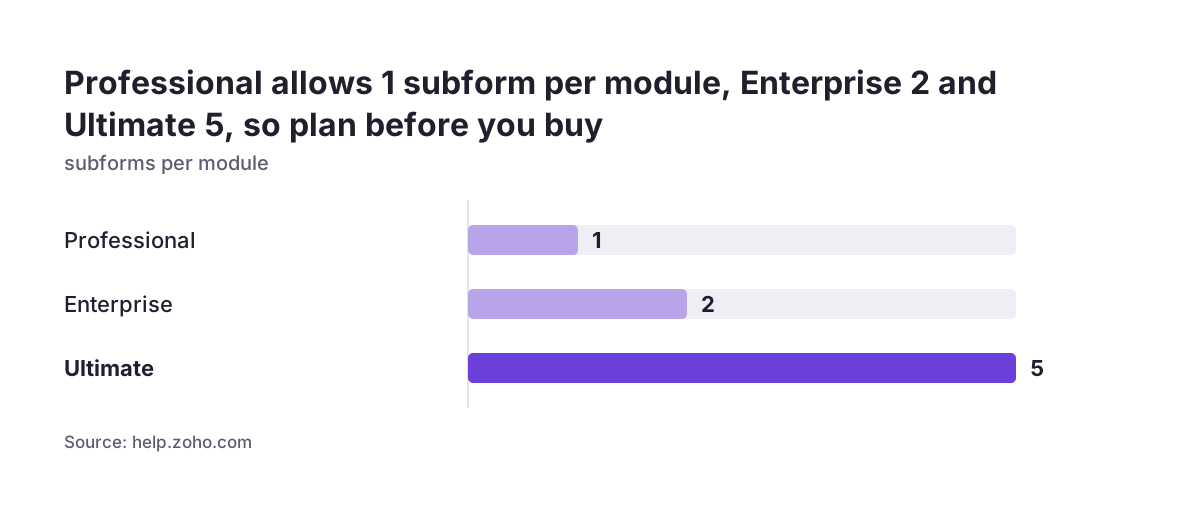
For a UK company, your Zoho CRM edition settles much of the design before any modelling starts. The number of subforms per module and access to field of lookup both depend on the edition:
| Edition | Subforms per module | Field of lookup |
|---|---|---|
| Professional | 1 | Not available |
| Enterprise | 2 | Available, up to 5 fields |
| Ultimate | 5 | Available, up to 5 fields |
The Professional limit forces a choice. A firm on Professional that wants both an order-lines subform and a checklist subform on Deals has to pick one. Planning the model before you choose an edition avoids buying an upgrade halfway through a project.
Currency matters for firms that quote in pounds and also in euros or dollars. When multi-currency is enabled, a currency value in a field of lookup uses the record currency and exchange rate of the current record. A course fee pulled onto a euro Deal will therefore follow that Deal's currency settings, not the course's.
Access matters too, because many UK firms are careful about who can open customer records. A User field in a subform links a colleague to a row. It does not give that colleague access to the record, so your sharing rules still decide who sees what. Our Zoho CRM implementation page explains how we plan editions, modules and access together.
Modelling mistakes that cause trouble later, and how to catch them
Most of the trouble we see starts with a subform that should have been a module. The table works on day one. Six months later, someone asks for a filtered list of the lines, or an import of historic data, and the subform cannot provide either.
These mistakes come up repeatedly:
- Lines that need filtering or search kept in a subform. Subform fields stay out of custom views, advanced filters and global search.
- Automation that relies on a field of lookup. Workflows, Blueprint and CommandCenter cannot update those fields through a field update.
- Expecting a change to the parent record to fire a subform rule. Parent record triggers do not trigger subform workflows.
- Picking the wrong subform type. Standard or static is fixed once the subform is on the layout.
- Assuming integrations fill the row details. Lookup module fields in a subform stay empty after API updates, migration and import.
- Treating a User field as access. It grants no record access.
The cheapest fix is a question asked before the build. At Svennis we ask of every repeating field whether anyone will need to filter, import, search or report on it across records. Anything that answers yes becomes its own module with a lookup, and only the rest goes into a subform.
Use that same question as a test on an existing setup. List each subform, then note who reads its rows and through which tool.
Next steps: audit your current subforms and lookups
An audit of an existing Zoho CRM account takes only a short list of checks. Work through these in order:
- List every subform by module and layout. Note its type and its maximum rows.
- For each subform, write down who needs its rows outside the record: in views, filters, search, imports or integrations. Any yes is a candidate for a separate module.
- Check that every total a manager uses comes from an aggregate field, not from the rows.
- Review each subform workflow rule against the exclusions. Look for parent triggers, CPQ subforms and serial numbers.
- Find every field of lookup and confirm that no automation tries to update it.
- Run a test import or API update into a copy of a record. Check which subform details arrive empty.
- Compare the number of subforms you need per module with your edition's allowance.
Fix the highest-risk items first. Those are the subforms that feed reporting or integrations, because their gaps are the hardest to see.
If the audit shows that the data model no longer fits how you sell, our Zoho CRM consulting team can review the structure with you before you change it.