

What an AI step inside Zoho Flow actually does
An AI step inside Zoho Flow is a point in an automated workflow where a model reads the data passing through and returns something new: a label, a summary, a draft reply or a decision about where the record goes next. The rest of the flow then uses that output, often to update a record in Zoho CRM or Zoho Desk.
That last part is where the risk sits. A normal flow step copies a field from one app to another and does the same thing every time. An AI step produces output that varies with the input. If it mislabels a ticket or writes a poor summary into a customer record, the flow will carry that error forward without complaint.
Zoho announced a set of AI capabilities for Zoho Flow on 4 February 2026, including built-in AI actions and steps where the AI chooses what to do next. This guide explains those options from first principles, walks through one worked example with a Zoho Desk ticket, and sets out the checks that stop an AI step from quietly pushing bad data into your systems.
If you are deciding whether to add AI automation to flows you already run, the short version is this. Start with the narrowest step that does the job, keep a person between the model and your live fields at first, and read the execution log before you widen anything.
The terms you need first
Zoho Flow uses a small vocabulary. Knowing it makes the rest of this guide easier to follow and makes Zoho's help pages easier to read.
- Flow: an automated workflow that connects two or more apps.
- Trigger: the event that starts the flow, such as a new ticket in Zoho Desk or an updated record in another app. Zoho Flow webhook triggers can also receive data as JSON, form data or plain text.
- Action: an automated task the flow performs, such as creating or updating a record.
- Zia: Zoho's built-in AI assistant, which appears across many Zoho apps.
- Zia Utilities: AI-powered actions built into the Flow builder. Zoho lists labelling email content (for example "invoice", "query" or "complaint"), generating email responses from context, detecting tone, summarising long conversations, rephrasing content and generating checklists from free-text instructions.
- Agentic action: a step where you give Zia a prompt and a set of smart actions to choose from. At run time Zia evaluates the input and picks and performs the most relevant actions without manual intervention.
- Custom function: a short script inside a flow. Zoho says custom functions can format data, call web APIs and send emails, which is how some teams call an outside model directly.
- History: the log of every flow execution, with the input and output of each step.
The difference between a Zia Utility and an agentic action matters most. A utility returns output and your flow decides what to do with it. An agentic action decides and acts.
Turning AI on in your Flow organisation
AI features are off until someone switches them on. According to Zoho's Flow settings documentation, you go to Settings > AI Setup and click Enable AI. Doing so allows Flow Generation, Zia Utilities and Agentic Actions across the organisation.
Three points are worth knowing before you do it:
- Only the organisation owner or an admin can enable or disable AI. A team member cannot switch it on for their own experiment.
- Everyone meets a terms of use dialog on first access. Zoho states these terms must be accepted before AI can be used in workflows. Read them before you click, not after.
- It can be switched off at any time from the same screen by clicking Disable AI.
AI Setup is also where you configure which actions are available to agentic workflows. That makes it a control point, not just a switch. If you decide that no agentic step should ever be able to close a Desk ticket, this is the place to enforce it.
Zoho also offers text-to-flow, where you describe a workflow in plain English and Zia builds a template. You start from My Flows > Create Flow > Try It Now. Zoho's help page notes that each generation consumes Zia credits, so budget for them if several people are experimenting. A generated flow is a starting point: you preview it, click Use this flow, then add conditions, delays, custom functions and Zia Utilities yourself.
Choosing the right kind of AI step
Most business uses fall into four jobs: classifying a record, summarising text, drafting a reply, and routing a record to the right place. Each maps more naturally onto one type of step than the others.
| Job | Best fit | Why | Main risk |
|---|---|---|---|
| Classify (label a ticket or email) | Zia Utility | Returns one label your flow can test against a fixed list | A label outside your list, or a confident wrong label |
| Summarise a conversation | Zia Utility | Output is text for a person to read, not a decision | Missing a key fact, such as a refund request |
| Draft a reply | Zia Utility | Zoho lists context-based email responses and rephrasing | A draft sent to a customer without review |
| Route or decide next step | Agentic action, with limits | Zia picks from actions you allow, such as escalate or request more information | An action taken on the wrong record or the wrong grounds |
| Call an outside model | Custom function | Custom functions can call web APIs | You own the prompt, the parsing and the error handling |
A useful rule: if a flow step could be written as "if the label is X, do Y", use a utility and let an ordinary condition do the routing. Reserve agentic actions for cases where the choice genuinely depends on reading context. Zoho's own example is a support ticket where the agent decides whether to escalate, request more information or close it, depending on sentiment and context. That is a real use, but it is also the step with the most power to do damage.
A worked example: labelling and summarising a new Desk ticket
Here is a flow a support team can follow. It uses only the building blocks Zoho documents. Zoho's help page even uses a similar starting prompt: post a message in Microsoft Teams whenever a new ticket is created in Zoho Desk.
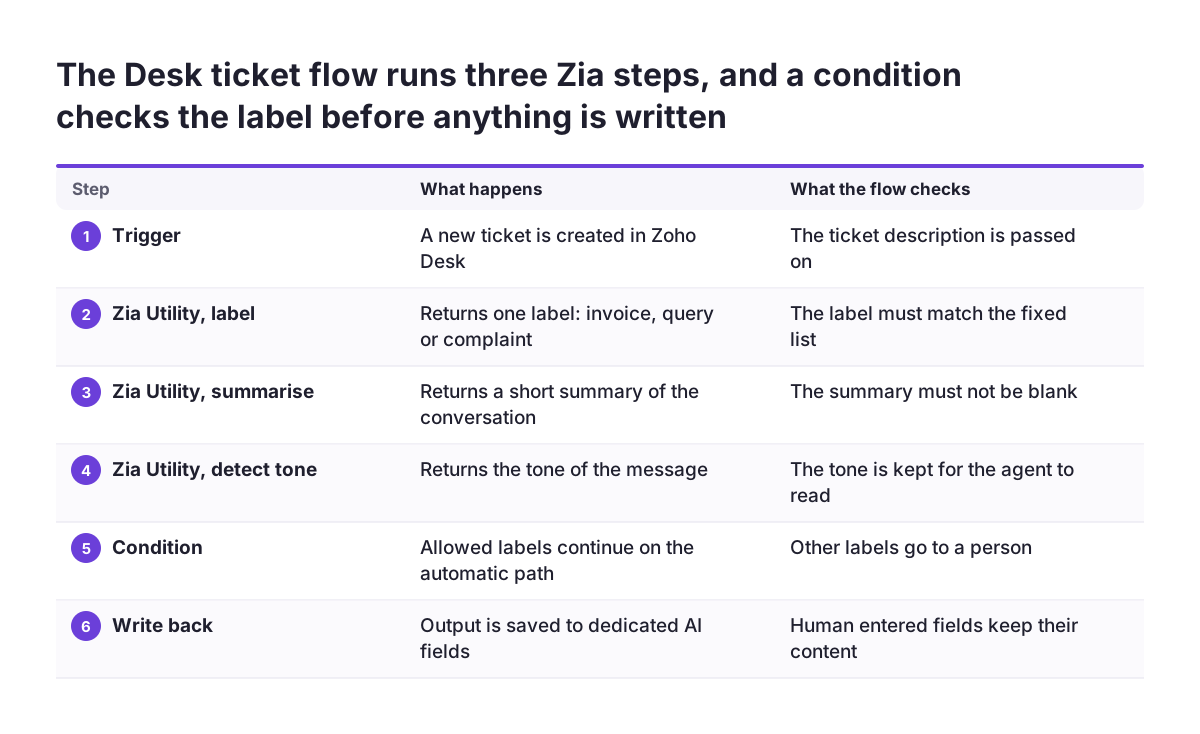
The flow, step by step
- Trigger: a new ticket is created in Zoho Desk.
- Zia Utility, label content: pass the ticket description and ask for one label from a fixed set, such as "invoice", "query" or "complaint".
- Zia Utility, summarise: pass the same text and ask for a short summary of the conversation.
- Zia Utility, detect tone: return the tone of the message.
- Condition (if-then branch): if the label is one of your three allowed values, continue. If not, send the ticket to a person untouched.
- Notify: post the label, tone and summary to a Microsoft Teams channel, with a link to the ticket.
- Write back: update the ticket, but only into a holding field that agents can see, not the field your assignment rules read.
What this gives you
Agents see a summary and a suggested category before they open the ticket. Nothing in your live routing changes yet. Every run is recorded in History with the input and output of each step, so you can compare what the model said with what the agent actually did.
Once the labels match your agents' judgement consistently, you can point the write-back at the live category field. The flow does not change. Only the destination field does, which makes the switch easy to reverse.
The approval step before anything writes back
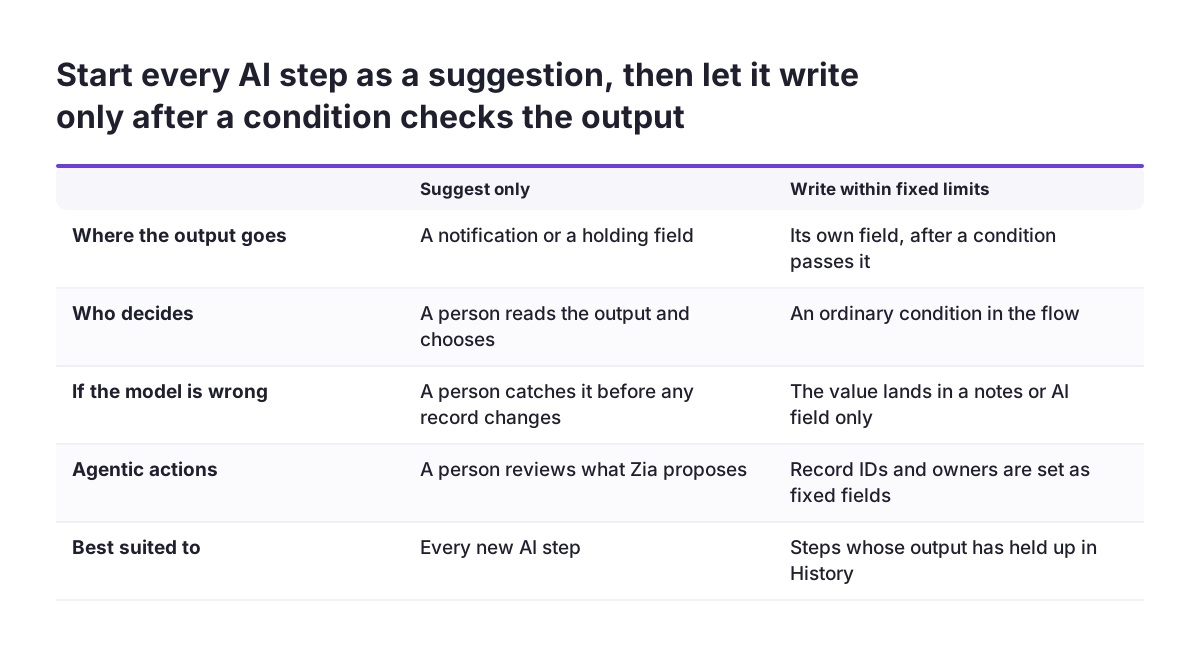
The most important design choice in any AI step is what happens between the model's answer and your records. There are three workable patterns, from safest to most automatic.
Suggest only
The AI output goes into a notification or a holding field. A person reads it and decides. This is where every new AI step should start, because it costs nothing if the model is wrong.
Write within fixed limits
The AI output is checked by an ordinary condition before it is written. A label must match a known list. A summary goes into a notes field, never into a field that drives assignment or billing. For agentic actions, Zoho lets you define for each action which fields are fixed and which fields Zia can determine at run time. Fix every field you can. Let Zia fill only the field that genuinely needs judgement.
Act, with a delay
For steps you trust, add a delay action before the write. While the flow waits, its History status shows as Delayed, which gives someone a window to see what is about to happen. This suits routing decisions where speed matters but a short pause is acceptable.
At Svennis we point every new AI step at a holding field first and only move it to a live field once someone has read the History output for a batch of real records and agreed the model gets them right. The records you check should be real ones, including the awkward emails, not a tidy test set.
The checks that stop bad data reaching CRM or Desk
An AI step fails quietly. It rarely errors out; it returns plausible output that happens to be wrong. These checks catch most of that before it lands in customer support or sales records.
| Check | How to build it in Flow | What it prevents |
|---|---|---|
| Allowed values | Condition after a label step: continue only if the output matches your list | Invented categories in picklist fields |
| Empty or short output | Condition testing that the summary or draft is not blank | Blank notes overwriting useful ones |
| Separate target fields | Write AI output to its own fields, never over human-entered data | Losing the original record content |
| Fixed fields in agentic actions | Mark record IDs and owners as fixed in the action set-up | An agent updating the wrong record |
| Restricted action set | Offer agentic steps only the actions they need in AI Setup | An agent closing or deleting what it should only flag |
| Trigger criteria | Filter out records the step should never see; they show as Filtered in History | Sensitive or out-of-scope records being processed |
| Human review of drafts | Send drafts to a person, never straight to a customer | Wrong or off-tone replies sent in your name |
Before any of this, look at your data. Zoho's Creator publication recommends standardising formats, removing duplicates and storing data where it is easy to reach before automating. A model labelling duplicate tickets will label them twice. The same article recommends small trials with a limited group before full deployment, which fits the holding-field approach above.
Watching the step once it runs
Two logs in Zoho Flow do most of the monitoring work, and both are worth opening weekly while a new AI step beds in.
History
History lists every flow execution in your organisation. Click any run and you see each step with its input and output. For an AI step, that means you can read exactly what text went to Zia and exactly what came back. You can filter by flow, status or date range, so reviewing one week of one flow takes minutes.
The statuses tell you where records are. Queued means data has arrived and is waiting; queued records run automatically. Delayed means the flow is sitting in a delay action. Filtered means the trigger criteria excluded the record, so the flow did not run for it. A sudden rise in Filtered runs usually means the incoming data has changed shape.
Audit trail
The audit trail is an organisation-wide log of member activity: flows created or deleted, connections added, members invited and settings changed. It is visible only to the owner and admins. Use it to see who enabled AI, who edited a prompt, and when. When a label suddenly drifts, the cause is often an edit, not the model.
Zoho's Creator publication suggests tracking time saved, error reduction and turnaround times, and reviewing performance every quarter. For AI steps, add one more measure: how often agents overrule the model's label or routing.
What this means for a UK company
For a UK business, the questions are mostly about where data goes and who is accountable for it. An AI step sends customer text, often names, emails and complaint details, through a model. You need to know what processes it and on what terms.
Start with where your Zoho data is held. The Zoho CRM listing on the UK government's Digital Marketplace states that all data on www.zoho.eu resides in the EU, in the Netherlands and Ireland. Check which Zoho data centre your organisation uses before you assume anything.
Next, check which model does the work for each feature. Zoho's Workplace blog states that the AI features it describes there work as an integration between Zoho and OpenAI and need your own OpenAI key. That is a different product from Flow, but it shows why you should not assume every Zoho AI feature runs the same way. Read the terms of use dialog in Flow before accepting it, and keep a copy with your records.
Finally, apply the same thinking you already use for personal data. Your obligations under UK GDPR do not change because a flow, rather than a person, reads the ticket. Keep trigger criteria tight so personal data only reaches an AI step when it needs to, and keep the audit trail so you can show who changed what.
Practical next steps
You can add a useful AI step this month without putting your CRM or Desk data at risk. Work through these in order.
- Pick one repetitive text task. Labelling incoming tickets or summarising long email threads are good first choices, because a person can easily judge the output.
- Ask your Flow owner or admin to enable AI under Settings > AI Setup, after reading the terms of use.
- Build the flow with a Zia Utility, not an agentic action. Add a condition that checks the output against an allowed list.
- Write to a holding field only. Create a dedicated field for AI output in Zoho Desk or Zoho CRM.
- Review History weekly for a limited trial group, and note how often people disagree with the model.
- Move to a live field only when the review supports it, and keep the ability to switch back.
- Consider agentic actions last, with fixed fields and a restricted action set.
If your flows span several apps, it is worth checking what is already included in Zoho One before adding separate tools. For reporting on overrides and turnaround times, Zoho Analytics can sit on top of the same data.
The most relevant next page on this site is the Zoho Flow overview, which covers what Flow connects and how it is set up for UK teams.
Sources
- Zoho Flow help: Generate workflows from text
- Zoho Flow help: History, AI, and Security settings
- Zoho Blog: Introducing built-in intelligence in Zoho Flow
- Zoho Flow: Integrate Zoho FSM with Agentic AI
- Zoho Creator Decode: 10-step workflow automation
- Zoho Blog: AI that actually helps in Zoho Workplace
- Digital Marketplace: Zoho CRM listing