


A help centre in Zoho Desk: what it is and how it cuts repeat tickets
A help centre in Zoho Desk is the customer portal where people search your knowledge base, read community posts, and submit or track tickets. A well-built help centre answers common questions before they become tickets. Planning one comes down to five decisions: who can get in, how content is grouped, how accounts work, how it looks, and how you measure it.
Zoho's own help pages describe the help centre as a portal that lets users learn about a product and understand its processes through knowledge base articles. A knowledge base is the library of how-to and reference articles your team writes. The help centre sits on top of that library and adds three more parts:
- Community: customers ask and answer questions, suggest and comment on ideas, and file and solve problems.
- Ticket form: customers who cannot find an answer submit a ticket, then track its status and reply to your team's comments.
- My Area: a signed-in workspace where a customer manages their own tickets in one place.
Zoho Desk can also place the help centre inside your own app. There, customers can browse the knowledge base, use the community, chat with a conversational assistant or raise a ticket without leaving the app. If you plan to add that assistant later, the guide to AI for customer support covers the groundwork. The rest of this post deals with the portal itself, which has to work well first.
Open or registration-required access: the first help centre decision
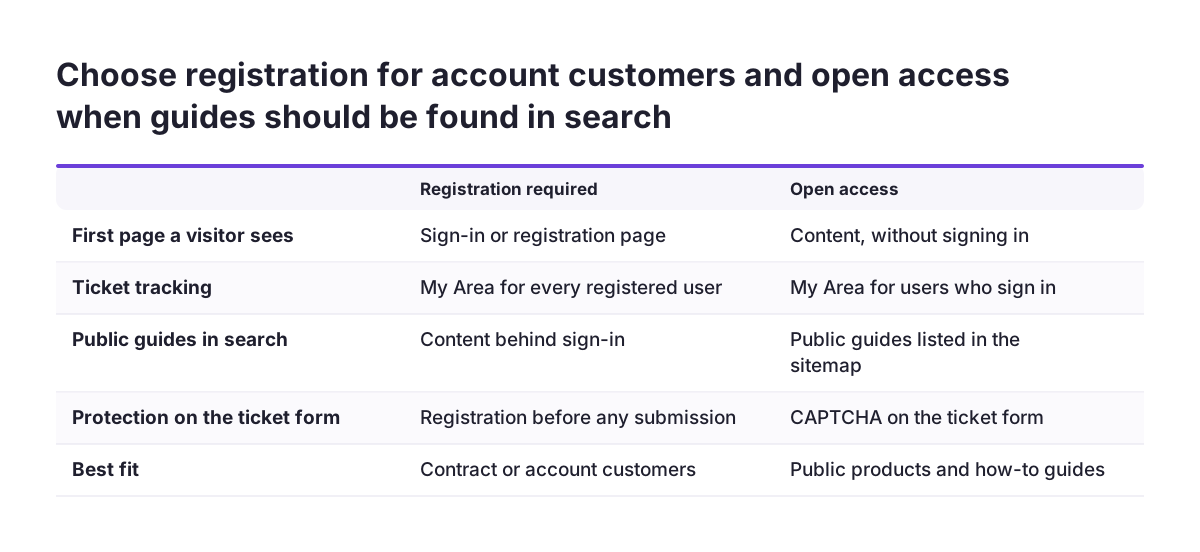
A Zoho Desk help centre runs in one of two access modes, and the two cannot be combined. Either every visitor must register before seeing anything, or the help centre stays open and sign-in is needed only for some actions. Zoho states that the options are mutually exclusive, so you choose one for the whole help centre.
Registration required
With registration required, visitors land on the sign-in or registration page before they reach any content. Registered customers can track tickets, have their email address prefilled on future tickets and review recent activity in My Area. They can also link other contact channels, such as Facebook or Twitter, to their account.
Open access
An open help centre lets any visitor search the knowledge base and community, and submit tickets. Visitors still have to sign in to track the status of a ticket. Zoho warns that open access can lead to spam or irrelevant ticket submissions. CAPTCHA, a test that blocks automated form filling, protects the ticket form when unregistered visitors can submit queries.
How to choose
Open access suits product guides you want anyone, including prospects, to find. It also matters for search engines, because the help centre sitemap lists only publicly accessible knowledge base pages. Registration suits content that only contracted customers should see. Only administrators can change the setting, under Setup > Channels > Help Center, then the help centre's Access Settings. Changes save immediately, so agree the choice before anyone clicks.
Knowledge base structure: groups, departments and brands
Help centre structure in Zoho Desk is controlled by three things: user groups, departments and brands. Decide all three before writing articles, because they shape who sees each section.
Groups decide who sees which content
A group is a collection of end users, often tied to an account, a geography, a brand or a product. Associating users with groups limits their access to specific knowledge base sections or community forums. For example, distributors can see a pricing procedures section that retail customers never see. Labels are different: they are tags on end users that make a person's role or contribution level easier to recognise in the community.
Departments decide where tickets go
If your Zoho Desk account has more than one department, enable Show departments list page on choosing to submit a ticket. Customers then pick a department before the ticket form opens, so the ticket lands with the right team.
Brands decide how many help centres you run
Zoho Desk lets each brand have its own help centre, with separate service channels, SLAs, notifications and knowledge base articles. Plan this early. One user in the Zoho community reported that the Help Center settings would not let them add a second centre directly. When they tried through a new department, they saw an error saying no department was mapped. Mapping brands to departments first avoids that dead end.
You can also hide the community by disabling Display Community. The help centre then stays available for knowledge base browsing and ticket submission.
Writing the first help centre articles from your most common tickets
The first knowledge base articles in a Zoho Desk help centre should answer the questions your agents already answer every week. An article nobody needs does nothing for ticket volume. Start from the ticket queue, not from a blank page or a product manual.
Pull a sample of recent tickets and sort them by the question behind each one. Write one article per question. Put the answer in the opening lines, then the steps, then the exceptions. Customers arrive from search with one question, so each article should stand alone.
At Svennis we draft the first articles from the wording customers use in real tickets rather than from internal documentation, so the knowledge base search matches the terms people actually type.
Zoho Desk gives you two tools to keep articles findable and accurate:
- Search metadata: the support page supports meta titles, keywords and descriptions, so search engines can locate it.
- Article ratings: customers can rate knowledge base articles, which shows you where content needs improving.
Zoho has also introduced parent-child ticketing in early access. Parent-child ticketing links repetitive and interconnected tickets under one parent so a team can resolve related issues together. A cluster of child tickets under one parent is a strong hint that an article is missing. Review the low-rated articles and the biggest ticket clusters every month, and rewrite or add articles where both point to the same gap.
Customer accounts on the help centre: invitations, self-sign-up and moderation
Customer accounts on a Zoho Desk help centre come from three routes: manual invitations, automatic invitations and self-sign-up. Self-sign-up is a setting that lets people register themselves. Users with the Support Channels administrative permission manage all three.
Invitations
When you invite users manually, Zoho Desk sends an email with a link to register. The Invite option is disabled for unverified user profiles. Auto-invitations go out only when a new or existing contact submits their first ticket through a support channel. After registering, end users sign in with their email address as their user ID.
Self-sign-up and moderation
Moderation lets you approve each sign-up before the account is active. It is available only when customer self-sign-up is enabled. It is not available for accounts that use remote authentication, where sign-in is handled by your own system. New sign-up notifications go to all administrators and agents with the Approve End User Signups permission. A rejected applicant is not told the request was denied, so agree a reply for anyone who chases.
Shared visibility within a customer company
By default a customer sees only the tickets raised from their own email address. Enabling Customers can view tickets of other users in their account lets everyone linked to the same organisation account see the company's tickets. Turn it on when several people at one client share responsibility for the same issues.
Help centre branding, domain mapping and search engine visibility
A Zoho Desk help centre can look and read like part of your website. Zoho lets you customise the portal with HTML and CSS to match your site. Custom CSS goes in as a .css or .txt file of no more than 1 MB.
The home page is built from widgets and tabs. You can use default widgets, add custom widgets, set widget placement and order, and give pages their own widget layouts. You can also control tab visibility, tab display names and tab order. Remove tabs you do not use, so customers see search and your most useful sections first.
Map the help centre to your own domain so customers stay on an address they recognise. The help centre subdomain is the customer-facing address used to reach support content and submit requests. Zoho Desk has replaced the default URL format for help centres that use an unmapped Zoho Desk address. The legacy pattern looked like desk.zoho.com/portal/. Mapping your own domain keeps links in old emails and documents under your control.
Search visibility depends on two features:
- Sitemap: an XML file that lists publicly accessible knowledge base pages for search engine crawlers such as Googlebot.
- Meta fields: meta titles, keywords and descriptions on the support page.
If you serve customers in more than one language, a multilingual help centre shows help centre content and knowledge base articles in the languages your organisation supports.
Worked example: a help centre for a firm with two departments
This worked example sets up a help centre in Zoho Desk for a hypothetical firm that sells and services commercial coffee machines. It has a Sales department and a Technical Support department. Its public cleaning guides should appear in search, while engineer procedures are only for customers with a service contract.
- Go to Setup > Channels > Help Center, select the help centre and open Access Settings. Keep it open, so the cleaning guides are public and appear in the sitemap.
- Turn on CAPTCHA for the ticket form, because open access invites automated submissions.
- Enable Show departments list page on choosing to submit a ticket, so customers choose Sales or Technical Support first.
- Create a group called Service Contract Customers. Restrict the engineer procedures section to that group.
- Enable self-sign-up with moderation. Give the service manager's profile the Approve End User Signups permission, so new sign-ups reach the person who knows the contracts.
- Enable Customers can view tickets of other users in their account. A café chain's site managers can then see each other's open faults.
- Map the help centre to the firm's own domain and upload the house stylesheet as a .css file under 1 MB.
- Disable Display Community at launch until someone has time to moderate posts.
The result is a help centre where anyone can find cleaning instructions without registering. Contract customers sign in to reach engineer procedures, and every ticket arrives in the right department. Nothing in this setup needs code beyond the stylesheet.
Help centre launch checklist: the settings to decide before going live
Every help centre launch in Zoho Desk turns on a handful of settings. The table lists each one, where it sits or what it depends on, and the question to answer before customers see the portal.
| Setting | Where or what it depends on | Question to answer |
|---|---|---|
| Access mode | Setup > Channels > Help Center > Access Settings; administrators only | Must everyone register, or only those tracking tickets? |
| CAPTCHA | Ticket form, when unregistered visitors can submit | Is the help centre open to the public? |
| Department list page | More than one department | Should customers pick a team before the form opens? |
| Groups | Knowledge base sections and community forums | Which content is for which customers? |
| Self-sign-up and moderation | Not available with remote authentication | Who approves new accounts, and with which permission? |
| Company ticket visibility | Organisation accounts | Should colleagues at one client see each other's tickets? |
| Community | Display Community setting | Who will moderate posts from day one? |
| Domain and CSS | Domain mapping; .css or .txt file up to 1 MB | Is the help centre on your own address and styled? |
Work through the rows in order. Access mode affects CAPTCHA, the sitemap and sign-up handling, so settle it first. The community row is the one teams most often leave open by accident. An unmoderated forum full of unanswered questions does more harm than a hidden one.
Measuring whether the help centre is reducing tickets
Help centre performance in Zoho Desk is measured with web analytics, goal tracking and article ratings, read alongside ticket volume. A help centre that gets visits while tickets stay flat is not yet answering the right questions.
Zoho supports three measurement tools for the help centre:
- Google Analytics: added as a third-party tracker through help centre JavaScript customisation. The Google Analytics Dashboard then brings traffic and engagement data into Zoho Desk.
- Goal Metrics: these track visitor actions, called conversions, that show whether the help centre meets a support objective, such as a visitor reading an article instead of opening a ticket.
- Article ratings: customer scores on each knowledge base article.
Zoho's G-Cloud listing for Zoho Desk mentions 12 standard dashboards and 7 predefined reports. For a view that combines help centre traffic with ticket trends over months, Zoho Analytics for cross-app reporting is the usual next step.
Test the ticket form, not just the articles
Submit a test ticket through the help centre after launch and after every change. In the Zoho community, one user reported that help portal tickets went unhandled for more than a week with no alert posted. Another reported that help centre tickets created contacts with the full name only in the Last Name field. A weekly test ticket catches both kinds of problem before customers do.
What a UK company should check: data location, GDPR, accessibility and price
A UK company running a help centre in Zoho Desk should check four things: where data lives, how personal data is removed, accessibility, and cost. Zoho Corporation's G-Cloud 14 listing for Zoho Desk answers most of them.
The listing states that Zoho Desk data is stored and processed in the European Economic Area. It is cloud-only, with no on-premise option. It records ISO/IEC 27001 accreditation by BSI and CSA STAR at Level 1, which is a self-assessment. The Zoho One listing states that Zoho does not hold Cyber Essentials or Cyber Essentials Plus, which matters if your clients require it.
For personal data, Zoho Desk lets you delete an end user, which helps you handle erasure requests under UK GDPR, but check the tickets and community posts it leaves behind for personal data too. Deletion purges profile data but keeps that person's tickets, community posts and knowledge base feedback, and it cannot be undone. Invited users cannot be anonymised; you delete their invitation instead. Link your privacy notice from the sign-in and ticket pages so customers know how you use their data. The guide to UK GDPR sets out the wider obligations.
On accessibility, the Zoho Desk G-Cloud listing says the ticketing interface works with screen readers, while the web chat is still being brought up to WCAG 2.1 AA. Public sector buyers should check the parts they plan to use.
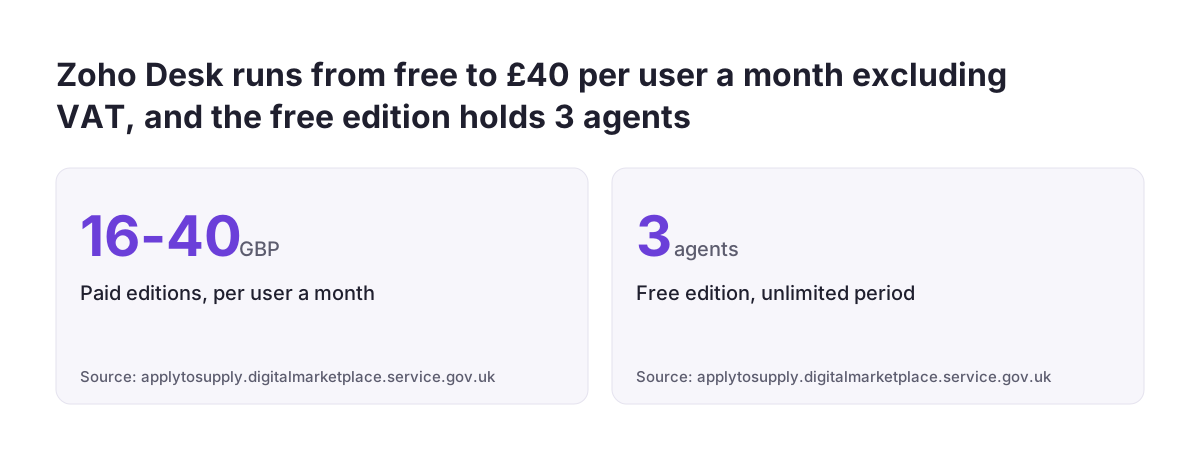
On price, the G-Cloud 14 listing shows Zoho Desk at £16 to £40 per user per month for business buyers, excluding VAT at 20%. The free edition covers 3 agents for an unlimited period. Zoho also offers a free trial of the Enterprise plan with no credit card required.
Next steps: from a list of repeat questions to a live help centre
The next step towards a help centre in Zoho Desk is a list, not a configuration screen. Write down the questions your agents answered most often last month, then work through these steps in order:
- Choose open or registration-required access, and record why.
- Map brands, departments and customer groups on paper.
- Write articles for the most frequent questions, answer first.
- Configure the settings in the launch checklist above, using a free Enterprise trial if you are not yet on a paid plan.
- Add Google Analytics and Goal Metrics. Update your cookie notice. Google Analytics needs consent unless you set it up so it produces only aggregate statistics that cannot identify anyone, and the data is used only to improve your own help centre. The data must also not be shared for any other purpose, such as advertising. Only then can you rely on the analytics exception instead, telling visitors and giving them a simple, free way to opt out. Then submit a test ticket.
- Review article ratings and ticket volume after the first month.
Some questions will always need a person. For faults that articles cannot fix, Zoho Assist for remote support sessions lets an agent connect to the customer's device directly.
To see how the help centre fits with tickets, channels and SLAs, read the Zoho Desk overview for UK support teams. If you would rather have help with the build, the explainer on what a Zoho partner does sets out what to expect.
Sources
- Zoho Desk: Help Center FAQs
- Zoho Desk: Managing Help Center
- Zoho Desk: Help Center access settings and permissions
- Zoho Community: Add second Help Center
- Zoho Community: Zoho Desk discussions
- Zoho Desk: Multi-brand help centre
- Digital Marketplace: Zoho Desk (Zoho Corporation Limited, G-Cloud 14)
- Digital Marketplace: Zoho One (G-Cloud 14)