


Project templates and budgets in Zoho Projects: the short answer
Project templates and budgets in Zoho Projects work as a pair. The template carries the repeatable structure: task lists, dependencies and the billing method. The budget carries the money: a budget type, hourly rates and thresholds that you set on each new project. Together they mean every project starts with the right tasks and shows overruns while you can still act.
A project template is a saved project structure in Zoho Projects that you create new projects from. It stops you rebuilding the same plan by hand. The template does the structural work once. The budget settings turn that structure into a cost plan you can measure.
One point matters before you start. The Zoho help pages used for this guide describe billing settings inside a template. They describe budget fields being set when you create or edit a project and its phases. This guide therefore treats the budget as a short, fixed step you complete each time you create a project from the template. The template does not fill it in for you.
The sections below cover what a template holds and which plans include templates and budgets. They then cover how to choose a budget type and a worked phase budget example. The last parts explain how Zoho Projects flags an overrun.
What a Zoho Projects template holds
A Zoho Projects template holds the parts of a project that repeat from one client to the next. According to Zoho's help page on project templates, a template can include these elements:
- Task lists, cloned from a task template, from a project or from another project template.
- Task dependencies, the relationships between tasks that rely on one another.
- A task list flag, set as internal or external.
- A project layout. If you have not created any layouts, Standard Layout appears in the drop-down.
- A billing method, which appears only when Zoho Projects is integrated with Zoho Invoice or Zoho Books, and not on the free plan.
A task template, in Zoho's terms, is a set of tasks grouped under a Task List Template. You use one whenever several task lists contain similar tasks. That makes task templates the building blocks, and the project template the assembled plan.
Two behaviours are worth knowing. The Default Billing Status can be changed when someone creates a project, and that choice overrides the setting in Portal Settings. Tabs also behave differently: only template-supported tabs show inside the template itself, but projects created from it get all the selected tabs, in the same order.
Plan limits for templates and budgets in Zoho Projects
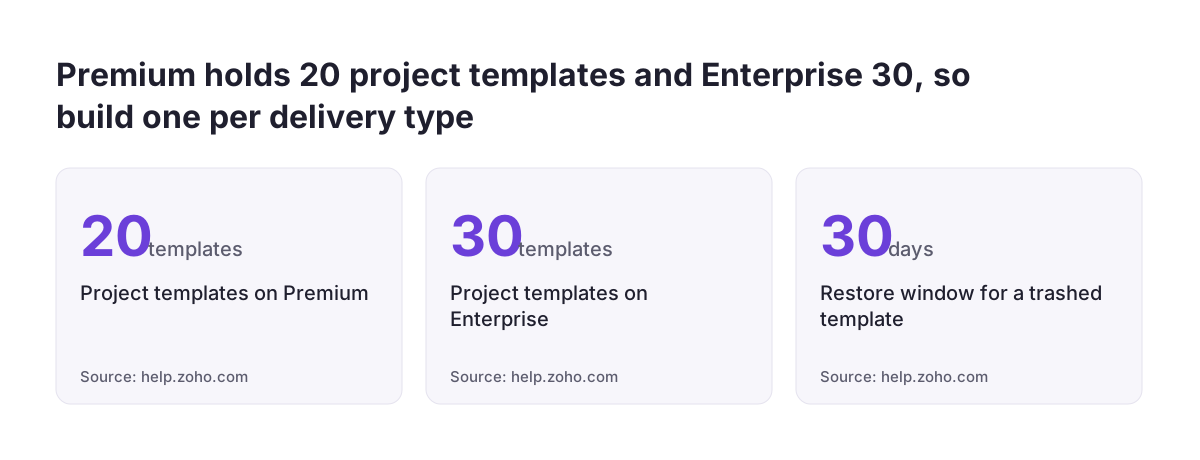
Project templates and project budgets in Zoho Projects sit on paid plans, and the limits shape how you design your template library. The Premium plan allows 20 project templates. The Enterprise plan allows 30.
The project budget feature is available on the Premium, Enterprise and Ultimate plans. It is also available to CRM Plus and Zoho One users. The billing method option in a template needs an integration with Zoho Invoice or Zoho Books and does not appear on the free plan.
The template cap is the limit most teams feel first. Twenty templates sounds generous until each account manager makes a personal copy. Build one template per type of delivery, not one per client, and keep client detail in the project itself.
Deleted templates are recoverable for a short time. A trashed project template moves to the Recycle Bin and can be restored within 30 days. After that, plan on rebuilding it.
If you are still choosing a plan, our post on Zoho Projects pricing and when Zoho One is the better buy sets out the options. Check that the plan you pick includes both templates and budgets before you design anything.
Building a Zoho Projects template from a delivery that already works
The quickest way to build a Zoho Projects template is to start from a real project that went well. You reach templates from the project list view. When you create a template from an existing project, you can choose to bring its closed tasks across. They arrive in the template as open tasks.
That option saves hours, but it also copies the mess. A finished project contains one-off tasks, client-specific names and work added in a panic. Strip those out, then rename the remaining tasks so they make sense for any client.
Next, set the dependencies inside the template. Zoho's help page confirms that task dependencies can be set in project templates. A dependency stops "Launch" starting before "Client sign-off" is done, so the order of work survives every new project.
At Svennis we build the first template from the client's best recent project. Alongside it we agree a short budget checklist, so the project manager sets the Budget Type and thresholds on the day the project is created. Without that checklist, we see projects run for weeks with no budget at all.
Plan the template before the next project starts. A thread in Zoho's community shows a user asking how to apply newly created templates to existing projects. That question comes up when a template arrives after the work has already started.
Choosing a budget type: project, phase, task or user
Zoho Projects supports four budget types: Based on Project, Based on Phase, Based on Task and Based on User. The type decides how the project total is built and where overruns show first. Pick the type that matches how your template is structured.
| Budget type | How the project total is built | Good fit when |
|---|---|---|
| Based on Project | One budget for the whole project. Revenue Budget is available only when the budget type is Based on Project Amount. | The work is small or fixed in scope and you want revenue tracked too. |
| Based on Phase | The sum of all phase costs. The project threshold is calculated from the phase thresholds. | The delivery has clear stages, such as discovery, build and handover. |
| Based on Task | The sum of all task budgets. Task and project thresholds update every three hours. | Tasks are priced and controlled one by one. |
| Based on User | Budget allocated to users at project level, so managers can track, monitor and control expenditure. | Cost depends mainly on who does the work. |
For a template built around stages, Based on Phase is usually the natural choice. Phases already exist in the plan, so each one gets its own budget and threshold. An overrun in an early phase then shows before it spreads to the whole project.
You can set the budget type when you create a project or later by editing it. The facts in this table come from Zoho's help pages on project budget and the budget knowledge base.
Worked example: a phase budget on a project created from a template
A phase budget in Zoho Projects is a budget allocated to one phase of a project, used to track the costs of each significant stage. Take a consultancy with a template called "Website rebuild". The template holds three phases: Discovery, Build and Launch, each with its own task list and dependencies.
Here is how the project manager sets the budget when a new client signs:
- An administrator enables project budget in settings once, and sets a default currency there.
- The project manager creates a new project from the "Website rebuild" template and chooses the project currency.
- In the project form, the manager selects Based on Phase as the Budget Type.
- The manager opens each phase, Discovery, Build and Launch, and fills in the Phase Budget and Budget Threshold fields.
- The manager checks each phase details page, where the phase budget is shown.
From then on, Zoho Projects tracks the project budget as the sum of the three phase costs. The project threshold is calculated from the phase thresholds, so nobody sets it twice.
Once the budget is enabled, the phase list and detailed view show planned against actual cost and a Cost Variance column. A difference column also shows planned against actual hours. If Build starts eating more hours than planned, the gap shows on the Build phase first. The steps come from Zoho's phase budget help page.
Cost Per Hour, Rate Per Hour and revenue budget in Zoho Projects
Zoho Projects separates what work costs you from what you charge for it. Cost Per Hour is the field used to calculate the planned and actual cost of a project. Rate Per Hour is the field used to calculate planned and actual revenue, and for billing and invoicing.
The split came with Revenue Budget, which Zoho introduced to track a project's expected income. Revenue, in Zoho's terms, is the payment expected from clients, used to track profitability. You enable Revenue Budget from the setup page. The Revenue Budget and Rate Per Hour fields then appear in the New Project and Edit Project forms. The detail is in Zoho's Revenue Budget announcement.
Check one thing after enabling it. Zoho copied existing Rate Per Hour values into the new Cost Per Hour field. If your old rate was a sell price, your cost figures now show sell prices. Correct them before trusting any variance.
If you report project costs in Zoho Analytics, update any report that uses Rate Per Hour for cost. Zoho says those reports must be switched to Cost Per Hour by hand.
How Zoho Projects flags a budget overrun
Zoho Projects flags an overrun in three ways: cost variance, a status tag and an email alert. Cost variance is the difference between planned and actual cost. A budget is in surplus when planned cost is higher than actual cost, and overrun otherwise.
Forecasted cost gives the early warning. Zoho calculates it as the remaining percentage of planned cost plus actual cost to date: (((100 - % completion) x planned cost) / 100) + actual cost. In plain terms, it estimates what the project will cost at completion if the rest goes to plan.
Each project then gets one of three status tags:
- At Risk: actual is still below budget, but forecasted cost or hours are above it.
- Overrun: actual cost or hours are above budget.
- Surplus: forecasted cost or hours are at or below budget.
At Risk is the tag to watch. It appears before money is lost, while scope or staffing can still change.
Turn on the email notification as well. Zoho Projects can email you when actual cost exceeds the threshold you set or the planned budget. The threshold you entered in the worked example is what triggers that email.
Permissions and update timing that catch teams out
Budget figures in Zoho Projects depend on permissions and on refresh timing, and both cause confusion. Project Budget is enabled by default for admin profiles only. For other profiles, an administrator enables the permission by editing Profiles.
Viewing the numbers needs two further permissions. Planned cost requires Task > View All. Actual and forecasted cost require Timesheet > View All. A project manager without the timesheet permission sees a plan but no actuals, and may assume nothing has been spent.
Timing matters too. Zoho calculates the budget automatically every six hours. You can force a fresh calculation with the button in the Budget Status widget. With task-level budgets, the help page says task thresholds and the project threshold update every three hours.
Three calculation rules also affect what you see:
- Rejected and non-billable log hours are left out of actual hours and actual cost.
- Planned cost for a recurring task is multiplied by the number of occurrences.
- The default currency applies only when no currency is chosen at project creation.
The first rule deserves a decision. If your team logs internal work as non-billable, that time will not appear in actual cost. Decide whether that suits how you measure delivery before you rely on the figures.

What project templates and budgets mean for a UK company
For a UK company, project budgets in Zoho Projects raise three practical questions: currency, invoicing and how project costs reach the accounts. Start with currency. Choose pounds sterling when you create each project, or set it as the default when enabling budgets, because the default applies only when no currency is chosen.
Fixed-price work needs the accounts link. The Fixed Price for Project billing method is available only for portals integrated with Zoho Invoice or Zoho Books. If you quote fixed fees, connect Zoho Books before you build the template, so the billing method is there to select.
Project budgets track delivery, not the whole company. For a company-level view of spend against plan, our post on budgets versus actuals in Zoho Books covers the accounting side.
If your Zoho Projects portal is on the EU data centre, Zoho's support address is support@eu.zohoprojects.com.
Next steps: turn one repeatable delivery into a template this week
The best first move is to pick one delivery your team repeats often and turn it into a Zoho Projects template with a budget checklist beside it. Work through these steps in order:
- Confirm your plan includes both project templates and project budget.
- Choose the most recent project of that type that ran well.
- Create a template from it, bring closed tasks across as open tasks, and delete the one-off work.
- Set task dependencies so the order of work is fixed.
- Decide the budget type, usually Based on Phase for staged work.
- Check Cost Per Hour and Rate Per Hour hold the right figures.
- Grant Task > View All and Timesheet > View All to the managers who need the numbers.
- Write a short checklist: currency, Budget Type, Phase Budget and Budget Threshold for every phase.
Run the next real project from the template and review the At Risk and Overrun tags each week. After two or three projects, adjust phase budgets to match what work actually costs.
To see how Zoho Projects fits your wider setup, start with our Zoho Projects page, which covers task tracking, templates and how we help UK teams set it up.
