


Ticket assignment rules in Zoho Desk route each new ticket automatically
Ticket assignment rules in Zoho Desk let you send each new ticket to the right team or agent without anyone sorting the queue by hand. You set criteria such as channel, product or customer, then choose a target. Desk applies the first rule that matches. You can pick direct assignment to one agent or team, or round robin to share tickets across a group.
An assignment rule is an automation tool that lets the support administrator automate the process of assigning tickets to agents. That is Zoho's own definition, from its assignment rules FAQ. In older Zoho posts, the rules sit under Automation in Setup.
Zoho built the feature to solve a problem it had itself. In a 2012 post, Zoho described its own Helpdesk Coordinator. He received hundreds of requests every day and assigned an owner to each one manually. Requests about Zoho CRM often landed in the wrong department and had to be moved by hand.
Assignment rules were Zoho's fix for that manual sorting. They move a request to the right department and assign an owner there.
This guide covers the methods Desk offers, how to choose a round robin type, the order Desk runs its automations in, and a worked example. It also covers absences and the points where rule sets usually break as a service desk grows.
Three ways Zoho Desk assigns tickets: workflows, assignment rules and Zia
Zoho Desk offers three primary methods for automating ticket assignment: workflow rules, assignment rules, and AI-based assignment using Zia. Each method suits a different job. Most service desks end up using more than one.
Workflow rules
A workflow rule fires when a ticket meets the criteria you set, and one of its actions can be to assign the ticket. Workflows can be triggered by multiple criteria. They do not support round robin distribution, though. Use a workflow when the assignment is one fixed outcome, or when you also want to send alerts, create tasks or update fields at the same time.
Assignment rules
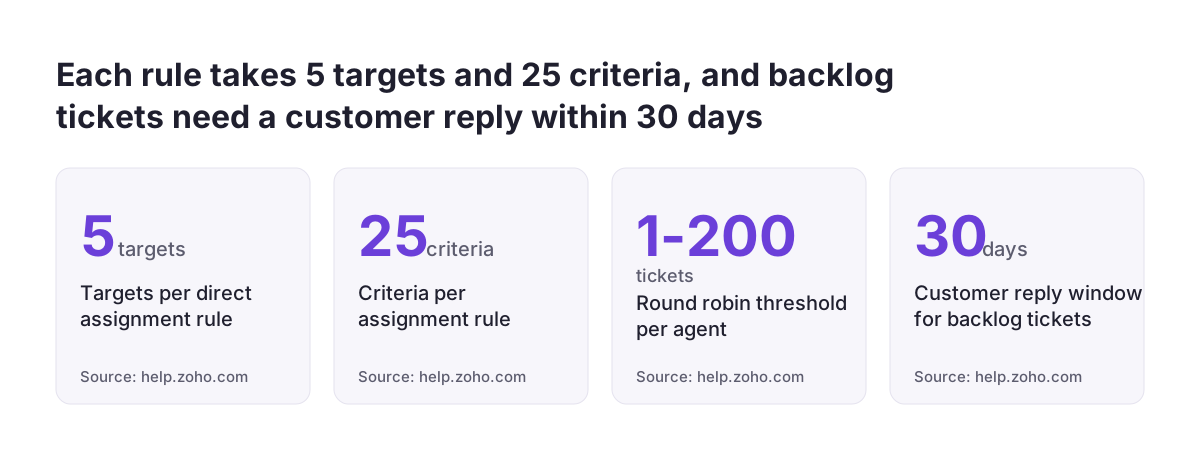
Assignment rules exist purely to assign tickets. They come in two kinds: direct rules and round robin rules. You can combine up to 25 criteria in a rule using AND and OR operators. For most routing, assignment rules are the right tool.
Zia
Zia, Zoho's AI assistant, does not assign tickets by itself. You train Zia to predict ticket field values, such as a category. Once Zia fills in the field, your existing assignment rule or workflow assigns the ticket based on that value. Zia therefore improves the input, and your rules still make the decision. If you are looking at AI for customer support more broadly, this split between prediction and routing is worth keeping in mind.
Direct rules and round robin rules work at different levels
Direct assignment rules send a matching ticket to one named agent or one team, while round robin rules share tickets across a group. The two kinds also differ in scope. A direct assignment rule is organisation-specific. A round robin rule is department-specific.
Direct assignment rules
A direct rule assigns a ticket to only one agent or one specific team at a time. You can add up to five targets to each direct rule. Each target pairs criteria with an assignee. A direct rule can also assign a ticket to a team and then to agents within that team, based on criteria you define. Note that you cannot assign a ticket to a team and an agent at the same time.
Round robin rules
A round robin rule distributes tickets to the members of a team equally. Because it is department-specific, you build one per department that needs it. You can associate up to five targets with each round robin rule. There is no limit on the number of agents a round robin rule can include.
A round robin rule also lets you set a threshold. The round robin threshold is the maximum number of tickets that each agent can hold at a time, and you can set it from 1 to 200. You can set a separate threshold for backlog tickets, from 1 to 50. If you define thresholds at both department and agent level, the agent-level threshold takes precedence. Up to 1500 agents can have agent-level thresholds.
Choosing between sequential, load based and skill based round robin
Zoho Desk offers three types of round robin: sequential, load based and skill based. Pick sequential for strict turn-taking, load based when ticket effort varies, and skill based when tickets need particular expertise. The table below sets the three alongside direct rules and workflows.
| Method | How tickets are assigned | Scope | Use it when |
|---|---|---|---|
| Direct assignment rule | To one agent or one team per matching target | Organisation | A ticket type always belongs to a named person or team |
| Sequential round robin | In the order agents were added to the rule; alphabetical if all agents or a team are chosen | Department | Agents handle similar tickets and you want plain turn-taking |
| Load based round robin | To the least loaded agent first, until loads are equal, then in turn | Department | Some agents hold more open tickets than others |
| Skill based round robin | To agents whose skills match the ticket, such as language or domain expertise | Department | Tickets need a language, product knowledge or negotiation ability |
| Workflow rule | To a fixed owner, with other actions alongside | Rule criteria | Assignment is one step among alerts, tasks or field updates |
Load based assignment is the safer default for most teams. Sequential assignment ignores how busy each agent already is. An agent who received a long, difficult case still gets the next ticket in turn.
Skill based assignment depends on clean skill data. Skill Preferences is the setting that controls whether skills are added automatically to tickets when they are created or edited. Check it before you rely on skill based routing.
The order in which Zoho Desk runs assignment automations
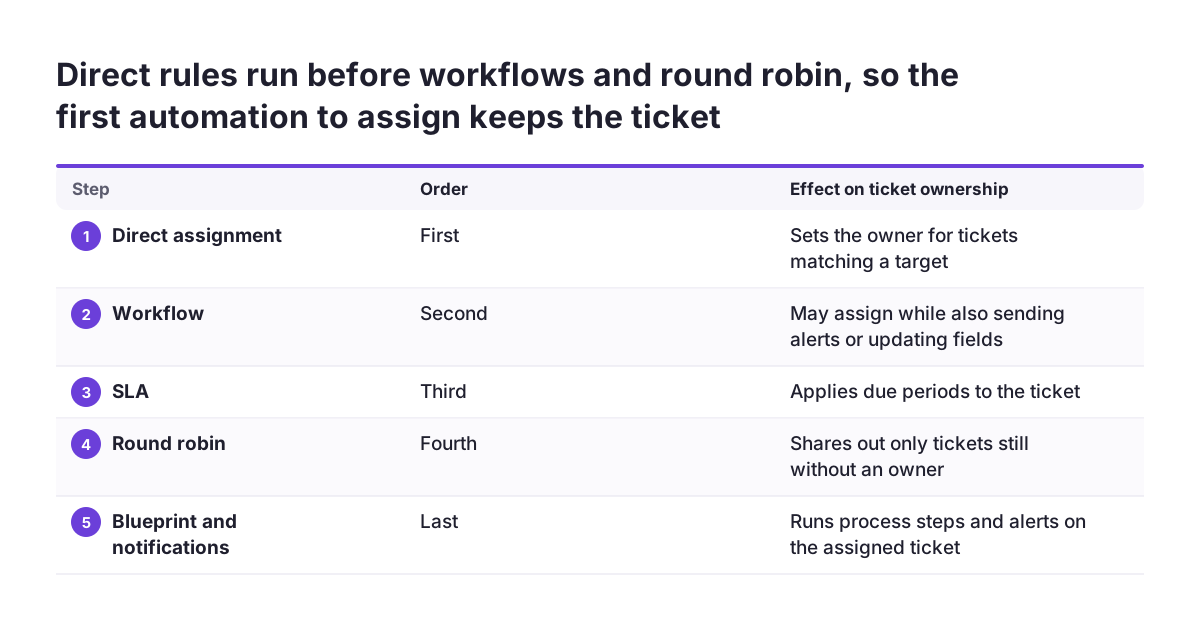
When all automations are active, Zoho Desk runs them in a fixed sequence. Direct assignment comes first. Then come Workflow, SLA, Round robin, Blueprint and Notifications. Within round robin, the order is sequential, then load balancing, then skill based.
That order matters because an earlier automation can claim a ticket before a later one sees it. A round robin rule will not reassign a ticket whose owner was already set by a workflow, a direct assignment or a macro. So if a direct rule assigns a ticket, your round robin rule never touches it. This is often what you want. It becomes a problem when an old workflow quietly assigns tickets you meant to share out.
Inside assignment rules, the list order decides the outcome. Desk runs the rules in the order they are listed. Once a matching rule is applied, no further rules are evaluated. A broad rule near the top will therefore catch tickets that a narrower rule below it was meant to handle.
Put your most specific rules first and your broadest rules last. A ticket that meets no active rule stays unassigned. An agent or manager then has to assign it by hand.
A worked example: routing by channel, product and customer
Take a small UK supplier with two departments in Zoho Desk, Sales and Support, and a Support team split into Level 1 and Level 2. The goal is that every new ticket reaches an owner without a coordinator sorting it. Here is one way to build that, in the order you would set it up.
- Key accounts first. Create a direct assignment rule with a target whose criteria match your named key account customers. Assign those tickets to the account manager. This rule sits at the top because it is the most specific.
- Product routing. Add a second target to the same direct rule. Tickets where the product field matches your specialist product line go to the Level 2 team.
- Everything else in Support. Create a load based round robin rule for the Support department. Point it at the Level 1 team and set a threshold, for example 15 open tickets per agent, within the 1 to 200 range Desk allows.
- Sales enquiries. Create a separate round robin rule for the Sales department, since round robin rules are department-specific.
- Check the unassigned view. Any ticket that matches nothing stays unassigned, so watch that view as part of daily work.
The direct rule runs first and claims key account and specialist tickets. The round robin rule then shares out what remains, and it will not override the owners the direct rule set. You stay within the limit of five targets per rule. A sixth routing case needs another rule.
Covering absences, offline agents and shifts in Zoho Desk
By default, Zoho Desk does not move tickets away from an agent who is absent. If an agent is unavailable or out of office, the ticket remains assigned to them, and no automatic reassignment occurs. A customer can wait a week for an agent on leave unless you plan for it.
Round robin helps with new tickets. By default, only agents who are online on the email channel receive tickets from round robin. An agent who is offline is skipped, so new work flows to colleagues who are present. You can include offline agents in the queue if your team works asynchronously, but then absences matter again.
Tickets already assigned need a separate fix. Give each team a short handover routine before leave, where open tickets are reassigned to a colleague or to the team. Time-based rules can also help you spot neglected tickets. They are processed once every hour, so they suit monitoring rather than instant action.
Shift-based assignment is not described on Zoho's assignment rules pages. Zoho Desk users have asked for it in the Zoho community forum, including one user who asked for sample code to assign tickets by shift. If your team works shifts, plan for custom work rather than assuming a setting exists.
Where assignment rule sets break as a service desk grows
Assignment rule sets rarely fail on day one; they fail as teams, products and staff change. The same few problems appear again and again.
These are the most common points of failure:
- Rule order drift. Someone adds a broad rule at the top, and it silently catches tickets meant for rules below it.
- Round robin resets. Adding or removing an agent resets the sequence, and assignment restarts from the first agent on the list. The reset does not apply when tickets are assigned to teams.
- Hidden earlier owners. A workflow or macro assigns tickets first, so the round robin rule never gets them.
- Stale backlog. Unassigned or backlog tickets are only assigned by round robin if the customer responded within 30 days. Older tickets sit untouched.
- New settings, old tickets. Immediate assignment only applies to tickets created or updated after you enable it, not to existing tickets.
- Target limits. Five targets per rule fills up quickly, and teams start bending criteria to fit.
At Svennis we keep one catch-all rule at the bottom of every rule list and review the unassigned view with the support lead in the weeks after go-live, because a gap in the criteria shows up there before customers complain. Moving agents between teams, rather than editing named agent lists, also avoids most round robin resets.
Using teams in SLAs, escalations and notifications
Teams in Zoho Desk are useful beyond routing, because the same team can drive SLAs, escalations and notifications. You can include teams in workflows, in both direct and round robin assignment rules, and in time-based rules. In rule criteria, you select "Team" in the Criteria field and add more filters with AND or OR conditions.
Teams can be added to SLA targets, so their tickets get pre-defined due periods. With a tiered structure, such as Level 1 and Level 2, you can escalate tickets to a different team when they breach an SLA. That gives you a second safety net when the first assignment does not lead to a timely answer. Our post on setting up SLAs for timely support responses covers the SLA side in detail.
Team notifications email a team when a defined event happens, such as a ticket being assigned or a customer reply arriving. By default, all agents in a team receive them. The prebuilt notifications cannot be edited. If you need different wording or recipients, create a workflow rule for a custom notification instead.
You can also use teams as a criterion in macros. A macro is a set of actions an agent applies to tickets manually, such as sending an email or updating a field.
What assignment rules mean for a UK service desk
For a UK company, the main value of assignment rules is that routing keeps working when the person who usually sorts tickets is away. Many UK service desks are small, and one coordinator often holds the routing knowledge in their head. Writing that knowledge into rules removes a single point of failure.
Leave patterns are the second concern. Summer holidays and the Christmas period empty desks for days at a time. Because Desk leaves tickets with absent agents by default, a UK team should build the pre-leave handover into its routine. Load based round robin with the online-only default then keeps new tickets moving to whoever is present.
Teams with offices or remote staff across several locations should use Desk teams rather than individual agents as targets wherever possible. Team targets survive staff changes better, and round robin resets do not apply to them. For firms that also run a help centre in Zoho Desk, tickets raised from the portal can be routed by the same rules as email.
Finally, check which Zoho Desk edition you hold before you design the rules. Zoho's 2012 announcement limited assignment rules to Professional and Enterprise users. Assign ticket on closure is available only in the Enterprise edition.
Next steps for setting up assignment rules in Zoho Desk
Start by writing down how tickets are assigned today, before you open Setup. A short list of who handles what, by channel, product and customer, becomes your rule set.
Then work through this checklist:
- Confirm your Zoho Desk edition and which assignment features it includes.
- List your departments and teams, and decide which tickets go to a named owner and which are shared.
- Audit existing workflows and macros that set ticket owners, since they run before round robin.
- Build direct rules first, most specific at the top, within five targets per rule.
- Add one round robin rule per department, usually load based, with a sensible threshold.
- Add a catch-all rule at the bottom and review the unassigned view daily at first.
- Agree a handover routine for leave, and link teams to SLA targets and escalations.
Once routing is stable, measure it. Assignment times and reassignment counts tell you whether the rules are working, and Zoho Analytics can report on them across departments. If you are still choosing or extending the platform, our Zoho Desk omnichannel help desk page explains how we set Desk up for UK teams, including queues and routing across email, phone and chat.