


What to check before installing a Zoho Marketplace extension
Choosing extensions from the Zoho Marketplace comes down to five checks before you press Install. Check the permissions the extension asks for, the data it shares with its vendor, the support behind it, its update history, and how it fits the customisations you already run. If an extension fails more than one of these, a custom build is often the safer route.
The checks matter because some installs are hard to reverse. The CloudSign for Zoho CRM help article states that all related data is deleted on uninstall and cannot be recovered. You want to know that before records start building up inside the extension, not after.
This guide takes each check in turn. It then applies all five to one real extension, CloudSign for Zoho CRM. A checklist table follows, then the signs that point to building your own, and what the checks mean for a UK company.
Zoho Marketplace extensions: what they are and how they get listed
A Zoho Marketplace extension is a packaged add-on, built by Zoho or a third-party developer, that you install into a Zoho product to add features. The Zoho Marketplace lists four kinds of item: extensions, custom apps, industry solutions and AI agents. The Marketplace launched as part of the Zoho CRM 2016 release.
Extensions also exist outside Zoho CRM. In Bigin, for example, Zoho added a Data Enrichment topping, powered by WebAmigo, that automatically enhances contact and company records.
Public and private extensions
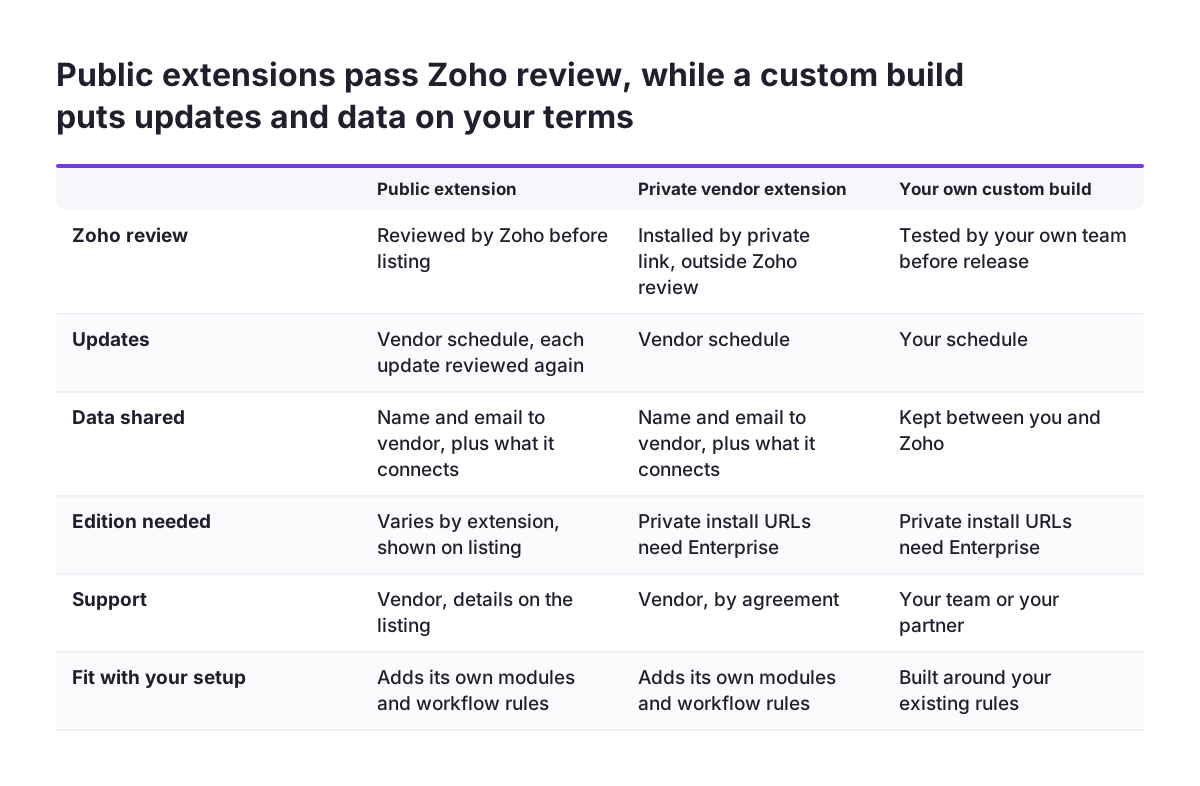
Public and private extensions pass through different levels of checking. A public extension must clear Zoho's review before it appears in the Marketplace. The Marketplace team reviews it for functionality and usability, and the review usually takes 24 to 48 hours.
A private extension skips that human review. It installs only through a private installation URL, and Zoho Sigma, Zoho's developer platform, runs an automated validation when it is published. Every extension starts out private when first published, and developers may sell private extensions through their own systems. So an install link from a vendor's website may point to an extension Zoho has never reviewed.
The Marketplace also separates native integrations from API-built extensions. Native integrations are built on Sigma and PhoneBridge; extensions built via APIs are not.
Permissions and editions: who can install an extension and who sees it
Extension permissions decide who can install the add-on, which Zoho edition it needs, and which users get its features. Check all three on the listing before you plan a rollout.
The Zoho Marketplace shows these restrictions at install time:
- Some apps can be installed or purchased only by an organisation admin.
- Some extensions do not work on the free edition of Zoho CRM.
- Some extensions are available only on the Enterprise edition and above.
Many Zoho CRM extensions also let you choose the install scope. CloudSign for Zoho CRM, for instance, offers three options: admins only, all users, or chosen profiles. A profile in Zoho CRM is the set of permissions assigned to a group of users. The narrowest scope that does the job is the right starting point.
At Svennis we install a new extension for admins only first, test it on a few records, and widen it to the profiles that need it once it behaves. That order keeps a misbehaving extension away from your sales or support team while you learn what it changes.
Data access: what an extension vendor receives and connects to
Installing a Zoho Marketplace extension shares data with its vendor before you use a single feature. The install screen asks you to agree to share your name and email address with the vendor, and you must agree to continue.
Many extensions also connect your Zoho account to an outside service. The Marketplace warns that some extensions need a valid third-party account before installation. CloudSign for Zoho CRM, for example, needs a Client ID from CloudSign to connect. Some installs create accounts for you: if you have no Zoho FSM account or organisation, one is created when you click Install.
Ask the vendor three questions before you agree:
- Which Zoho records does the extension read or write?
- Which of those records leave Zoho, and where are they processed?
- What happens to that data if you uninstall or stop paying?
Zoho publishes its own data security details, but those describe Zoho's service. An outside vendor's servers are a separate question that you answer with the vendor. Set a higher bar for extensions that write into Zoho Books, because a fault there reaches your accounts.
Support and reviews: who answers when an extension breaks
Extension support comes from the extension's vendor, so check what the vendor offers before you depend on the add-on. Zoho's own published support tiers describe support for Zoho's service. For Zoho CRM Plus, that means free technical support eight hours per workday, with Premium at 24/5 and Enterprise at 24/7.
The Marketplace listing is your first source on vendor support. Zoho's submission form asks developers for support details, a logo, screenshots and documentation before review. A listing with a named support contact and real documentation is a better sign than screenshots alone.
Reading ratings and reviews
Marketplace reviews carry some weight because Zoho filters them. Each review is checked for relevance and profanity, then verified as posted by a legitimate user before publication. Read the low-rated reviews first, since they show how the vendor responds to problems.
Marketplace search results are sorted by rating, highest first. A high rating tells you other users were satisfied. It does not tell you the extension fits your setup, so the remaining checks still apply.
Update history: reading an extension's timeline and version changes
An extension's update history shows whether its vendor still maintains it. The Zoho Marketplace lets you view a timeline of updates for an extension, listing newly added features, enhancements and fixes.
Look for three things in that timeline. Recent entries show the vendor is active. Listed fixes show the vendor responds to faults. Entries that follow Zoho product changes show the vendor keeps up with the platform.
How updates reach your account
Updates to public extensions pass through review again. Zoho's Sigma documentation states that each update increments the extension's version and the updated package must be resubmitted for review. Once Zoho approves a Zoho CRM extension update, every user who has installed it is notified.
Private extensions work differently. The developer must share each update with customers, either through the extension link or an automated email. If you run a private extension, agree with the vendor how you will hear about fixes, or you may keep running an old version without knowing.
Fit with existing customisations: what an extension adds and what stays
A Zoho CRM extension adds its own components to your account, and those components sit alongside your existing customisations. They can include custom modules, workflow rules, field updates, alerts and email templates.
Zoho's developer documentation limits what a vendor can change in later versions. Custom modules and workflow rules can be edited but not deleted during version upgrades. For workflow rules, the developer cannot change the module the rule applies to or the Execute based on option under Rule Trigger. For workflow tasks, alerts, field updates, email templates and inventory templates, the developer cannot change the associated module.
In practice, components an extension adds tend to stay with you across versions. Before installing, list the modules the extension touches. Then compare them with your own workflow rules and field updates on those modules. Two rules updating the same field on the same record is a common source of confusing data.
Check the visible changes too. An extension that adds buttons to many record pages changes what your users see every day. Plan a short briefing before those buttons appear.
Worked example: checking CloudSign for Zoho CRM before you install it
CloudSign for Zoho CRM lets users send, track and manage digitally signed documents from inside Zoho CRM. Its help article answers most of the five checks before installation, which makes it a useful example.
- Read what the install creates. Installing creates two modules, CloudSign Documents and CloudSign Recipients. A Send with CloudSign button appears on Leads, Contacts, Accounts, Deals, Quotes, Invoices, Sales Orders and Purchase Orders.
- Confirm the outside account. You need a CloudSign account and its Client ID to connect.
- Pick the install scope. Choose admins only for the first pass, then add chosen profiles.
- Finish the setup. Configure the webhook in your CloudSign settings. Without it you lose real-time status tracking.
- Test one document. Drag Seal, Text and Checkbox fields onto a document and assign each to yourself or a recipient. After signing, check that the agreement attaches to the matching CloudSign Documents record and the status updates in Zoho CRM.
- Plan the exit. Uninstalling deletes all related data, with no recovery. Decide now how you would export the CloudSign Documents records first.
For the exit plan, Zoho lists CSV as a supported export format for Zoho CRM Plus. Check for workflow rules of your own on Deals and Quotes, because those modules gain the new button.

The pre-install checklist for Zoho Marketplace extensions in one table
The table below collects the checks from this guide. Work through it for any extension before it goes into a live Zoho account.
| Check | Where to look | Warning sign |
|---|---|---|
| Listing type | Marketplace listing or vendor install link | Private link only, so no Zoho review |
| Edition | Install screen | Needs Enterprise and you are on a lower edition |
| Install scope | Install options | All users is the only option |
| Data shared | Install consent and vendor documentation | Vendor cannot say where your records go |
| Data processing agreement | Vendor contract | No written processor contract for personal data it handles |
| Outside account | Listing and help article | Needs a third-party account you do not control |
| Support | Listing support details and documentation | No named contact or documentation |
| Reviews | Low-rated Marketplace reviews | Complaints with no vendor reply |
| Update history | Extension update timeline | No recent fixes |
| Components | Help article and a test install | Workflow rules on modules you already automate |
| Uninstall | Help article | Data deleted with no export route |
One warning sign is a question for the vendor. Several on the same extension point towards a custom build.
When a custom build is better than a Marketplace extension
A custom build beats a Marketplace extension when the add-on would fight your setup, expose data you want to keep, or leave you waiting on someone else's update schedule. Four situations come up most often.
- No listed extension does what you need, or each one does half of it.
- The extension adds workflow rules on modules where your own automation already runs.
- The extension would send records to a vendor whose processing you cannot confirm.
- You need control over when changes reach your users.
Building your own uses the same route vendors use. Zoho's Developer Console lets you publish an extension privately for your organisation. Private installation URLs work only in Zoho CRM Enterprise edition and above, and installation is blocked on lower editions. Private extensions also skip Zoho's review, so the testing falls to you.
Check what you already own before building anything. If the gap is reporting, Zoho Analytics may cover it without an extension. If you would rather wait for a vendor, the Marketplace has a request form. You describe the integration you want and the Zoho product it should work with.
What extension checks mean for a UK company on Zoho
For a UK company, the main point is that Zoho's published assurances cover Zoho, not each extension vendor. Zoho's G-Cloud listing for Zoho CRM Plus gives data storage and processing locations in the European Economic Area. It shows ISO/IEC 27001 accreditation by BSI, dated 9 August 2022.
The same listing shows CSA STAR at Level 1, which is a self-assessment, dated 1 March 2023. It also states that Zoho is still working towards WCAG 2.1 AA, the web accessibility standard. None of these tell you how an extension vendor stores the name, email and records you share with it.
If the vendor handles personal data from your Zoho account on your behalf, UK GDPR requires a written contract with it that meets Article 28. If it processes that data outside the UK, you also need a valid transfer mechanism, such as the IDTA (International Data Transfer Agreement) or the UK Addendum. Ask the vendor for its data processing agreement before you install.
Keep a short record for each extension: the vendor, the data it receives, where that data is processed, and who in your company approved it. That record answers a client's security questionnaire quickly and makes a later review straightforward.
If your group buys through a company in the EU, note one purchasing detail. Marketplace payments are not yet open to users in the EU, who can email sales@zohomarketplace.com to buy. Free trials for some extensions also start through that address.
Next steps for choosing your first or next extension
The next step is to run one extension you are considering through the checklist above, before anyone installs it in your live account. Most of the answers sit on the Marketplace listing and the extension's help article.
- List the problem the extension must solve, in one sentence.
- Shortlist two or three Marketplace extensions and read their low-rated reviews and update timelines.
- Check edition requirements and install scope against your Zoho plan.
- Ask each vendor where your data goes, for its data processing agreement, and what happens on uninstall.
- Compare the modules each extension touches with your own workflow rules.
- Install the winner for admins only, test it, then widen access.
If the checklist turns up several warning signs, or you are unsure how an extension will sit alongside your customisations, ask for a second opinion. Our guide to what a Zoho partner does explains how an implementation partner can review extensions with you.
Sources
- Zoho Marketplace
- Publish an extension, Zoho Developer help
- Update your Extension, Zoho Marketplace help
- Marketplace, What's New, Zoho
- Building Extensions #4: Uploading and updating extensions in Sigma
- CloudSign for Zoho CRM, Zoho help
- Zoho community: Develop and publish a Zoho Recruit extension (Bigin Data Enrichment topping)
- Zoho CRM Plus, Digital Marketplace G-Cloud listing