


A customer portal built in Zoho Creator: what it does for your clients
A customer portal built in Zoho Creator lets your clients log in and work with the records you share with them. Those records can be orders, documents or requests. Clients see, submit and edit only what you allow. It suits firms whose client data already sits in Creator or can move there. The real setup work is in permissions, data links and portal user limits.
A customer portal is a way for an organisation to let its customers log into a dedicated system while seeing only restricted data. That is the definition used in a Zoho community guide to the Creator customer portal. In a Creator portal, customers can log in, open the applications shared with them, submit data, and view and edit records.
Creator separates two groups of people. Users are the people inside your organisation who build forms and run workflows. Customers are the external people who use the portal for their records or purchases. Keep the two words apart when you plan, because the settings treat the groups differently.
The portal also saves you a security build. Your clients sign up with your portal rather than with a Zoho account. You do not write your own login, password reset or authentication code. Creator supplies the portal pages for sign-up, login and password reset, and you configure them.
What a Creator portal does not do on its own
A Creator portal shows Creator data, and it does not merge the separate portals of other Zoho products. Zoho Desk has its own portal, where a customer logs in to open new tickets and view their own tickets. One forum poster pointed out the cost of that approach. With a separate portal for each product, the customer must jump from website to website and log in again each time.
Letting clients see records your staff created is a design question, not a default. A community user asked how portal users could see existing records created by internal app users. Their aim was simple: clients should see their own reports, filled in by the internal team. Many firms want exactly this, so plan how each record links to its client before you build.
Two further gaps matter for some firms:
- Mobile number sign-in for portals has a narrow scope, covered in the UK section below.
- The developer of the Creator portal app for iPhone has not indicated which accessibility features the app supports.
None of these gaps rules out a Creator portal. Each one turns into a decision you make early. The alternative is a surprise when clients start logging in.
Public, private or restricted: choosing the portal type
The portal type sets who can get into a Creator customer portal, and Creator offers three options. You choose one under Portal Type in the portal settings. The choice shapes your whole onboarding process, so make it first.
| Portal type | Who can get in | Approval step | Good fit |
|---|---|---|---|
| Public | Anyone with the link can sign up | None | Open forms where any visitor may register |
| Restricted | People who sign up and are then approved | An admin approves each user; Zoho CRM contacts can be approved automatically | Existing clients already held in Zoho CRM |
| Private | Only people the admin invites | The invitation is the approval; users cannot sign up themselves | A fixed list of accounts with sensitive data |
Each type has a side effect worth knowing. A Private portal cannot send sign-up notifications, because nobody signs up. A Restricted portal has the option Auto approve Zoho CRM contacts. When you tick it, people in your Zoho CRM Contacts are approved without a manual step.
For most firms showing orders or documents to known clients, Private or Restricted is the safer start. Public suits a portal where the first visit is the client's first contact with you. Even then, permissions must keep each visitor to their own records.
Permissions decide what each client can see and change
Permissions in a Creator customer portal control who opens each form and record, who can view or edit, and who can import data. When you set up the portal, you pick one of two permission options for portal users: Customer or Custom. Custom creates a new permission set that you shape yourself.
Use a Custom set whenever clients should do less than the default allows. A typical trade client needs to view their orders and submit a request. That client rarely needs to delete a record or import data. Remove the actions you do not want before the first invitation goes out.
File fields need their own check. When download permission is disabled for a media field, the portal app no longer offers the share option during preview. Decide for each document field whether clients may download it, and set it on purpose.
The hardest part is not the permission screen but the link between a record and the client who owns it. At Svennis we agree which field ties every record to a client before any report is built. We then test the portal logged in as different test clients, to confirm none of them can see another's data. Testing this way catches the most common portal mistake: a report that shows every client's records to everyone.
Data from Zoho CRM and Zoho Desk: where the setup work sits
Linking a Creator portal to Zoho CRM or Zoho Desk is a separate design task from switching the portal on. Zoho's portal settings page covers access, domains, sign-in security and analytics. It does not cover a ready-made way to show CRM deals or Desk tickets inside the portal.
The one direct link in the portal settings is on the people side. With a Restricted portal and Auto approve Zoho CRM contacts ticked, your CRM contacts can join the portal without manual approval. That saves admin time. It does not move their orders, invoices or tickets into Creator.
For the records themselves, you have two broad choices:
- Keep the data in Creator and show it in portal reports, which means bringing CRM or Desk data across as part of the build.
- Leave tickets in Desk and send clients to the Desk portal, accepting a second login.
Which way to go depends on where your team works each day. If most client data already lives in CRM, read our comparison of custom modules versus a Creator app for extending Zoho CRM first. It helps you judge whether Creator should hold the data at all.
Bringing clients in is the easy part. You can add customers one at a time or import them in bulk. Each added customer receives an invitation to register, and you can customise the emails the portal sends.
Portal user limits and what they may cost
Portal user numbers are the setting most likely to change your budget, so confirm them before you design anything. The figures in public sources do not agree, which is why you should check your own plan.
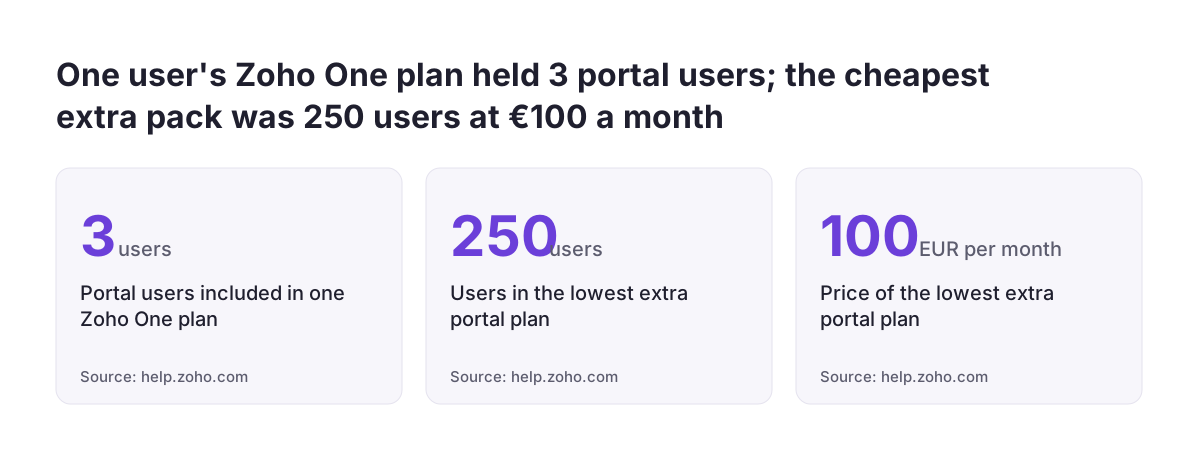
One forum user reported that their Zoho One plan included only 3 Creator customer portal users. They needed at most 25. They reported that the lowest add-on plan was 250 portal users for €100 per month. A separate Zoho community guide states that Zoho does not charge a fee per customer for the portal. Both are community posts rather than Zoho's price list, and they may describe different plans or different dates.
Plan on the basis that each person who logs in needs their own portal account. A client firm with a buyer, an accounts contact and a site manager may need three accounts, not one. Count the people across all your clients, then add room for growth over the next year.
Then compare that count with your plan's allowance and any add-on tiers. If you want the full picture of build and running costs, our guide to what a Zoho Creator app really costs to build and run sets out the questions to ask. Confirm the current portal price with Zoho or your partner in writing before you commit.
Security defaults to change before a Creator portal goes live
Several Creator portal security settings start in a permissive state, and you should change them before launch. Zoho's help page on managing customer portal settings lists each one. That page covers the older Creator interface, and Zoho keeps a separate page for the newer one, so check which version your account uses.
These are the defaults to review:
- Multi-factor authentication is disabled by default. Multi-factor authentication (MFA) makes portal users confirm a sign-in through a configured one-time password authenticator. Enable it for any portal showing orders, prices or documents.
- Idle session timeout is set to Never by default. The portal timeout ends a session after a period of inactivity. Pick a sensible period so an unattended screen does not stay logged in.
- Sign-up emails go to the super admin by default. Route them to the person who actually approves clients.
Two other controls help once the portal is live. You can disable the portal at any time. It then stays inaccessible, with a message to users, until an admin enables it again. That is useful during a data fix or a suspected breach.
Zoho has also expanded the scope of the Audit Trail in Creator to give a fuller picture of activity across your applications. Agree who reviews that activity and how often.
Worked example: a trade client portal for orders and documents
This worked example shows how a firm might set up a Creator portal where trade clients see their orders and upload requests. Assume the firm already runs an orders app in Creator and holds its clients as contacts in Zoho CRM. The settings named below come from Zoho's own help pages.
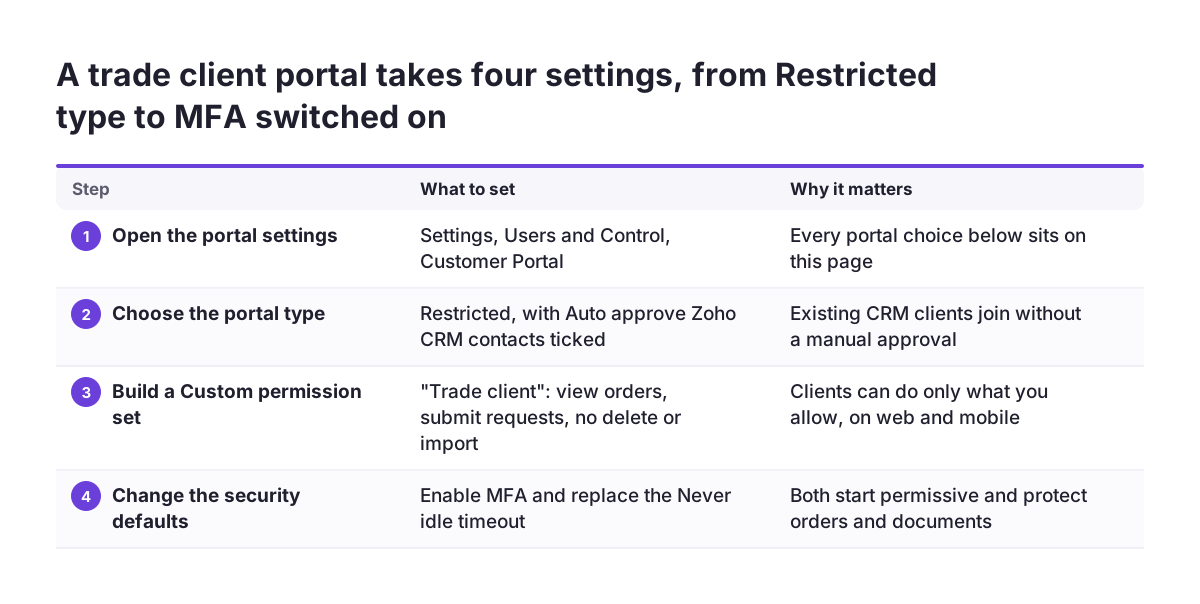
- Open the Settings page of the app. Under Users and Control, click Customer Portal.
- Set the Portal Type to Restricted and tick Auto approve Zoho CRM contacts, so existing clients join without a manual step.
- Choose Custom permission and build a set called "Trade client". Allow viewing the orders report and submitting the request form. Remove delete and import.
- Set the portal URL. Keep the default Creator domain and edit the prefix, or use your own domain, such as portal.yourfirm.co.uk. A custom domain needs an upgraded account and verification by a CNAME record, a TXT record or a file upload.
- Customise the invitation and sign-up emails so they carry your name and tone.
- Enable MFA for portal users and set an idle timeout.
- Import your clients in bulk. Each receives an invitation to register.
- Log in as two test clients and confirm each sees only their own orders.
Step 8 is the one firms skip, and it is the one that matters most. A permission error found by a client costs trust. The same error found in testing costs ten minutes.
The Customer Portal app for iPhone and Mac
Zoho publishes a free Customer Portal app for Creator, listed in the Business category of the App Store. Your clients sign in and get restricted access to forms, data reports and other components of your Creator app. It needs iOS 15.0 or later on iPhone. On Mac it needs macOS 12.0 or later and an Apple M1 chip or later.
The app gives clients real editing power. They can search, filter, group and sort records, and edit, delete and bulk edit them. That is why the permission set from the worked example matters on mobile too. The app supports all Deluge events, Deluge being Zoho's scripting language, so your workflow logic runs there as it does on the web.
Recent releases changed behaviour you should know about. Pages now always load fresh content from the server, because Zoho removed the cached responses that could show stale data. A Chat Agent component also lets app users ask for information and carry out tasks by typing prompts. If you plan to offer that kind of conversational AI for customer support, decide first what the agent may read and change.
Read the app's privacy details before you recommend it to clients. Data linked to identity may include precise and coarse location, email address, name, contacts, photos or videos, audio data and search history. The developer supplied that information, and Apple has not verified it.
What a UK firm should check: mobile sign-in, analytics consent and pricing currency
A UK firm should check three things that the general guides tend to skip. Each comes from Zoho's own notes or forum posts.
Mobile number sign-in
Mobile authentication for Creator portals is generally available in the IN and US data centres on paid Creator plans. Zoho's note adds that, for now, it works only for Indian (+91) mobile numbers. UK clients with +44 numbers should therefore not expect to sign in by phone. Plan on the other sign-in methods, with MFA switched on.
Google Analytics and consent
Creator can send Google Analytics data from four portal pages: Signup, Login, Reset password and Confirm password. Zoho recommends one Google Analytics property per portal. Analytics for portal pages does not work when SAML authentication is enabled. Zoho strongly recommends telling portal users about the tracking and letting them consent. Fold that into your privacy notice and your UK GDPR review before launch.
Prices quoted in euros
The add-on price reported on the forum was in euros. Ask for the current price in pounds, with VAT treatment stated, before you sign off a budget. A .co.uk custom domain works like any other, verified by a CNAME, a TXT record or a file upload.
Next steps: deciding whether a Creator portal suits your firm
The next step is a short written plan that answers five questions before anyone builds. If you cannot answer one, that is where to focus. A Creator portal suits your firm when the answers point to Creator as the home of the client data.
- What will clients see? List the reports and forms: orders, documents, requests.
- Where does that data live today? Creator, Zoho CRM, Zoho Desk or a spreadsheet.
- Which portal type? Public, Restricted or Private, using the table above.
- How many people need logins? Count people, not companies, and check that count against your plan.
- Which defaults will you change? MFA, idle timeout, sign-up email routing and analytics consent.
With those answers, you can judge the build honestly. A portal over data already in Creator is a modest job. A portal that also brings in CRM records or Desk tickets is a larger one, and the data link is where the time goes.
If you want to see what else Creator can do around the portal, start with our Zoho Creator overview for UK firms. If you are weighing outside help, our explanation of what a Zoho partner does sets out what you can expect from one.
Sources
- Zoho Community: How to Effectively Use Zoho Creator Customer Portal?
- Zoho Creator Help: Manage Customer Portal Settings
- Zoho Community: Customer Portal - Data Access
- Zoho Community: Build comprehensive customer portal with Creator or Sites?
- Zoho Community: Zoho Creator customer portal users
- App Store: Customer Portal - Zoho Creator