


Staff training courses in Zoho Learn: build them from your own CRM and Desk screens
Staff training courses in Zoho Learn work best when you build each lesson from your own Zoho CRM and Zoho Desk setup rather than from generic product features. Write down how your team actually logs a lead or handles a ticket. Turn those steps into linked articles and lessons. Then publish the course only to the people who need it.
Zoho Learn is Zoho's all-in-one knowledge management and training platform for employees and customers. A course in Zoho Learn is a set of lessons, with optional assessments, that you publish to chosen learners and track to completion. Courses stay invisible to learners until you publish them.
A generic course teaches what a button does. A course built around your setup teaches which button your firm presses, in which order, and why. That difference matters most in the first weeks after a new starter joins or after a new system goes live.
This guide covers five things in order:
- How Zoho Learn separates reference material from training.
- How to capture your own processes before you write anything.
- How to build and publish a course.
- A worked example for a support team on Zoho Desk.
- How to track completion and keep content current.
For an overview of the product and how we set it up for UK firms, see our Zoho Learn page.
Zoho Learn's two modules: Knowledge for reference, Learning for courses
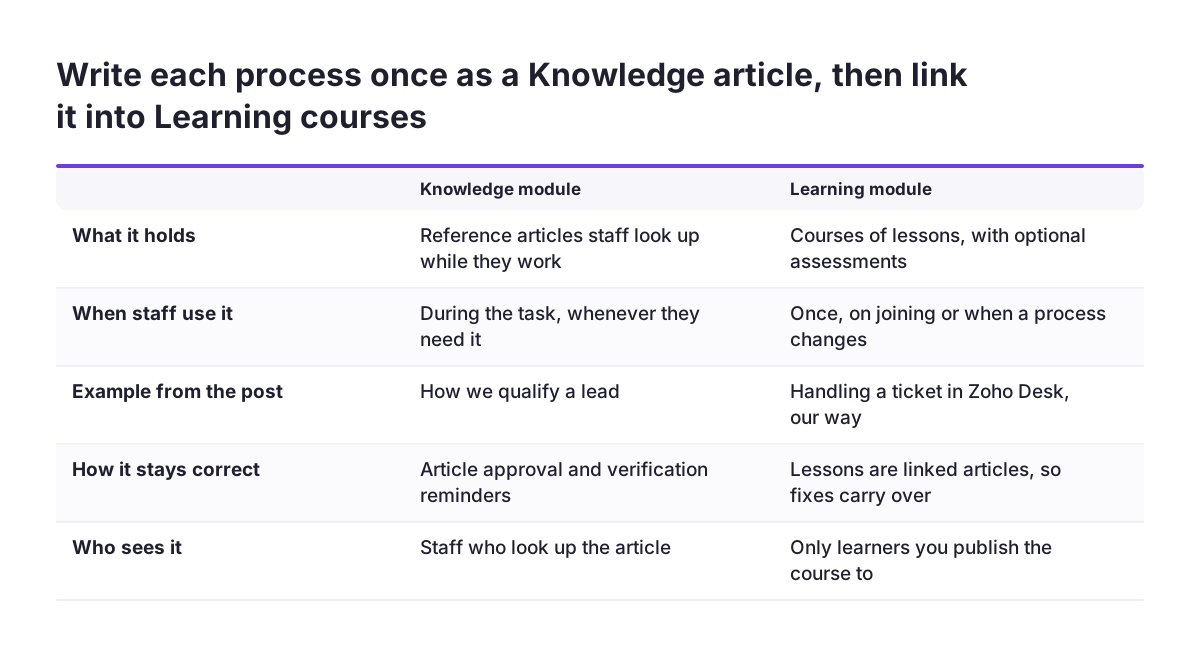
Zoho Learn has two primary modules, the Knowledge module and the Learning module. Knowing which content belongs where saves you from writing the same instructions twice.
The Knowledge module holds your reference material. These are the articles staff look up while they work, such as "How we qualify a lead" or "Which Desk department handles refunds". The Learning module holds courses. These are structured paths a person works through once, usually when they join or when a process changes.
The two modules connect. Zoho states on its Zoho Learn features page that you can link your articles as individual lessons in a course, "connecting documentation and training". So one article can serve as a day-to-day reference and as a lesson at the same time. When you update the article, you are not left maintaining a second copy inside the course.
Several Knowledge module features matter for training content:
- Read and edit permissions assigned by role and responsibility.
- An article approval process, so a manager checks a process before staff see it.
- Verification reminders, which prompt an owner to review an article at set intervals.
- Version control, which tracks every change made to an article.
- Mandatory read, a setting that requires readers to read important information rather than skip it.
Use the Knowledge module as the single source of your processes. Use the Learning module to sequence those processes into training.
Start from the processes your team runs in Zoho CRM and Zoho Desk
A Zoho Learn course is only as useful as the process list behind it. Before you open the course builder, write down the tasks each role performs in Zoho CRM and Zoho Desk. List them in the order a new starter meets them.
Ask each team lead three questions. What does a new person need to do on day one? Which mistakes cost you time or data quality later? Which steps differ from Zoho's defaults because of your own fields, layouts or rules? The third question produces the content no generic tutorial can give you.
Typical process lists look like this:
- Sales, in Zoho CRM: creating a lead, converting it, filling the fields your reports depend on, raising a quote.
- Support, in Zoho Desk: taking a ticket, setting its status and department, escalating, closing with the right resolution.
- Managers: reading the reports and dashboards your directors actually use.
At Svennis we capture every lesson screenshot from the client's live layouts, custom fields included, never from a demo account. When staff see their real screen, early questions to managers concern judgement, not where a field sits.
You may already follow a day-by-day plan for a new CRM user. Our post on training a new starter on Zoho CRM in two weeks is one example. Use its daily tasks as your lesson list. Zoho Learn then holds the written steps that plan refers to.
Write process articles first, then link them into lessons
Writing each process as a Knowledge article before building the course keeps your training and your reference material in step. One article per task is the right size: short enough to read in a few minutes, specific enough to follow at a desk.
A good process article for Zoho CRM or Zoho Desk has four parts:
- When to use it, in one sentence.
- The steps, numbered, with your own field names exactly as they appear on screen.
- A screenshot of your layout at the step people most often get wrong.
- What happens next, such as which report or team picks up the record.
Send each article through the article approval process so the process owner signs it off. Then set a verification reminder, so the owner is prompted to check it again after a set interval. CRM layouts and Desk workflows change, and a reminder catches outdated steps before a new starter follows them.
Zia, Zoho's AI assistant, can draft a starting point. Zoho says you can "build an entire SOP by giving a single prompt to Zia". An SOP, or standard operating procedure, is a written set of steps for a routine task. Treat a Zia draft as a first pass and edit it against your real screens. For the wider picture of where AI for knowledge management helps and where it needs checking, see our sister site.
Zoho Learn also offers Zoho MCP integration, which lets you connect an LLM and build workflows from natural language prompts. Most firms do not need it to write their first course.
Building the course in Zoho Learn: lessons, assessments, drip release and learning paths
Building a course in Zoho Learn means arranging your approved articles into lessons, adding checks of understanding, and deciding how quickly learners receive the material. Keep each course focused on one role or one process area.
Lessons
Link your Knowledge articles as individual lessons. Add a short introductory lesson that explains why the process matters to your business, written in your own words. If you already have training built elsewhere, Zoho Learn can import SCORM packages from other authoring tools. SCORM (Sharable Content Object Reference Model) is a collection of technical specifications for web-based learning content, which lets courses move between systems.
Assessments
Assignments let learners submit text or upload files for review by the course author. For CRM and Desk training this is the most useful check. Ask the learner to complete a real task in a test record and upload a screenshot. A reviewer can then see whether the fields are filled the way your reports need.
Drip content
Drip content scheduling delivers course modules gradually over time rather than all at once. Release the basics first, then the exceptions and escalations once the learner has handled some routine work.
Learning paths
A learning path is a series of courses created to achieve a specific training goal. A path called "Support agent onboarding" might contain a general company course, a Zoho Desk course and a short CRM course for looking up customer history.
Group related courses into categories and subcategories, such as "Sales" and "Support", so learners and admins can find them.
Publishing options in Zoho Learn: all users, approval required, invited learners or an external portal
Zoho Learn lets you publish a course to all users in your hub or only to selected users. A hub is your organisation's Zoho Learn space. You can also require admin approval before learners enrol in a course that is open to everyone. The Zoho help article on publishing lessons and courses sets out each option.
The table below shows which option suits which kind of course.
| Option | Who can take the course | Good fit for |
|---|---|---|
| All users in the hub | Everyone in your Zoho Learn hub | Company-wide processes, such as how to log a customer complaint in Zoho Desk |
| All users, admin approval required | Anyone may request a place, and an admin approves enrolment | Optional courses where you want to control numbers, such as advanced CRM reporting |
| Invited learners only | Only users you have added to the course | Role-specific onboarding, such as the support team's ticket-handling course |
| Branded portal for external users | People outside your organisation, on a private or public portal | Training partners or customers without exposing internal courses |
For internal role training, "Invited learners only" keeps each course in front of the people it was written for. It also keeps a sales hire from wading through Desk escalation rules they will never use.
Admin access is separate from course access. You can add users as Portal Admins or Resource Admins and assign their administrative access. Give course management to the team leads who own the processes, not only to IT.
Worked example: a Zoho Desk ticket-handling course for new support staff
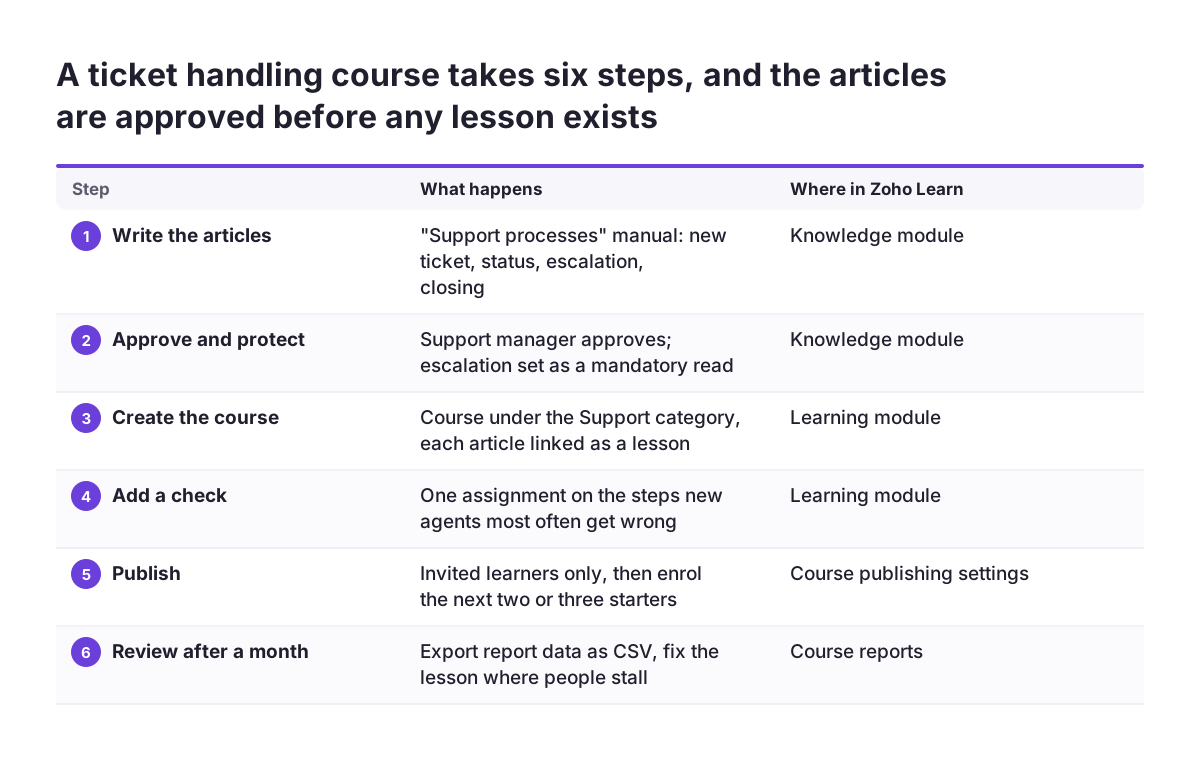
This worked example builds a Zoho Learn course for new support agents, using the settings named in Zoho's help pages. Adapt the article titles to your own Desk setup.
- Write the articles. In the Knowledge module, create a manual called "Support processes". Add articles such as "Taking a new ticket", "Setting department and status", "Escalating to second line" and "Closing a ticket with a resolution".
- Approve and protect them. Send each article through approval to the support manager. Set "Escalating to second line" as a mandatory read.
- Create the course. In the Learning module, create "Handling a ticket in Zoho Desk, our way" under the category "Support". Link each article as a lesson.
- Add an assignment. After the escalation lesson, ask the learner to upload a screenshot of a test ticket they escalated. The manager reviews it.
- Schedule the release. Use drip content so the escalation and closing lessons arrive after the basics.
- Publish and enrol. Publish with "Invited learners only". On the Manage Courses tab, type each new agent's name or email address in the Manage Users text box and click Add to course.
- Update later. When your escalation rule changes, edit that lesson and publish it individually. Choose "For learners who are in progress" to reset their status, and select "Notify learners".
Step 7 matters. Resetting only in-progress learners makes current trainees retake the changed lesson. Agents who have already finished keep their completion. Use "For all learners" when the change is significant enough that everyone should go through it again.
To change someone's role in the course, click the Settings icon on the user. The same icon offers Remove User when someone leaves the team.
Tracking completion and keeping Zoho Learn courses current after go-live
Tracking in Zoho Learn rests on each learner's course status and on report data you can export. Zoho states that report data can be exported in CSV format for detailed analysis. Export it monthly and check three things: who has not started, who is stuck in progress, and which lesson people stall on.
A lesson where many learners stall usually points to a process that is unclear on screen, not to a weak learner. Fix the article first. Because lessons are linked articles, the fix reaches the course as well.
Maintenance follows the same publishing rules as the original build. New lessons created inside an already published course are saved as drafts first. Learners see them only after you publish them. This lets you prepare an update for a CRM layout change in advance and release it on the day the change goes live.
Three habits keep courses accurate:
- Tie each verification reminder to the person who owns that CRM or Desk process.
- Check version control before publishing, so you can see what changed and who changed it.
- Disable a course on the Manage Courses tab when the process it teaches is retired, rather than leaving it live.
If you want training completion alongside sales or support performance, the CSV export gives you the raw data. Our Zoho Analytics page explains how we build combined reporting for UK firms.
Zoho Learn plan limits, the free-plan downgrade rule and the Zoho People link
Your plan affects how many courses stay usable. If a Zoho Learn subscription is downgraded to the free plan, only the 5 most recent courses remain active and all other courses are disabled. The disabled courses stay linked to your hub but cannot be used. After you upgrade again, you must enable them manually. The Zoho help article on managing courses in your hub describes this rule.
The practical lesson is simple. If you trial on a paid plan and let it lapse, your older onboarding courses will go dark. Agree who owns the subscription before you build a library of role courses. Check current plan features and prices on Zoho's own pages when you buy, because this guide does not quote them.
Do not assume every connection you might want already exists. On Zoho's community forum, a user has asked Zoho to connect Zoho Learn courses to Zoho People performance skills. The same poster calls the Learn courses module a strong replacement for what they see as the limited learning features in Zoho People. If you plan to link training to HR records or appraisals, confirm in a test hub that the connection works the way you need before you promise it to managers.
What staff training courses in Zoho Learn mean for a UK company rolling out Zoho
For a UK company, the main value of staff training courses in Zoho Learn is consistency. That consistency reaches offices, home workers and new starters alike during a Zoho rollout. Zoho's own Learn blog runs a training section with a piece on creating online training programmes for hybrid teams. That reflects how many firms now work.
Write your content for a UK reader. Use British spelling and the terms your staff use, such as VAT number rather than tax ID. Use your own names for customer types and regions too. A course that reads like a translated manual loses trust quickly.
Treat training records with care. Course status and report exports show what named employees have and have not completed. Restrict who can export reports by using role-based permissions, and store CSV exports where your other staff records live.
Timing matters in a phased rollout. If you are moving several departments onto Zoho One, publish each department's course a week or so before its go-live. Use drip content so people are not overloaded. For teams on shifts across several sites, plan training time into the rota, as described in our post on staff rotas with Zoho Shifts.
Finally, remember that if your firm trains partners or resellers, a branded external portal keeps that material separate from internal courses.
Next steps: build your first Zoho Learn course this month
The quickest way to start with staff training courses in Zoho Learn is to build one small course for one role and learn from it. Pick the team with the most new starters or the most data-quality problems.
- List the five tasks that role performs most in Zoho CRM or Zoho Desk.
- Write one Knowledge article per task, with screenshots from your live layouts.
- Send the articles for approval and set verification reminders.
- Link the articles as lessons in one course and add a single assignment.
- Publish to invited learners only, enrol the next two or three starters, and ask for their feedback.
- Export the report data after a month and fix the lesson where people stalled.
Once that course works, copy its structure for the next role and group the courses into a learning path.
If you would rather have help mapping your processes or setting up the hub, read our explanation of what a Zoho partner does so you know what to ask for.