


Zoho and Microsoft 365 together: connect records, not everything
Running Zoho and Microsoft 365 together works best when you connect records, not everything. Sync sales email and meetings into Zoho CRM. Let service agents work Zoho Desk tickets from inside Microsoft 365. Keep files and chat in one system each. Build a custom integration only where the standard connectors leave a gap that costs you time every week.
A hybrid setup is a business that keeps Microsoft 365 for mail, calendar, chat and files, and runs Zoho for customer, service and finance records. Many UK firms work this way. Staff already live in Outlook and Teams, and nobody wants to retrain them on a new inbox. Zoho does the jobs Microsoft 365 was never built for, such as pipelines, tickets and invoices.
Zoho's own screens often still call the Microsoft suite "Office 365". Zoho Flow describes Office 365 simply as "a suite of cloud apps by Microsoft". In this guide the two names mean the same thing.
The rest of this post takes each Microsoft 365 area in turn: email, calendar, Teams and files. For each one you get what connects, what tends to break and what to leave alone. A worked example and a decision table follow. The post ends with what a UK company should check and a set of practical next steps.
One system of record for each type of data, before any sync
A system of record is the one application whose copy of a piece of data counts when two copies disagree. Decide this for every type of data before you switch on a single connector. Without that decision, two-way syncs overwrite good data with stale data, and nobody knows which screen to trust.
For a typical hybrid setup, the split looks like this:
- Customers, contacts and deals live in Zoho CRM.
- Support tickets live in Zoho Desk.
- Invoices and payments live in Zoho Books for UK accounting.
- Mailboxes and calendars live in Microsoft 365.
- Internal chat lives in Teams.
- Documents live in one file store, chosen on purpose.
A two-way sync copies changes in both directions, so an edit on either side updates the other. Zoho offers one inside its own suite: a two-way sync between Products and Contacts or Accounts can run as part of the Zoho CRM and Zoho Desk integration. Across the Microsoft boundary, use two-way sync sparingly.
A simple test helps. Sync a record only when people in both systems need it to do their daily work. If one team only needs to look something up occasionally, a link or a search is cheaper than a copy.
Outlook email into Zoho CRM: connect it, filter it, and get admin consent first
Outlook email is worth connecting to Zoho CRM, because a customer's history is incomplete without it. The connection itself is where most hybrid setups stumble. Zoho's community forums show the same three failures again and again.
The errors you are likely to meet
- "Invalid Credentials" over IMAP. One user ran two-factor authentication on the Microsoft side and created an App Password for the Zoho IMAP settings. The error remained. Earlier cases were fixed by an adjustment in the Microsoft environment.
- Admin consent. Another user saw a Microsoft window saying the admin must grant permissions to access organisation resources. Other staff in the same organisation had connected without trouble, and Zoho said the problem was not on its side.
- "Unable to get SMTP email". A third user hit this after moving from an Exchange account, connected over IMAP for more than a year, to Office 365. Disabling the Office 365 security defaults did not help. Nor did trying the Office 365, Outlook and Other Mail options in the CRM settings.
The pattern is clear: the fix usually sits in the Microsoft tenant, not in Zoho. When Svennis connects Office 365 mailboxes to Zoho CRM, we have the Microsoft administrator approve the connection first and test one mailbox end to end before anyone else connects.
What to leave alone
Do not pull every message into the CRM. Zoho CRM added a "Sync emails from" field to its email integration to cut mailbox clutter, so use it. Also note that Microsoft has announced the retirement of Exchange Web Services (EWS) for Exchange Online. Check whether any older tool you rely on still uses EWS.
Calendar sync with Office 365: useful, with a gap on accepted meetings
Calendar sync between Zoho CRM and Office 365 saves reps from logging meetings twice, but it has a known gap. Know the gap before you promise the team a single calendar.
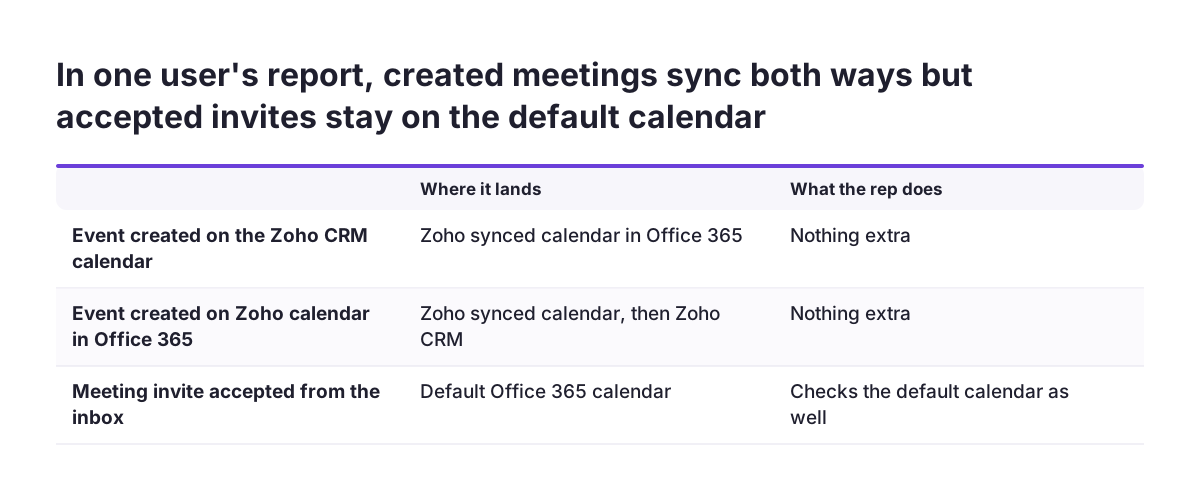
A Zoho CRM user described what happened after enabling the New Microsoft Office 365 Integration. Zoho added a new calendar to each user's Office 365 account, next to their original default calendar. Two things worked as expected:
- An event created on the Zoho calendar appeared in the Zoho-synced calendar in Office 365.
- An event created on the Zoho calendar inside Office 365 appeared in Zoho.
One thing did not. When a user accepted a meeting request from their inbox, Outlook placed it on the default Office 365 calendar, not the Zoho one. That meeting never synced back to Zoho CRM. The user concluded that staff must check both calendars to avoid missing anything, and asked the forum how to force inbound meetings onto the Zoho calendar.
In practice, this means your CRM shows the meetings your reps book, but not always the meetings customers book with them. Tell the team which calendar to create customer meetings on. Then decide whether the missing inbound meetings matter enough to fix. If clients book appointments with you directly, a booking page such as Zoho Bookings for online appointment scheduling can create the event on the Zoho side from the start.
Teams and Zoho Desk: work tickets from Microsoft 365 without moving them
Service teams that live in Microsoft 365 can work Zoho Desk tickets without leaving it, while the tickets stay in Zoho Desk. Zoho announced that Zoho Desk works with Microsoft 365 Copilot. Microsoft announced the arrangement in its keynote at the M365 Build event in 2023, according to Zoho's announcement of the Zoho Desk and M365 Copilot integration.
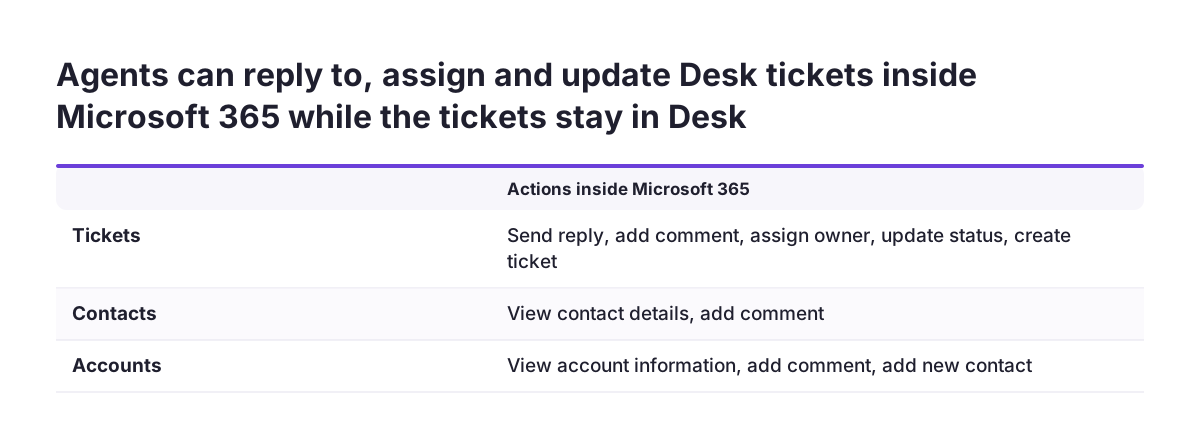
Inside Microsoft 365, users can search for tickets, customer accounts and contacts. They can then act on them:
- Tickets: send a reply, add comments, assign an owner, update the status, create new tickets.
- Contacts: view contact details, add comments.
- Accounts: view account information, add comments, add new contacts.
Generative LLM technology also helps draft content when an agent creates a new ticket. If you are weighing where AI fits in your service desk more broadly, see this overview of AI for customer support.
What to leave alone is the chat itself. Do not try to mirror Teams conversations into Zoho, or run Teams and a second chat tool side by side. Pick one. If you ever move chat to Zoho, Zoho Cliq for team messaging is the Zoho equivalent. For most hybrid firms, Teams stays and tickets are reached from it.
SharePoint and Zoho files: keep each document in one store
Documents are the easiest place to create a mess in a hybrid setup, because copying files is so easy. A contract saved in SharePoint, attached to a CRM deal and emailed to a colleague becomes three versions. Only one of them will be current.
Zoho is changing where CRM files live. File storage for new Zoho CRM sign-ups is now powered by Zoho WorkDrive in all data centres. Existing users will get it in phases over the coming months. So if you run both Microsoft 365 and Zoho, you now have two capable file stores whether you planned it or not.
The practical rule is simple. Decide which store holds the master copy of each document type, and link to it from the other system instead of attaching a copy. A common split puts internal policies, templates and team folders in SharePoint, and customer-specific files, such as signed quotes, alongside the CRM record.
The same thinking applies to your intranet. If SharePoint is your staff intranet today, keep it there unless there is a clear reason to move. If you are starting fresh, Zoho Connect as an employee intranet is the Zoho option. Either works. Running both for the same content does not.
Worked example: an Office 365 shared mailbox creating Zoho People HR cases through Zoho Flow
Zoho Flow is Zoho's no-code integration tool, and it is the standard way to link Office 365 with Zoho apps. A trigger is the event that starts a flow. An action is the automated task the flow then performs. According to Zoho Flow's Zoho People and Office 365 integration page, you build flows in a drag and drop builder, with over 1000 apps available.
Here is a scenario to follow. Staff email HR questions to a shared mailbox in Office 365. HR runs Zoho People, Zoho's online HR software. You want each email to become a record in the HR cases module, so nothing is lost in the inbox.
- In Zoho Flow, create a flow and choose the Office 365 trigger Email received in a mailbox. It fires when an email arrives in a user or shared mailbox.
- Connect your Office 365 account and select the shared HR mailbox.
- Add the Zoho People action Add case. It adds a new record in the HR cases module.
- Map the email's subject and sender into the case fields.
- If the email body needs tidying, add a custom function. Zoho Flow custom functions are short scripts that format data, call web APIs or send emails.
- Send a test email to the shared mailbox and confirm the case appears in Zoho People.
The same page lists other building blocks. Triggers include a Zoho People record being approved, cancelled, created or updated. Actions include Cancel leave and Get user availability, which returns a user's office availability. The mailbox stays in Microsoft 365, the case lives in Zoho, and only the facts HR needs cross over.
Decision table: what to sync, what to leave alone, and when to go custom
The table below turns the sections above into one decision per data type. Read across a row to see where the data lives, what the standard route is, and the sign that custom work would pay off.
| Data | System of record | Standard route | Consider custom when |
|---|---|---|---|
| Customer email | Microsoft 365 mailbox, copied to Zoho CRM | CRM email integration, filtered with "Sync emails from" | Connections keep failing on tenant policy you cannot change |
| Customer meetings | Zoho CRM | New Microsoft Office 365 Integration | Missed inbound meetings are costing follow-ups |
| Support tickets | Zoho Desk | Zoho Desk with Microsoft 365 Copilot | Agents need actions the listed ticket actions do not cover |
| Internal chat | Teams | Leave alone | Rarely; mirroring chat adds noise |
| Documents | One chosen store | Link, do not copy | A process needs files moved automatically on a status change |
| HR requests | Zoho People | Zoho Flow triggers and actions | Data needs reshaping beyond a short custom function |
| Invoices | Zoho Books | Leave out of Microsoft 365 | Rarely; finance data should not be scattered |
Two rows say "leave alone" on purpose. Every sync you skip is one fewer thing to monitor, fix after an update, or explain to a new starter.
When a custom integration pays off over the standard connectors
A custom integration pays off when a standard connector cannot express a step your team repeats by hand every day. Until then, the standard route is cheaper to run and easier to hand over.
Zoho Flow already stretches a long way before you need bespoke code. Its webhook triggers accept data from other services as JSON, form data or plain text. Its custom functions can call web APIs. One Zoho Flow customer, Master Liveaboards, says that automating Zoho Desk tickets from feedback form responses has significantly improved its customer support.
Look for these signs that you have outgrown the standard connectors:
- Staff copy the same data between Outlook and Zoho more than once a day.
- A known gap, such as accepted meetings missing from the CRM, causes real follow-up failures.
- The connector has no trigger or action for the event you care about.
- Logic grows beyond what a short custom function can hold and still be read by someone else.
Weigh the running cost as well as the build. Microsoft changes its interfaces, and the announced retirement of Exchange Web Services for Exchange Online shows that an integration built on one of them does not last for ever. Someone must own each custom piece, test it after changes and document it. If nobody can take that on, stay with the standard connectors and accept the small gaps.
What running Zoho and Microsoft 365 together means for a UK company
For a UK company, the main extra questions are data location, personal data and, for public sector work, how integrations are bought and assessed.
Start with data centres. Zoho Mail server details vary with the account type and the data centre your account sits in. Zoho Key Service, which lets Zoho CRM use third-party LLMs without API keys, is listed for the Professional, Enterprise and Ultimate editions in the US, IN, AU, JP and CA data centres. That list has no European data centre, so check where your account lives before planning around it.
Next, personal data. Each sync puts another copy of customer or employee data in a second system. Fewer copies mean fewer places to cover in your UK GDPR records and fewer places to correct when someone asks.
Public sector buyers should read how integration is scoped. One workplace booking service on the G-Cloud 14 framework offers a 14-day free trial. That supplier's Digital Marketplace listing states that the trial excludes integration with Microsoft 365, Outlook and Entra ID. The same listing says Zoho has WCAG 2.2 Level AA compliance for Zoho Desk, Zoho CRM and Zoho Forms. The supplier's other listing notes that Zoho's accessibility testing was still under way. So ask Zoho for its current accessibility statement before you rely on it. Expect Microsoft 365 integration to be priced and assessed as its own item, not bundled in.
Next steps: map your data, test with one user, then roll out
The next step is a one-page map, not a connector. Before you switch anything on, write down what goes where.
- List your data types. Use the table in this guide as a template and fill in your own system of record for each row.
- Mark what to leave alone. Chat, invoices and duplicate file stores are the usual candidates.
- Book your Microsoft administrator. Most email connection failures are fixed in the Microsoft tenant, so have the admin ready to grant consent.
- Pilot with one user. Connect one mailbox and one calendar. Send email, create meetings and accept an inbound invite, then check what reached Zoho CRM.
- Tell the team the rules. Say which calendar to use for customer meetings and where each document type is saved.
- Review after a month. Note any step people still do by hand. That list is your case for custom work, or proof you do not need it.
If the map shows more moving parts than your team can own, outside help is worth considering. This explainer on what a Zoho partner is and does sets out what that help covers, so you can judge whether you need it.
Sources
- Zoho Community: O365 and Zoho IMAP email integration issues
- Zoho Community: Office 365 and CRM mail integration, permission required
- Zoho Community: Can't connect my O365 email to CRM
- Zoho Community: ZohoCRM and Office 365
- Zoho Community: Office 365 and Zoho email
- Zoho Desk and Microsoft M365 Copilot announcement
- Zoho Flow: Zoho People and Office 365 integration
- Digital Marketplace: Matrix Booking professional services
- Digital Marketplace: Matrix Booking workplace resource booking