


Zoho Billing with CRM and Books: the short answer
To get reports and VAT right with Zoho Billing, CRM and Books, give each app one job. Zoho CRM holds customers and products. Zoho Billing runs subscriptions, raises invoices and produces the subscription reports. Zoho Books receives those invoices, taxes and payments, and files the VAT return with HMRC.
A Zoho Billing integration is a built-in connection that syncs records between Billing and another Zoho app, so you enter each record once. This post is part 3 of our series on Zoho Billing for UK subscription and recurring-revenue businesses. That covers software, memberships, retainers and maintenance contracts. Part 1 covered setting Billing up, and part 2 covered collecting payments.
For what Billing does as a product, see our Zoho Billing page. This guide is the hands-on part. It covers what syncs, which reports to trust, where revenue recognition sits, and how VAT reaches HMRC without being recorded twice. The facts below come from Zoho's UK help pages and HMRC guidance, and the prices were read on 28 September 2026.
Which app owns which record: customers, subscriptions, invoices and VAT
Reports reconcile when every record has one home and every other app only receives a copy. The table sets out where each record starts and where it goes. It is based on Zoho's help pages for the CRM and Books integrations.
| Record | Created in | Syncs to | Note |
|---|---|---|---|
| Customers (accounts and contacts) | Zoho CRM or Zoho Billing | CRM and Billing, then Books | Duplicates matched on Account Name and Customer Display Name |
| Products and items | Zoho CRM | Billing, then Books | Duplicates matched on name and SKU |
| Subscriptions | Zoho Billing | Not synced to CRM | Starting one from a won deal needs automation |
| Invoices and payments | Zoho Billing | Zoho Books | Not CRM's own Invoices module |
| Taxes (VAT rates) | Zoho Billing | Zoho Books | Carried on each synced invoice |
| VAT return | Zoho Books | HMRC | Filed under Making Tax Digital |
Two rules follow from the table. First, never re-enter a Billing invoice in Zoho Books, because the synced invoice already carries the VAT. Second, keep subscription work out of Zoho CRM's own Quotes and Invoices modules. Zoho states that transactions in those modules do not sync with the Zoho Finance module.
Connecting Zoho CRM to Zoho Billing: what syncs and what does not
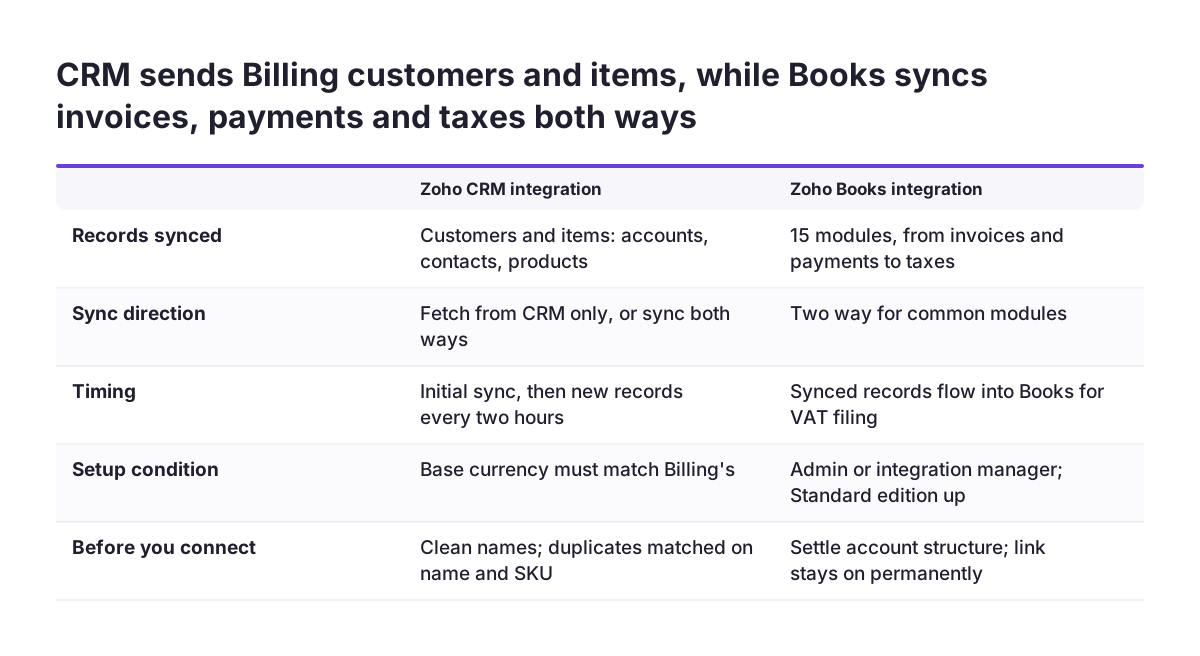
The Zoho CRM integration syncs customers and items, and little else. Zoho's help page says the integration "supports syncing only modules such as Items and Customers". Accounts, contacts and products from Zoho CRM arrive in Billing at the initial sync. New ones follow every two hours after that.
Choices you make at setup
You choose between two sync directions. Fetch from CRM only pulls CRM records into Billing. Sync both ways sends records in both directions. If multi-currency is on in CRM, its base currency must match the one in Billing. When you connect, Billing shares your organisation name, email address, country and all users' details with CRM.
Limits that catch people out
Zoho's help page lists three limits worth knowing before you connect:
- Deleting a synced record in CRM does not delete it in Billing.
- Connecting several Billing organisations to one CRM organisation needs Zoho support and gives a one-way sync with no transaction modules.
- If you sync transaction modules and later disable the integration, custom reports, comments and attachments on those transactions in CRM are deleted.
Won deals do not become subscriptions
Deals and subscriptions are not among the synced modules. A subscription that starts when a deal is won therefore needs automation, such as a custom function in CRM. Plan and test that step before go-live, rather than asking sales staff to re-key orders into Billing.
Connecting Zoho Books to Zoho Billing: a switch you cannot turn off
The Zoho Books integration cannot be disabled once it is set up, so decide your account structure before you connect. Zoho's help page gives that warning in plain words. The integration is listed for the Standard, Premium and Enterprise editions of Billing. Only an Admin, or a user with permission to manage integrations, can set it up.
The sync is two-way for common modules. Those modules are customers, items, price lists, invoices, retainer invoices, sales receipts, expenses, payments received, payment links, projects, timesheets, documents, taxes, reporting tags and custom modules. Books automatically configures any Billing payment gateway it supports. With no Books organisation yet, Zoho opens a prefilled sign-up and gives a 14-day free trial.
Item mapping decides where your income lands. By default every synced item posts to the Sales account in Zoho Books. You can map each item to its own income account instead. Software, support and setup fees then appear on separate lines of your profit and loss.
At Svennis we map every Billing item to its income account and check item names and SKUs against CRM before the Books link goes live. A wrong mapping is far harder to unpick once the sync cannot be turned off.
One line on Zoho's integration page mentions filing GST returns from synced data. The cautious reading is that the line was written for other editions. For UK VAT, follow the Books VAT filing procedure described later in this post.
Subscription reports in Zoho Billing and the formulas behind them
Zoho Billing calculates its subscription metrics with published formulas, so you can check every number your board sees. MRR, monthly recurring revenue, is the recurring revenue your customers generate each month. The MRR report also converts quarterly and annual subscriptions into a monthly figure. The formulas from Zoho's help pages are:
- Net New MRR = New MRR + Expansion MRR + Reactivation MRR - Contraction MRR - Churn MRR.
- Net MRR = Net New MRR + Previous MRR.
- Net ARR (annual recurring revenue) = MRR x 12.
- ARPU (average revenue per user) = Net MRR / total active subscriptions.
- Churn rate = subscriptions cancelled in the period / subscriptions at the start of the period x 100.
- LTV (lifetime value) = (ARPU / churn rate) x 100.
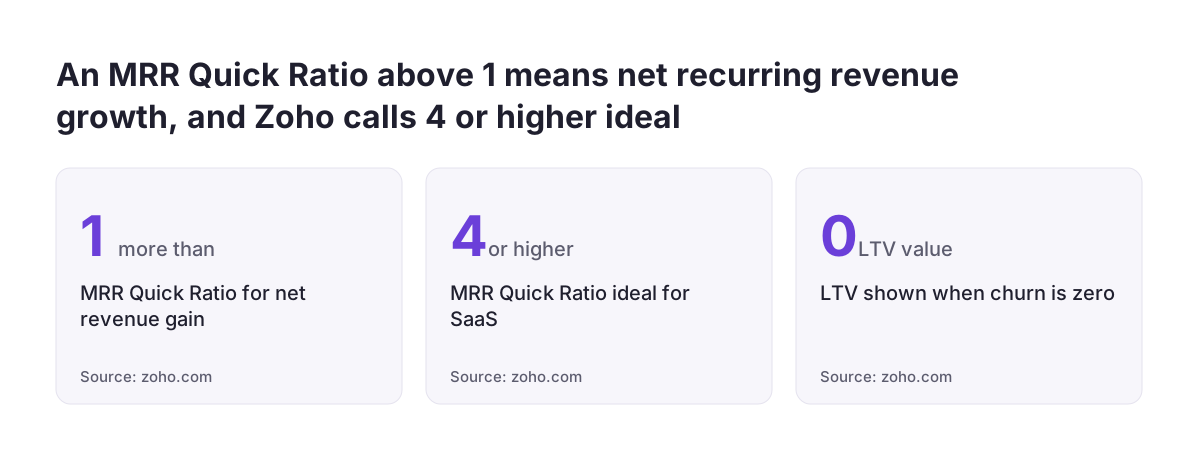
- MRR Quick Ratio = (New MRR + Expansions) / (Contractions + Churn).
Three details change how you read these metrics. Churn MRR counts subscriptions that are cancelled, paused or expired, so a pause lowers MRR. With zero churn, Billing shows LTV as 0, so ignore LTV until you have cancellations. An MRR Quick Ratio below 1 means you lose more recurring revenue than you gain.
Churn Insights reports are listed for the Premium and Enterprise plans, so check your plan before you design a board pack around them. All reports sit under Reports on the left sidebar. The MRR and ARR reports can be scheduled and exported, but the MRR Quick Ratio report cannot. None of the three supports custom columns or printing.
Revenue recognition in Zoho Billing: deferred revenue recorded in one place
Revenue recognition is the accounting principle that decides when revenue is recorded, so it falls in the period you earned it rather than the period you were paid. In Zoho Billing, an advance payment is recorded as a liability in the Deferred Revenue account. It then moves to the Recognized Revenue account as the service period passes.
Revenue recognition is listed for the Premium and Enterprise plans, and once you enable it you cannot disable it. The default method is Evenly Distributed, which splits revenue equally across periods whatever their length. You can recognise monthly, quarterly, yearly, once or at a custom frequency. The options available depend on your plan. Rules apply per transaction, so one plan can carry different rules in different invoices.
Record the recognition in one app only. Zoho Books has Recurring Journals, which can automate entries such as deferred revenue recognition. Suppose Billing already recognises a subscription's revenue and syncs it to Books. A recurring journal for the same income in Books would then count it twice. Choose one app, and write the choice down for whoever closes the month.
Zoho's page explains the feature against ASC 606 and IFRS 15, the US and international revenue standards. It does not mention UK accounting standards. Ask your accountant whether the Billing schedule matches how your accounts are prepared before you switch it on.
VAT on subscription invoices: calculated in Billing, filed from Books
VAT on a subscription invoice is calculated once, in Zoho Billing. It reaches Zoho Books with the synced invoice and tax records. The return itself is filed from Zoho Books, which Zoho describes as able to file VAT returns directly to HMRC.
The VAT settings in the UK Edition of Billing decide how that tax is calculated. The main options are:
- Accrual basis, where VAT is calculated on the invoice date.
- Cash basis, where VAT is calculated on the date the customer pays.
- Trade with contacts outside the UK, which handles the Reverse Charge Mechanism and Acquisition Tax.
- The NI Protocol option, for a Northern Ireland business trading goods with the EU.
- The VAT Flat Rate Scheme, under which you cannot reclaim VAT on purchases, apart from certain capital assets over £2,000.
Set the basis in Billing to match the one your accountant uses for the return. When you edit a VAT rate already in use, Billing lets you update draft transactions too. Check your drafts after any rate change. Take registration thresholds from HMRC's guidance on gov.uk rather than from a software help page.
Purchase VAT comes into the same return from the Books side. Our post on keeping VAT lines right with Autoscan in Zoho Books covers bills and purchases.
Filing the VAT return from Zoho Books under Making Tax Digital
Making Tax Digital for VAT requires VAT-registered businesses to keep VAT records in compatible software and file returns through it. HMRC's guidance on compatible software says: "You must now use compatible software to keep your VAT records and file your VAT Returns." Since 1 April 2022 that includes businesses with taxable turnover below the registration threshold. From 1 November 2022, the old VAT online account could no longer send quarterly or monthly returns.
Zoho Books files directly once you switch the option on. The steps on Zoho's help page are:
- Go to Settings > Taxes & Compliance > Taxes > VAT Settings > VAT Return Settings and enable Submit your returns directly through Zoho Books.
- Grant Zoho Books permission to communicate with HMRC on your behalf.
- Click Generate VAT Return. The return is created in Draft status.
- Click Adjust if transactions need changes. Books adds a journal entry to record each adjustment.
- Submit the return. In the pop-up, a payable amount shows as positive and a reclaimable amount as negative. The status then changes to Submitted to HMRC.
Three cautions apply to filing from Zoho Books. HMRC says the software's authority lasts 18 months, and you can check or withdraw it at any time, so diarise the renewal. Transactions added to a period after you finalise its return are left out, although Edit Return converts it back to Draft. Marking a return as filed cannot be undone.
Worked example: a monthly board page from Billing and Books
A monthly board page for a subscription business needs three numbers: MRR, churn and cash collected. The first two come from Zoho Billing. Cash comes from Zoho Books, because payments received sync there from Billing. The table shows where each line comes from.
| Board line | Source app | Where to find it | Watch out for |
|---|---|---|---|
| Net MRR and Net New MRR | Zoho Billing | Reports > MRR report | Pauses count as Churn MRR |
| Churn rate | Zoho Billing | Reports > Churn Insights > Churn Rate | Listed for Premium and Enterprise |
| ARPU | Zoho Billing | Subscription reports > ARPU | Based on Net MRR, not cash |
| Cash collected | Zoho Books | Payments received, synced from Billing | Large volumes can take time to sync |
| VAT due next | Zoho Books | Draft VAT return | Stays a draft until you submit |
Build the board page in this order at month end. Run the MRR report for the month and note Net MRR and each part of Net New MRR. Open Churn Insights and read Churn Rate. Set Revenue Churn to exclude downgrades if you want cancellations only. Then take payments received for the month from Books.
Expect MRR and cash to differ, and explain the gap on the page. A customer who pays a year upfront adds the full amount to cash in one month. The MRR report counts only the monthly share. If revenue recognition is on, the rest sits in Deferred Revenue. When those three lines tie back, the board can trust the page.
You may want the page to refresh itself or to add CRM pipeline data. If so, read our comparison of Zoho CRM reports and Zoho Analytics before you build.
What the Billing, CRM and Books setup means for a UK subscription business
For a UK subscription business, this setup decides whether the VAT return and the board figures come from the same records. Under Making Tax Digital, HMRC expects digital records and filing through compatible software. A VAT return built from synced Billing invoices meets that without re-keying. A spreadsheet in the middle would need bridging software, which HMRC describes as software connecting non-compatible tools, like spreadsheets, to its systems.
The accounting side costs little. Zoho Books lists its Standard plan at £12 per organisation per month, or £10 billed annually. Premium is £30, or £25 billed annually. Prices exclude VAT and were read on 28 September 2026. Check which Books plan your features need before the 14-day trial that comes with the integration ends.
Three UK details deserve a decision before go-live:
- Choose accrual or cash basis VAT with your accountant, since Billing calculates VAT on the invoice date or the payment date accordingly.
- Turn on the overseas trade setting before your first invoice to a customer outside the UK, so reverse charge is handled.
- Deal with errors from earlier periods promptly: HMRC lets you correct net errors on your next return up to £10,000, or 1% of box 6 up to £50,000 if that is higher, but larger or deliberate errors must be reported to HMRC separately.
Next steps: a checklist before you connect Billing, CRM and Books
Work through these steps in order before you switch any integration on:
- Clean customer and product names in Zoho CRM, since duplicates are matched on Account Name, Product Name and SKU.
- Confirm the base currency matches in CRM and Billing.
- Decide which single app recognises revenue: Billing or Books.
- List your income accounts and map every Billing item to one.
- Set the VAT basis and overseas trade options in Billing with your accountant.
- Plan and test the automation that turns a won deal into a subscription.
- Connect Books last, knowing the link cannot be disabled.
- Enable direct filing in Books and diarise the 18-month HMRC authority.
After setup, the Books side needs regular care: month-end checks, VAT reviews and item mapping as your products change. Our page on Zoho Books partner services explains what that ongoing support covers. Start with step one this week, because every later step copies the records you hold in CRM.
Sources
- HMRC: Find software that's compatible with Making Tax Digital for VAT
- Zoho Books: Filing VAT Returns
- Zoho Billing: Revenue Recognition
- Zoho Billing: Churn Insights Reports
- Zoho Billing: Subscriptions Reports
- Zoho Billing: MRR and ARR Reports
- Zoho Billing: Zoho Books Integration
- Zoho Billing: Zoho CRM Integration
- Zoho Books UK: plans and pricing
- Zoho Billing: VAT Settings