


Zoho CRM web forms without spam: layer the protections and check before a lead exists
To run Zoho CRM web forms without spam, you stack several protections and hold suspicious submissions back before they become leads. CAPTCHA is one layer, not the whole answer. Add Zoho's Spam Detection score, record approval, validation rules and double opt-in. Then a bot that slips past one check still meets the next.
A webform is a form on your website that sends what a visitor types straight into Zoho CRM as a record. Zoho's webform troubleshooting guide names the three standard defences: CAPTCHA, Record Approval and the Validation Rule feature. The same guide states that "even if a bot bypasses CAPTCHA, it cannot get past the validation rule in CRM."
CAPTCHA alone often falls short. One Zoho community user set up two webforms and received about 20 spam messages a day. They added a captcha field and sent new enquiries to the approval list, yet still received some spam.
This guide covers each layer in turn. It also covers consent capture and getting an approved lead to the right owner. It closes with a worked example and a checklist you can apply to your own form.
How Zoho CRM webforms create records, and who can build them
A Zoho CRM webform creates a record in a module each time a visitor submits it. According to Zoho's webform setup help page, webforms can generate records for the Leads, Contacts and Cases modules and for any custom module. Most businesses point their contact form at Leads.
Not every user can build webforms. Only users with the Manage Webform permission can access the feature. Webforms for team modules need the Professional edition or above. Check both before you plan the build. If you are new to how modules and records fit together, the basics of Zoho CRM explains them first.
Zoho CRM offers five ways to publish a webform:
- Source code, which you paste into your own page
- Embed
- iFrame
- Link
- QR code, available only in Enterprise and above
Two details matter for spam later. First, if you publish the source code, any edit you make in CRM applies only after you host the newly generated code on your site. Second, edits to that code can break the form's own checks. Zoho's troubleshooting guide explains the warning sign.
A Last Name of "Not Provided" means someone altered the checkMandatory() function in the source code. Removing "type=submit" stops the Submit button from responding at all.
CAPTCHA in Zoho CRM webforms: what it blocks and where it stops
CAPTCHA in a Zoho CRM webform stops automated programs from filling in the form. It is only available in the paid editions. reCAPTCHA is Google's anti-spam service. In a webform it blocks submissions made by bots or other spam services.
Zoho CRM is specific about which reCAPTCHA it accepts. It supports only the reCAPTCHA v2 "I am not a robot" checkbox. A webform can hold only one reCAPTCHA. When you register the form with Google, pick that type.
Copy the reCAPTCHA keys carefully. The site key and secret key must exactly match the ones in Google's reCAPTCHA settings, or the form fails.
CAPTCHA has a clear limit. It tests whether a browser behaves like a person. It does not check whether the data makes sense. A real person paid to submit junk, or a bot that solves the checkbox, passes straight through. That is why the community user above still saw spam after adding it.
Treat CAPTCHA as the outer fence. It cuts the bulk of crude automated traffic. The layers that follow check what was actually typed, where it came from and whether the visitor confirms it. Those checks catch what the checkbox misses.
Zoho CRM Spam Detection scores each submission before it becomes a lead
Spam Detection is a Zoho CRM feature that filters likely spam records out of the active database and holds them for your approval. Zoho's help page says it is enabled automatically for all webforms. It evaluates six data values: phone, email, email domain, single line text field, IP address and browser.
The feature produces a Spam Possibility Score. That is a percentage showing how likely a record is to be spam. Each suspicious reason it finds adds to the score, and the sum is the final figure. Zoho's spam detection announcement lists typical reasons:
- An incorrect, toll-free or junk phone number counts as an invalid phone number.
- An email from a spam source, an unauthorised domain or a temporary mailbox counts as an invalid email address.
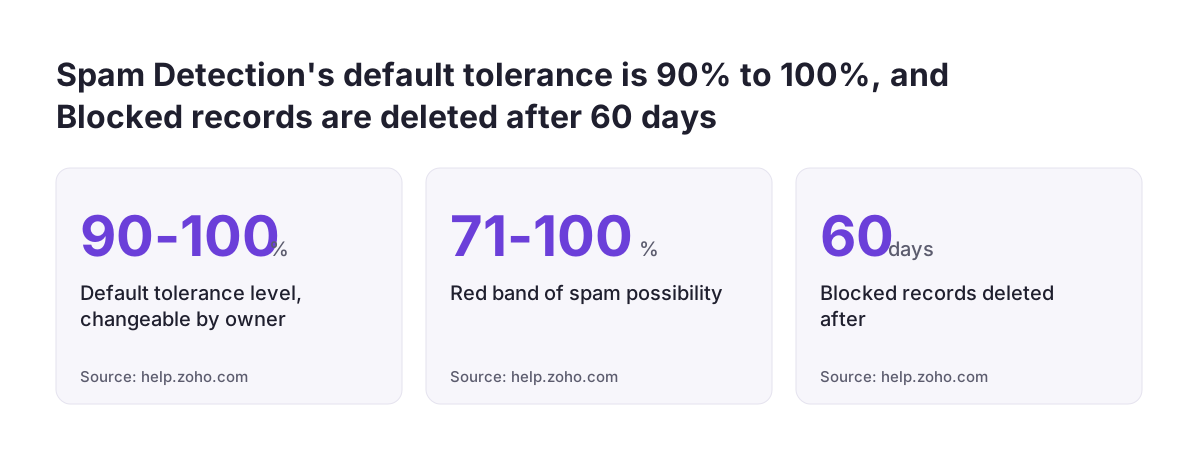
Scores fall into three colour bands. Green covers 1% to 20%, orange 21% to 70% and red 71% to 100%. The tolerance level decides which records are held back. By default every webform uses a range of 90% to 100%, and the webform owner can change it at any time.
The announcement also describes a honeypot field. A honeypot field is an invisible form field that genuine users never touch, so anything typed into it marks a bot.
Spam Detection is available in all paid editions, including the developer edition, but not the paid trial edition. Zoho rolled it out first to customers up to the Professional edition, with higher editions to follow. Check that it appears in your account.
Awaiting Leads, IP blocking and the 60-day Blocked list in Zoho CRM
Zoho CRM holds suspicious webform submissions on the Awaiting Leads page for manual approval. That page was previously called Approve Leads. Someone in your team reviews each held record and approves or rejects it. Nothing held there reaches the live Leads list until a person decides.
Duplicates land there too. The troubleshooting guide says a record that duplicates an existing one on its unique field moves to the Approve Leads section automatically. It goes under Duplicate Leads or Invalid Entries, even if lead approval is turned off.
The Record Source column helps with review. It shows where a submission came from, including its IP address, the webform name and the URL. If one form or one page attracts most of the junk, this column shows it.
You can go further than rejecting records. Administrators can block the IP addresses of records with high Spam Possibility Scores, which stops further submissions from them. Zoho also keeps its own list of blacklisted IPs based on security assessments. Records from those IPs are blocked automatically and permanently. Records in the Blocked category are deleted after 60 days, so blocked junk does not pile up in your account.
Validation rules catch the spam patterns that bots repeat
A validation rule checks what a submission contains and refuses it when the data breaks a condition you set. Zoho's troubleshooting guide treats validation as the strongest of its three standard defences. A bot can solve a CAPTCHA, but it cannot change a rule that runs inside CRM.
The useful rules come from your own spam. Look at the junk you already have and find what repeats. One forum user noticed that in every spam lead, the first name matched the last name. They wanted to act only when the two differed.
The user found the workflow design template would not let them compare one field with another. So test early whether the check you have in mind can be expressed where you plan to put it.
Email format deserves its own check. A community user reported that the generated embed code did not validate the structure of a submitted email address. They traced it to the validateEmail function. That function only appears when the form has an email field.
The validateEmail function selected the field by an "ftype" attribute that the email element did not carry. The user's workaround was to change the selector from [ftype="email"] to [name="email"]. If you host the source code, test the email check yourself rather than assume it works.
Consent capture in Zoho CRM webforms: double opt-in and cookie settings
Double opt-in is a process in which a visitor confirms a second time that they want to hear from you. In a Zoho CRM webform, the visitor confirms their submission before the data is pushed into CRM. It serves two jobs at once. It records consent, and it filters spam, because most bots never click a confirmation link.
Double opt-in has one requirement. It works only if the primary email field is on the form. Make that field mandatory on any form where you need a record of consent.
Cookie consent needs care too. Zoho's setup page explains that you can manage cookie consent on your own site. But if you self-manage cookies and do not call the required APIs, the system treats that as a rejection of consent. A form that seems to work can therefore behave as though every visitor said no. Test this before launch if your site uses its own cookie banner.
Whichever settings you choose, set the confirmation wording with whoever advises you on data protection. Double opt-in gives you the mechanism. Your adviser decides whether the wording fits your obligations under UK GDPR.
Assigning the right owner after a Zoho CRM lead is approved
Owner assignment in Zoho CRM depends on the record reaching the live Leads list. The troubleshooting guide is explicit: workflows do not trigger for webform records awaiting approval. They run only once someone approves the record. Every held lead therefore has no owner until it is reviewed.
That has two practical effects. First, make reviewing Awaiting Leads a named person's daily task, or real enquiries sit unassigned. Second, keep your spam tolerance sensible. A setting that holds too many genuine leads slows every one of them down.
Data quality matters as well. A workflow will not trigger if there is a data mismatch, for example a form value that does not fit the field it maps to. Map each form field to a CRM field of the right type. Test with realistic values. If you route leads by region or postcode, territory management in Zoho CRM explains how to set up rules that hold.
If you collect leads through Zoho Forms rather than a native CRM webform, check one more setting. The workflow trigger checkbox must be selected in the Zoho Forms integration setup. Otherwise records arrive without your workflows running.
Worked example: a Zoho CRM contact form that creates clean leads
Take a firm with one contact form on its website feeding the Leads module. It is on a paid edition with Spam Detection enabled. Here is the order in which you would set it up:
- Build the webform on the Leads module with First Name, Last Name, Email as the primary email field, Phone, Company and a message field. Use top alignment, because Zoho CRM webforms are not mobile responsive and top alignment makes them friendlier on phones.
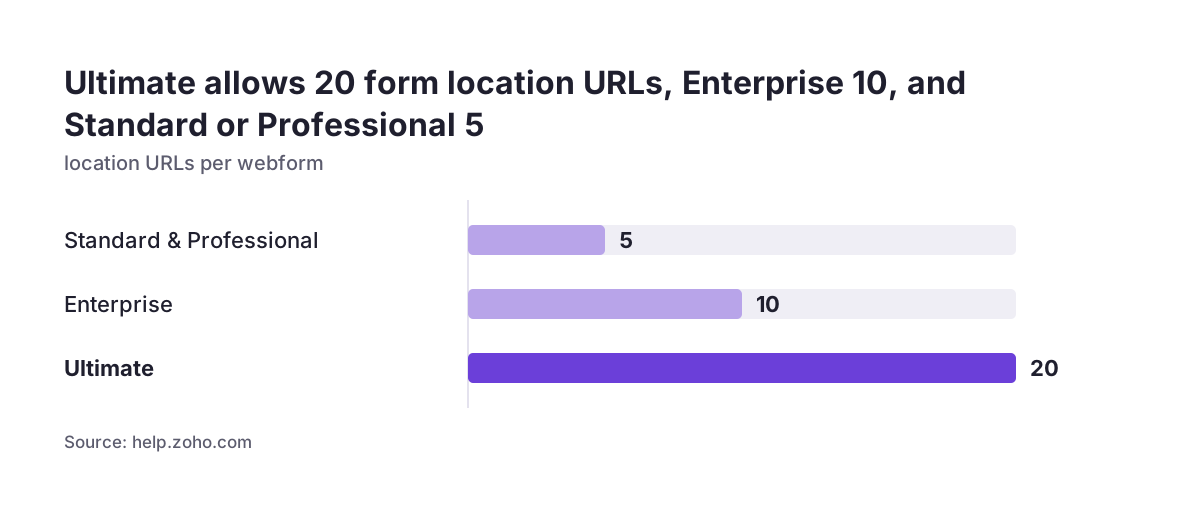
- Add the Location URL, the page where the form will live. Standard and Professional allow 5 location URLs, Enterprise 10 and Ultimate 20. Set a return URL of no more than 255 characters.
- Register a reCAPTCHA v2 checkbox with Google and paste in the site key and secret key exactly.
- Leave Spam Detection on at the default 90% to 100% tolerance for the first period.
- Turn on double opt-in so visitors confirm before the record is created.
- Add a validation rule for the pattern your existing spam shows.
- Publish the source code, and re-host it after every later change.
Before go-live, test every layer. When Svennis sets up a webform, we submit test entries from a temporary mailbox and with matching first and last names before launch. We do it because a layer that has never caught anything has never been tested. Then review Awaiting Leads each day. Lower the tolerance only if junk keeps reaching the live list.
Checklist: which Zoho CRM webform protection does what
Each protection catches a different kind of junk. No single one covers everything. The table shows what each layer checks, what it misses and what it needs, so you can see the gaps in your current form.
| Layer | What it checks | What gets past it | Requirement |
|---|---|---|---|
| reCAPTCHA v2 checkbox | Whether a person, not a script, is submitting | Humans submitting junk, bots that solve it | Paid edition, one per form, matching keys |
| Spam Detection | Phone, email, domain, single line text, IP, browser | Plausible data below your tolerance level | Paid edition, not the paid trial |
| Awaiting Leads approval | A person reviews held records | Nothing held, but it delays real leads | Someone who reviews it daily |
| Validation rule | Conditions you define on the data | Patterns you have not written a rule for | Knowledge of your own spam |
| Double opt-in | The visitor confirms by email | Spam from mailboxes that do confirm | Primary email field on the form |
| IP blocking | Repeat submissions from known addresses | Spam from new IP addresses | Administrator action |
Read down the third column. Every gap in one row is covered by another row, which is the case for layering. A form with only the first row is exposed to everything the other five catch.
What spam-free Zoho CRM webforms mean for a UK company
For a UK company, a spam-free webform is as much about data you choose to keep as about saving time. Every junk record in the Leads module is personal data that may not belong to anyone real. It also distorts your reports, your follow-up queues and any scoring you build on top. Holding suspicious records outside the live list keeps them out of that flow.
Three settings carry most of the weight for a UK business:
- Double opt-in gives you a confirmed record of each person who asked to hear from you.
- Correctly connected cookie consent stops a self-managed banner from being read as a blanket rejection.
- The 60-day deletion of Blocked records means rejected junk does not sit in your account indefinitely.
Check your edition before relying on any of this. Spam Detection and CAPTCHA both need a paid edition. Spam Detection is not part of the paid trial, so a form tested during a trial can behave differently after you subscribe. If you are still choosing an edition or planning the wider build, the Zoho CRM setup checklist for a UK firm puts webforms in context with the rest of the setup.
Next steps for a cleaner Zoho CRM webform
Start with the spam you already have. Open your Leads module and the Awaiting Leads page. Note what the junk records share: matching names, temporary mailboxes, a single source URL in the Record Source column. That list tells you which validation rule to write first.
Then work through these steps in order:
- Confirm you have the Manage Webform permission and a paid edition.
- Check that Spam Detection is active on each webform and note its tolerance.
- Add the reCAPTCHA v2 checkbox if the form does not have it.
- Write one validation rule for your most common spam pattern.
- Turn on double opt-in and make the primary email field mandatory.
- Re-host the newly generated code and submit test entries through every layer.
- Name the person who reviews Awaiting Leads each day.
If your form is one part of a larger question about how leads flow through your system, the Zoho CRM implementation and consulting page explains how Svennis UK can help with the build around it.