


Bringing external data into Zoho Analytics: the five routes
Bringing external data into Zoho Analytics works through five routes. You can use a built-in connector or a scheduled import from a file at a web address. You can use Zoho Databridge for large files and databases, Live Connect to query a database directly, or a third-party integration tool. Use the simplest route that covers your source, then put checks on the schedule.
External data is any data held outside your Zoho apps. Examples are a database on your own server, a spreadsheet on a shared drive, or a non-Zoho application such as another CRM or an advertising platform. Zoho Analytics is Zoho's reporting and business intelligence tool. It holds that data in tables and lets you build reports and dashboards over it.
Zoho's own help centre puts the purpose plainly. The key difference between Zoho Analytics and Zoho Creator is in-depth reporting and analytics against building custom database applications. If you need a place where people type in new records, that is a Creator job. If you need to combine records that already exist elsewhere and report on them, Analytics is the right tool.
Perhaps you have not yet decided whether you need Analytics at all. In that case, our guide to choosing between Zoho CRM reports and Zoho Analytics is the better starting point. This guide assumes you have Analytics and want more data in it.
Methods for loading external data into Zoho Analytics, compared
Each method for loading external data into Zoho Analytics suits a different kind of source. The table compares them on what they are best for, how the data stays current and where the data ends up. All the details come from Zoho's help pages and integrations page, and from Skyvia's product page for the third-party row.
| Method | Best for | How data stays current | Where the data sits |
|---|---|---|---|
| Built-in connector | Databases, SaaS apps and cloud platforms on Zoho's list of 500+ sources | Sync set up inside Analytics, no coding | Imported into Analytics |
| Periodic import from a web URL | CSV data published at a fixed web address | Periodic import schedule | Imported into Analytics |
| Zoho Databridge | Files over 100 MB; MySQL, Microsoft SQL Server, Oracle, PostgreSQL | Periodic schedules from a local or hosted database | Imported into Analytics |
| Live Connect | A database you want to report on directly | Reports query the database each time | Stays in your database, not on Zoho's servers |
| Third-party tool (for example Skyvia) | Files in Dropbox, Box, Google Drive, Amazon S3, Azure or on FTP/SFTP | Schedules as frequent as once per minute | Imported into Analytics |
Read the table from the top. If a built-in connector exists for your source, it is usually the least work to maintain. Move down a row only when the row above does not fit your size, location or freshness needs.
Built-in Zoho Analytics connectors: when they are enough
Built-in connectors are enough when your source appears on Zoho's integrations list and a scheduled copy of the data meets your needs. Zoho says Analytics can import, blend, sync and analyse data from more than 500 databases, SaaS apps and cloud platforms "without writing a single line of code". A connector is a ready-made link that Zoho maintains, so you configure it rather than build it.
The integrations page quotes customers who chose Analytics for this reason. A Viatek general manager says it "directly integrates with Salesforce CRM". A Glide Invest head of product names integration with Zoho apps, social media apps, Google BigQuery and AWS. Those are customer statements. Check your own source on the Zoho Analytics integrations page before you plan around it.
The list changes. Zoho described its June 2026 Analytics update as being about "bringing it in from more sources, and keeping it flowing with less manual effort". A source that needed a workaround last year may have a connector now.
Combining several apps in one report
A common first question is how to report across several apps at once. One user on the Zoho community forum wanted open tasks across Desk, CRM and Projects in a single view. They wrote: "So far I only see how to connect to one Zoho app at a time." In practice, you bring each source in as its own set of tables. You then combine them inside Analytics, as the worked example later in this guide shows.
Zoho Databridge for large files and in-house databases
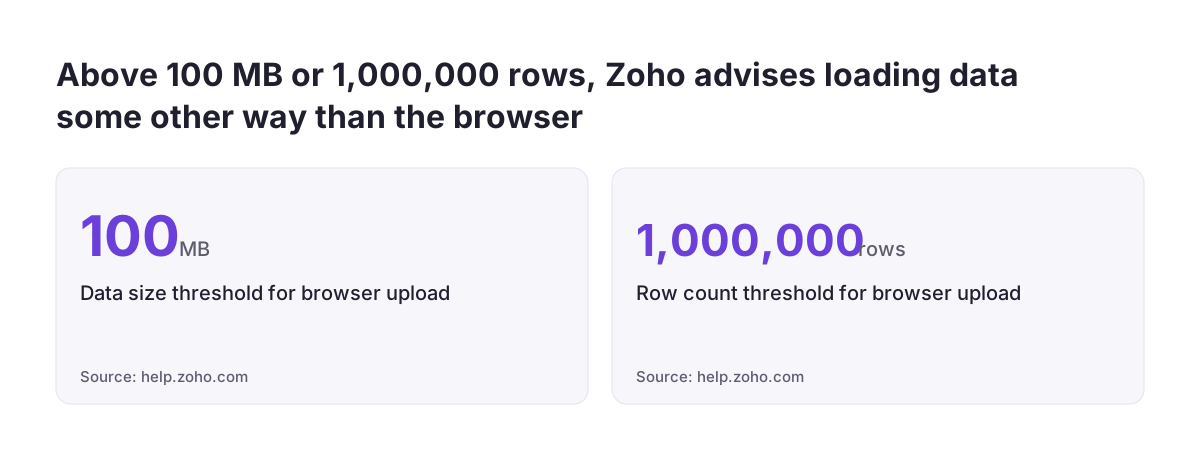
Zoho Databridge is a utility from Zoho Analytics for importing large flat files and data from on-premise and cloud databases. Use it when your data is too big for the browser or sits on a server inside your network. Zoho's help centre says data over 100 MB or 1,000,000 rows may be better loaded another way than through the web interface. One reason it gives is that the upload happens over the internet.
Databridge covers three needs:
- importing CSV and TSV files larger than 100 MB;
- importing from a local or hosted database such as MySQL, Microsoft SQL Server, Oracle or PostgreSQL;
- automating the import so the database synchronises into Analytics at periodic intervals.
According to Zoho's integrations page, Databridge creates a secure connection between your data source and the Zoho Analytics server. You download it from inside the Zoho Analytics interface, configure it and start uploading. You do not open your database to the internet by hand.
You can link more than one Databridge installation to your account, for example one per database server. You monitor and manage all of them from the Manage Databridge tab on the Account Setup page in Analytics. That single screen matters later, when you need to see whether last night's import ran. Zoho's tip on importing files larger than 100 MB covers the basics.
Live Connect: reporting on a database without copying the data
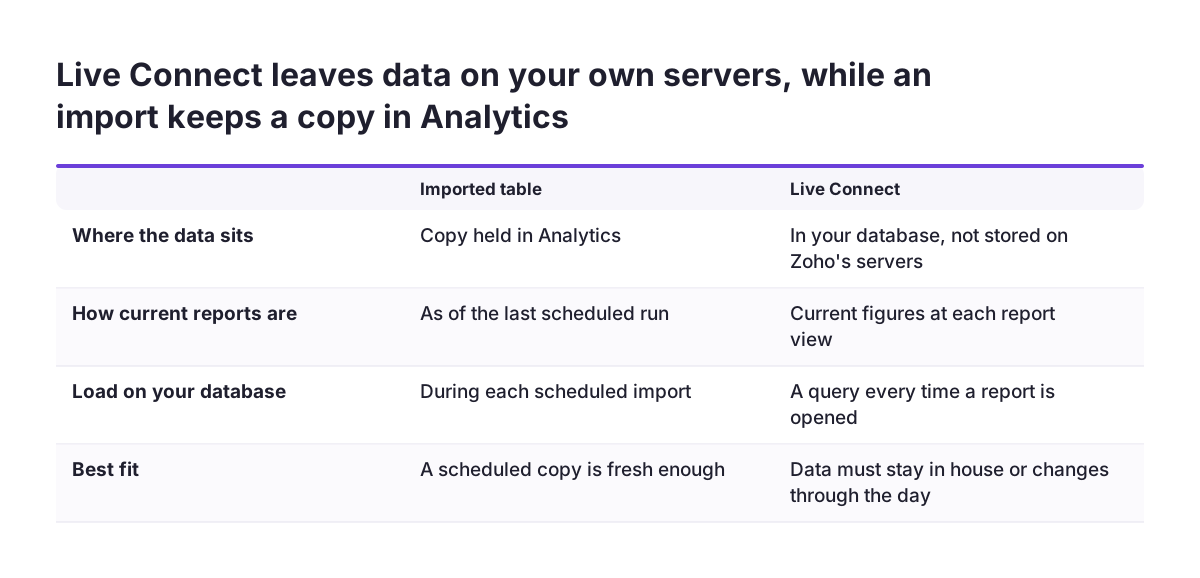
Live Connect is a Zoho Analytics feature that builds reports and dashboards by querying your database directly. It does not store the data on Zoho's servers. Zoho's integrations page states this plainly: "Data will not be stored in our servers."
Choose Live Connect when the data must stay where it is, or when a scheduled copy would be too old to be useful. Stock levels or order queues that change through the day are typical cases. Every time someone opens the report, Analytics asks your database for the current figures.
The trade-off is that your database does the work. Each report view becomes a query on that system. A busy dashboard therefore adds load to a server that may also run your operations. A scheduled import moves that load to a quiet hour instead.
Live Connect also shifts the reliability question. With an import, a failed sync leaves you with yesterday's data. With Live Connect, a database that is offline or unreachable leaves the report empty until it returns. Decide which failure your team would rather live with, and choose on that basis rather than on which option sounds more modern.
Third-party integration tools for sources Zoho does not cover
A third-party integration tool is worth considering when your source has no Zoho connector, or when you need control that the built-in options do not give. Skyvia is one example. Its product page for Zoho Analytics describes what such a tool adds.
The Skyvia page lists these capabilities:
- uploading CSV data from a local computer or from Dropbox, Box, Google Drive, Amazon S3, Azure or an FTP/SFTP server;
- INSERT, UPDATE, DELETE and UPSERT operations against Zoho Analytics, where UPSERT updates a matching row or inserts it if none exists;
- column, constant, function and lookup mapping between the file and the target table;
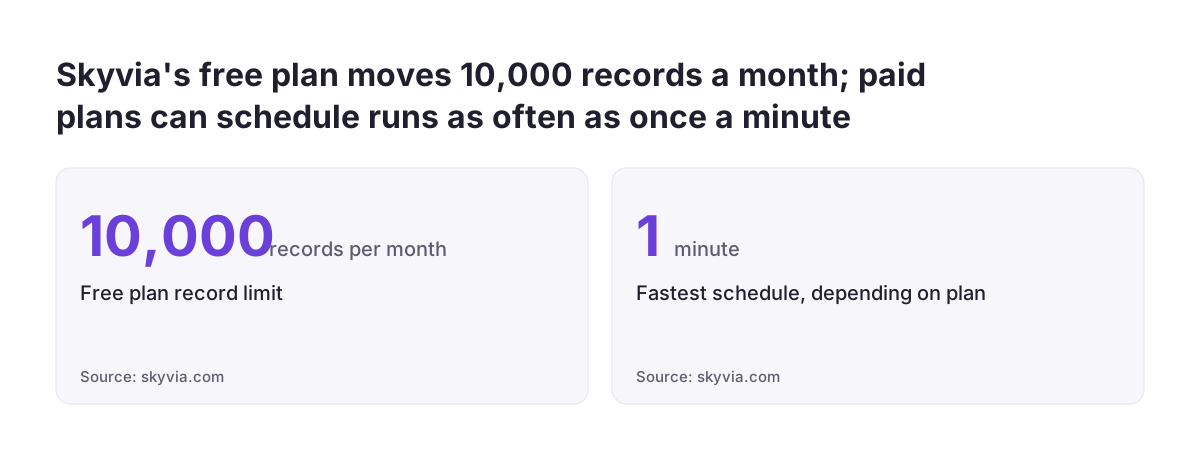
- manual runs or schedules as frequent as once per minute;
- per-record logs and email notifications when a run fails.
Skyvia says its free Data Integration plan allows up to 10,000 records per month. That is enough to test a feed, but not to run a busy one. Check the paid limits on the vendor's own pricing before you commit. Some consultancies build a fully custom integration in code instead. That route suits unusual sources, but you then own the maintenance.
A Zoho help article also mentions a route for in-house applications. It covers periodic imports from CSV data published at a web URL. If your own system can export a CSV to a fixed address, Analytics can collect it on a schedule without any extra tool.
Worked example: SQL Server orders blended with Zoho CRM data
This worked example uses a common setup. Order history sits in Microsoft SQL Server on your office network, and customer accounts sit in Zoho CRM. The goal is one Zoho Analytics report showing revenue by account manager.
- Connect Zoho CRM. Use the built-in Zoho CRM connector so that accounts and owners arrive as tables in your workspace.
- Install Databridge. Download Zoho Databridge from the Zoho Analytics interface and install it on a machine that can reach the SQL Server.
- Configure the database. In Databridge, choose Microsoft SQL Server and give it the server details and a read-only login. Select the orders table.
- Set the schedule. Set a periodic import, for example nightly, so orders synchronise without manual uploads.
- Check the installation. Open the Manage Databridge tab on the Account Setup page and confirm the installation shows as active.
- Blend the two sources. Create a query table that joins orders to CRM accounts on a shared customer reference.
- Build the report. Base the revenue by account manager report on that query table.
A query table is a Zoho Analytics table that holds data filtered from several other tables by a Select query. The join only works if both systems store the same customer reference in the same format. That is why clean keys matter before import. Our guide to importing data into Zoho CRM without breaking your records covers how to set those keys up on the CRM side.
Keeping imported data reliable in Zoho Analytics
Imported data stays reliable when you check the first load, watch every scheduled run and fix problems at the source. A report that silently shows last week's figures does more harm than no report. Directors act on it.
At Svennis, we load a small sample first and compare its row count and totals with the source system. We switch on a schedule only after those match, because a mapping error is far cheaper to fix before it repeats every night.
After go-live, build these checks into your routine:
- Look at the Manage Databridge tab, or your third-party tool's run log, after each scheduled import.
- Turn on error notifications wherever the tool offers them, as Skyvia does by email.
- Keep one simple control report, such as rows imported per day, so a gap is visible at a glance.
- Fix wrong values in the source system, not in Analytics, or the next sync will overwrite your fix.
- Agree who owns each feed, so a failed run reaches a named person.
Plan large one-off loads separately from the daily feed. Moving years of history is closer to a data migration than a sync. Zoho's guidance on loads over 100 MB or 1,000,000 rows applies most of all there.
Sending blended data onward from Zoho Analytics to Zoho Campaigns
Blended data in Zoho Analytics can feed other Zoho apps, and Zoho Campaigns is the clearest example. Its integration lets you import contact data from Analytics tables. You can also sync an Analytics query table with a Campaigns mailing list. You might, for instance, send a mailing to customers whose orders from your SQL Server have dropped.
The Zoho Campaigns help page on importing from Zoho Analytics lists rules that catch people out:
- Mapping the email address field is mandatory.
- You cannot edit sync details after saving; different criteria need a new sync.
- A recurring daily, weekly or monthly sync needs at least one calendar field in the table.
- Contacts with role addresses such as info@ or support@ are ignored.
- You can have at most 144 active Analytics syncs at once.
- Changing the ZSC key, a security key for the connector, invalidates every existing sync.
The ZSC key only needs changing when the primary email on the Analytics account changes, or when the connector moves to another admin. Treat both as planned changes. Rebuild the syncs on the same day.
What external data in Zoho Analytics means for a UK company
For a UK company, the main choice is about where your data may sit and how much your connection can carry. Both shape which method from this guide fits.
Some firms have contracts or internal policies that keep certain data on their own servers. For those firms, Live Connect is the method to look at first. Zoho states that with Live Connect the data is not stored on its servers. An imported table, by contrast, is a copy held in Analytics. Your data protection lead should know which tables are copies and which are queried live.
Connection speed matters for offices on modest broadband. Zoho notes that browser uploads happen over the internet. It also advises against the web interface for loads over 100 MB or 1,000,000 rows. A nightly Databridge schedule moves that traffic outside working hours.
Keep a short written record of each feed: source, method, schedule, owner and where the data is held. That record answers most questions from auditors, customers or a new finance director. If you are new to the wider subject, our glossary entry on what data analytics is sets out the terms.
Zoho's February 2026 release added a remote MCP server, which is a standard way for AI tools to connect to applications. The June 2026 update focused on reaching data from AI assistants. If you plan to ask questions of your data that way, read up on AI for reporting first.
Next steps for bringing your data into Zoho Analytics
The practical next step is to list your sources and match each one to a method from the comparison table. Do it on one page before you touch any settings.
- Write down every system that holds data you report on, with its rough size and how fresh the figures must be.
- Check each source against the Zoho Analytics integrations page and note which ones have a built-in connector.
- For databases on your own network, or files over 100 MB, plan a Databridge installation. For data that must stay stored on your own servers, plan Live Connect. Check with your data protection lead what still passes through Zoho when a report runs.
- Load a sample, compare totals with the source and only then set the schedule.
- Name an owner for each feed and set up error notifications.
- Once the data is trusted, share the results with our guide to scheduled email reports and sharing in Zoho Analytics.
If your list includes several databases or a source with no connector, our Zoho Analytics page explains how we set up and support Analytics for UK firms.
Sources
- Zoho Analytics: Connect 500+ Data Sources (integrations)
- Zoho Analytics Help: How to upload/push data from in-house and hosted applications
- Zoho Community: Import files larger than 100 MB easily
- Zoho Community: Combining Data from Multiple Zoho Apps?
- Zoho Campaigns Help: Import contacts from Zoho Analytics
- Skyvia: Zoho Analytics CSV/Excel Import and Export