


Data alerts in Zoho Analytics for managers: the short answer
Data alerts in Zoho Analytics for managers work best with four limits. Each alert watches one metric that someone must act on. It fires only when a threshold set from your own history is crossed. It goes to one named owner, on a schedule that matches how fast that owner can respond. Everything else belongs in a report or a dashboard.
The rest of this guide shows how to apply those limits. It covers choosing the metrics, setting thresholds, picking recipients and deciding how often each check runs. It then walks through one worked example, gives you a checklist table and explains when to move an alert into Zoho Flow.
The aim is a short list of alerts that people still open after six months. A long list fails because people stop opening it. When managers start filtering alert emails into a folder, the alerts have stopped doing their job. A worse problem follows: the one alert that matters gets filtered with the rest.
What a data alert is, and how it differs from a scheduled report
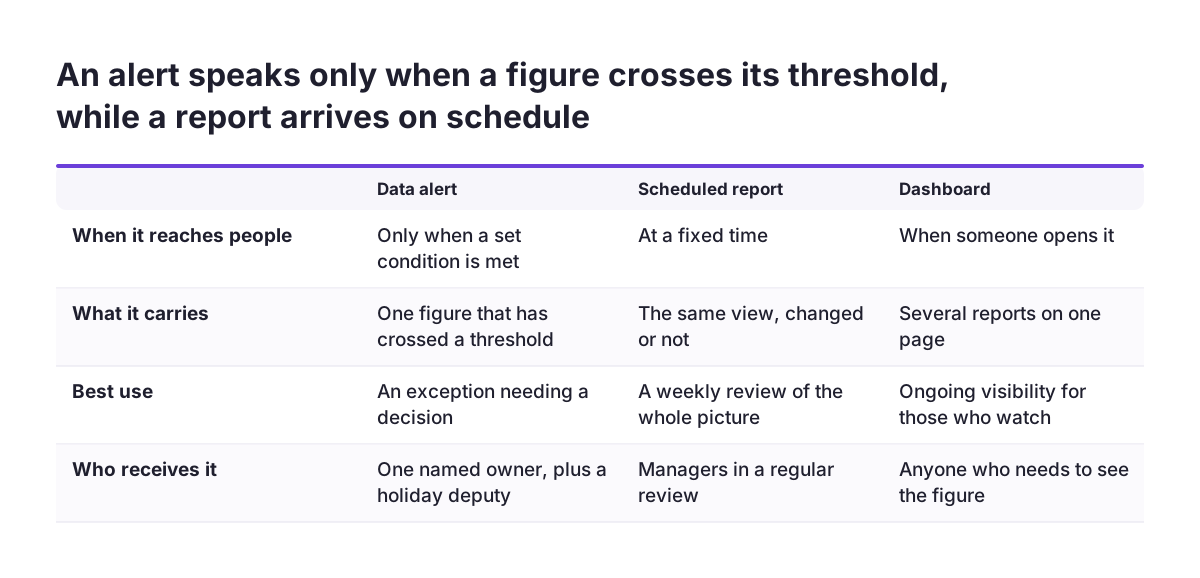
A data alert is a rule in Zoho Analytics that watches a figure in your data and notifies chosen people when that figure meets a condition you set. A scheduled report is different. It sends the same view at a fixed time, whether or not anything has changed. An alert stays silent until something happens.
The difference shapes how you use each one. A scheduled report suits a weekly review, where a manager reads the whole picture. An alert suits an exception: a figure that has moved far enough to need a decision. Alerts can reach people by email, in-app notification or a Slack message.
Zoho Analytics itself is an online reporting and business intelligence service for analysing business data and building reports and dashboards, as Zoho's own integration page describes it. Alerts sit on top of those reports. If you are new to the wider discipline, our glossary entry on what data analytics means for a business covers the basics.
Alert fatigue is what happens when people receive so many notifications that they stop reading any of them. Every design choice in this guide aims to prevent it.
Choosing the few metrics that deserve an alert
A metric deserves an alert only when a change in it leads to a specific action by a specific person. Interesting numbers do not qualify. A rising web visit count is interesting. A run of unpaid invoices past their due date demands a phone call.
Start with the functions that already use analytics. Zoho lists sales, marketing, human resources, finance and customer service as the main users. It also says finance teams use analytics to understand client payment behaviour, track cash flow, analyse margins and forecast revenue, according to Zoho's guide to data analytics. Each of those tasks contains one or two exception figures worth watching.
Three questions filter a long wish list down to a short one:
- What would the recipient do the same day if this alert arrived?
- Would they notice the change anyway, in a report they already read?
- Does acting late cost money, customers or compliance?
Some figures need only visibility, not a notification. Zoho Analytics offers conditional formatting based on other columns, which can highlight, for example, where sales are overshadowed by product returns, as shown in the Zoho Analytics community tips forum. A coloured cell on a dashboard is often enough.
Setting alert thresholds from your own history, not round numbers
A threshold is the value that makes an alert fire, and it should come from your own past data. Round numbers chosen in a meeting tend to fire too often or never. Both outcomes teach people to ignore the alert.
Look back over a full trading cycle before you set anything. Build a simple chart of the metric in Zoho Analytics and find the range it normally moves within. Set the threshold just outside that normal range. A value inside the range is noise. A value outside it is news.
Use two levels only where two responses exist
Some metrics have a warning level and a serious level. Use both only when each level triggers a different response or a different person. If the response is the same, one threshold is enough.
Check the data is current before trusting the threshold
An alert is only as current as the data under it. Zoho Analytics is integrated with Zoho CRM, Zoho Finance, Zoho Desk, Zoho Recruit, Zoho Projects and other Zoho services, according to the Zoho Analytics FAQ. Data from outside Zoho needs more care, and our guide to bringing external data into Zoho Analytics covers how to keep imports reliable.
Choosing alert recipients: one owner per alert
Every alert needs one named owner, the person who acts when it fires. Copying a whole team spreads responsibility until nobody takes it. Each person assumes someone else has picked it up.
Others can still see the figure. Put it on a dashboard they already use, so they have visibility without a notification. A dashboard is a single page that organises several reports, giving an overview of data from different sources. Reserve the alert itself for the owner, plus a deputy for holidays if the metric cannot wait.
When Svennis sets up alerts for a client, we ask each manager what they would do the same day if the alert arrived. If nobody can answer, we build a dashboard tile instead of an alert.
Recipients also have a licence effect. Anyone to whom at least one view is privately shared counts as a user in the Zoho Analytics pricing model, and the Account Administrator counts too, according to the Zoho Analytics FAQ. If an alert links to a report the recipient must open, sharing that report may add a paid user. Our page on Zoho Analytics for UK businesses explains how the product fits a wider setup.
Alert schedules: matching the check to the decision speed
An alert should check its data as often as the owner can act on it, and no more often. A check every hour is pointless for a figure that a manager reviews once a week. Frequent checks on slow decisions produce repeat notifications about the same problem.
Match each alert to one of three rhythms:
- Daily, for operational figures such as open support tickets or overdue payments.
- Weekly, for trends a manager reviews in a regular meeting.
- Monthly, for slower figures such as margin or headcount movement.
Time the check after your data sync, not before it. An alert that runs on yesterday's data reports a problem that may already be fixed. It may also miss one that has just appeared.
Think about when the notification lands. An alert that arrives at the start of the working day gets read. One that arrives late on a Friday often waits until Monday, so a daily figure loses two days. Workforce figures follow the same logic, and our glossary entry on workforce analytics lists the people metrics that suit a slower rhythm.
Worked example: an overdue invoice alert for a finance manager
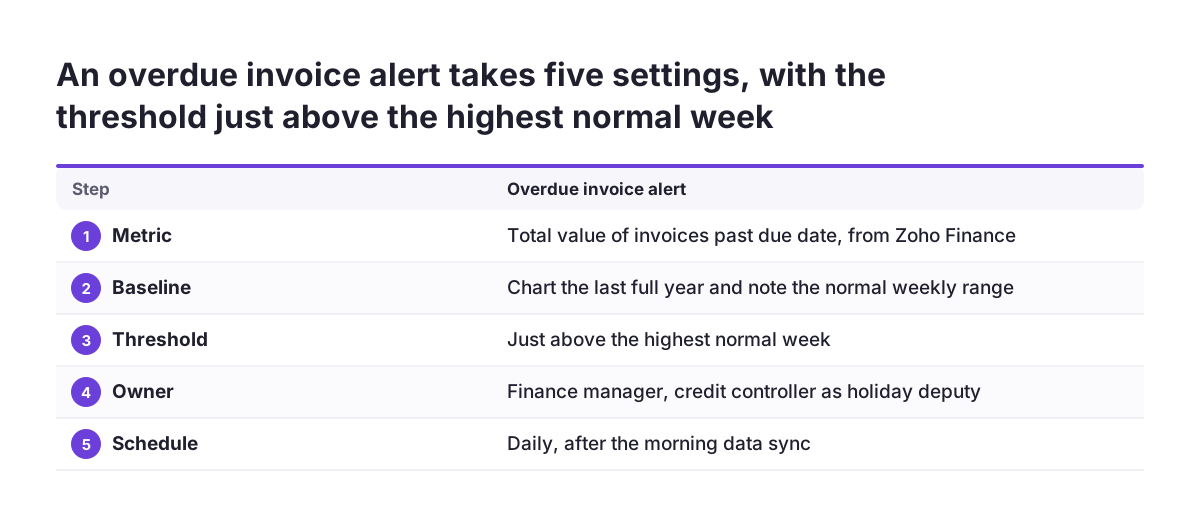
An overdue invoice alert shows the method end to end. The finance manager wants to know when unpaid invoices past their due date climb beyond normal. Zoho names tracking cash flow and client payment behaviour as core finance uses of analytics, so this is a typical first alert.
- Metric. Total value of invoices past their due date, taken from the Zoho Finance integration in Zoho Analytics.
- Baseline. Chart the metric over the last full year and note its normal weekly range.
- Threshold. Set it just above the highest normal week, so ordinary month-end movement does not fire it.
- Owner. The finance manager alone, with the credit controller as deputy during holidays.
- Schedule. Daily, after the morning data sync, so the owner can chase payments that day.
- Action. The alert names the action: review the overdue list and call the largest debtors.
Run the alert for a month, then review it. Count how often it fired and how often the manager acted. If it fired often with no action, the threshold is too low. If it never fired while cash was tight, the threshold is too high.
Alert checklist: the decision for each alert in one table
The table below is a checklist for each alert. Fill in one row per alert before you build it in Zoho Analytics. If you cannot complete a row, the alert is not ready.
| Decision | Question to answer | Sign the alert is wrong |
|---|---|---|
| Metric | What action follows when this figure changes? | No one can name the action |
| Threshold | Is the value outside the normal range in your own history? | It fires most days, or never |
| Owner | Which single person acts? | A team list with no named owner |
| Schedule | How fast can the owner respond? | Checks run faster than decisions |
| Data freshness | Does the check run after the data sync? | Alerts report problems already fixed |
| Review date | When will you check it still earns its place? | No review date set |
Keep the completed table with your workspace notes. A workspace in Zoho Analytics is where you create your reports, dashboards and views, so it is the natural home for the record. When an alert changes, update its row.
When to move an alert into Zoho Flow
Zoho Flow suits alerts that need logic Zoho Analytics alerts do not provide, such as branching, delays or a different channel. Zoho Flow connects Zoho Analytics with other apps without code. It supports if-then branches and time delays, according to Zoho Flow's SMS Alert and Zoho Analytics integration page.
In Zoho Flow, a trigger starts the flow and actions are the automated tasks that follow. The same page lists Zoho Analytics actions such as creating, updating and fetching rows in a table. It also lists SMS Alert actions to create a contact, schedule an SMS and send an SMS. Custom functions can format data, call web APIs and send emails.
Three situations justify the extra build:
- The response depends on a second condition, which an if-then branch can test.
- The owner should only hear if the problem persists, which a time delay can handle.
- The owner works away from a desk and needs a text message rather than an email.
Keep the same discipline in Zoho Flow. A text message interrupts more than an email does. Use it only for the alerts that justify the interruption.
What data alerts mean for a UK company: licences, access and personal data
For a UK company, data alerts raise three practical points: licence counts, access control and personal data. None needs a large project. Each needs a decision before you share alerts widely.
Licence counts
Private sharing of a view adds a user to your Zoho Analytics licence. The free plan supports 2 users, 5 workspaces and 10,000 rows, according to the Zoho Analytics FAQ. A firm on the free plan will reach the user limit quickly if alerts link to shared reports.
Access control
Zoho stresses fine-grained access control to protect data privacy and security. Apply that to alerts. A recipient should see only the figures their role needs, and an alert email should not carry more detail than the dashboard behind it.
Personal data
Some alerts name customers or staff, such as an overdue debtor list or an absence report. Treat those notifications as personal data under your UK GDPR policy. Prefer an alert that states the total and links to the secured report. Avoid an email that lists names.
Next steps: build three alerts, then review and prune
The practical next step is to build no more than three alerts this month and review them after four weeks. Three is enough to test your thresholds, owners and schedules. It is also few enough that each one gets a proper review.
- List every alert you think you want, then apply the three questions on metric choice.
- Complete the checklist table for the three that survive.
- Build them in Zoho Analytics, timed after your data sync.
- After four weeks, count how often each fired and how often someone acted.
- Raise, lower or delete each threshold based on that count.
Delete freely. An alert that never led to action is clutter, and removing it makes the remaining ones more credible. Add a new alert only when a manager asks for one with a clear action attached.
If your data sources, sharing model or licence count make this harder than it looks, a partner can help with the setup. Our guide to what a Zoho partner does explains where that help fits.